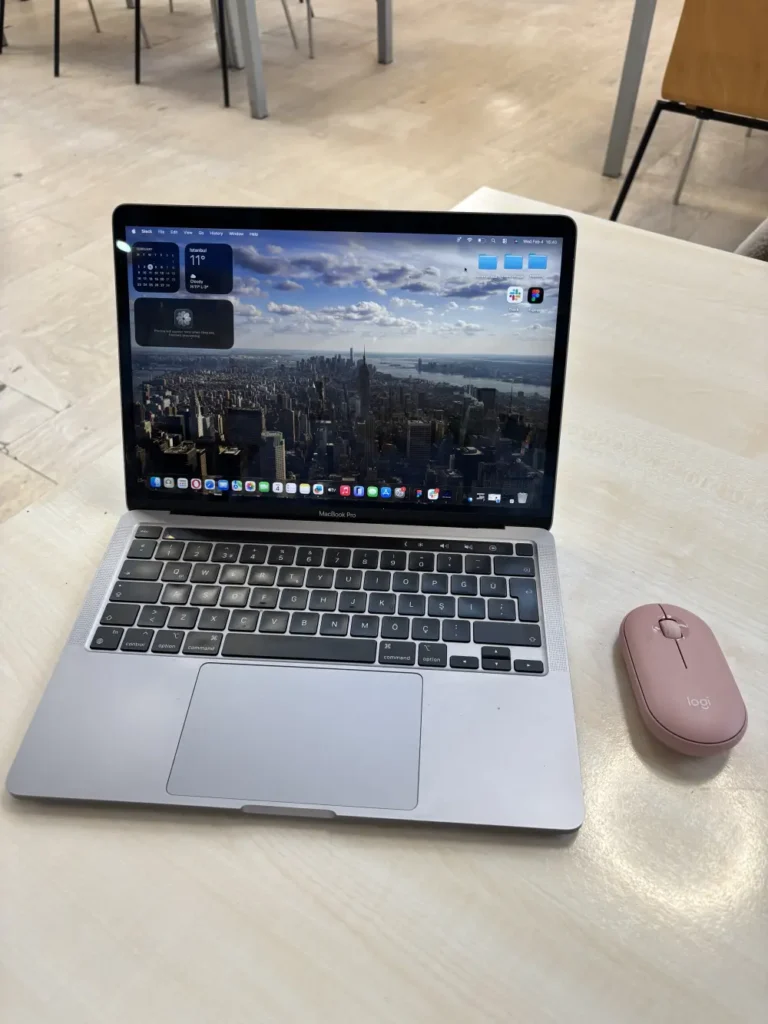
Written by Metin KARAL – Computer Engineer with 25+ years of experience in internet technologies. Some products here are tested directly, while others are evaluated through detailed research, specifications, and verified customer feedback. This article may contain affiliate links; as an Amazon Associate we earn from qualifying purchases at no extra cost to you.
Apple’s trackpad is genuinely excellent — but it has limits. Most mice on the market today are compatible with both Mac and PC, but there are several key factors to consider to ensure you find the perfect fit — and for newer MacBooks that only have USB-C ports, a Bluetooth mouse is the most practical choice for seamless connectivity. Whether you’re looking for a productivity powerhouse, a travel companion, an ergonomic solution for wrist pain, or even a gaming mouse that doesn’t clash with your Apple desk — the right pick changes everything.
This roundup covers 9 picks across every workflow and budget — from Apple’s own officially recommended mouse and trackpad to Logitech’s most advanced MX Master 4, a dedicated Mac gaming option, and an ultra-budget pick that costs less than most cables. Every product is confirmed Bluetooth compatible, independently reviewed, and matched to a specific Mac user profile. More advanced mice often come with software to customize buttons and settings — always confirm macOS compatibility before buying, especially on Apple Silicon Macs running recent versions of macOS. Here’s everything you need to find the right one.
Editor’s Recommendation ⭐
Logitech MX Master 4 — The top pick for Mac users who want the most capable wireless mouse available. Haptic feedback, per-app Action Ring shortcuts, and MagSpeed scrolling make it genuinely different from everything else in this roundup — not just a spec upgrade but a workflow upgrade. If you spend serious time at a Mac and want a mouse that adapts to how you work, this is the one to buy.
Compare Best Bluetooth Mouse for Mac 2026
| Model | Best For | Why |
|---|---|---|
| Logitech MX Master 4 | Best Overall | Haptic Sense Panel, Action Ring per-app shortcuts, MagSpeed scrolling, and 8,000 DPI Darkfield tracking — the most feature-complete Mac mouse available. |
| Apple Magic Mouse (USB-C) | Official Apple Pick | Multi-Touch gesture surface, instant Mac pairing, and ambidextrous design — the only mouse that extends your MacBook’s trackpad language to a desk setup. |
| Apple Magic Trackpad | Best Apple Experience | Force Touch, edge-to-edge glass, full macOS gesture support, and Universal Control — Cult of Mac’s best input device in the world. |
| Logitech MX Anywhere 3S | Best Travel Pick | 8,000 DPI glass tracking, MagSpeed scrolling, and 90% quieter clicks in a 99g pocket-sized package with 70-day battery. |
| Logitech M240 Silent | Best Ultra-Budget Pick | SilentTouch Technology, 18-month pre-installed battery, dongle-free Bluetooth, and ambidextrous design at the lowest price in this roundup. |
| Logitech Lift Vertical Ergonomic | Best Ergonomic Pick | 57° vertical design reduces wrist strain, verified 24-month battery, quiet clicks, and a left-handed version available separately. |
| Logitech G705 Wireless | Best Mac Gaming Pick | 8,200 DPI Lightspeed gaming performance, LIGHTSYNC RGB, and full macOS compatibility in the only gaming mouse designed for an Apple desk. |
| Logitech Pebble Mouse 2 M350s | Best for MacBook Neo | 76g featherlight, 24-month battery, 3-device Easy-Switch, and silent clicks — matches MacBook Neo’s carry-everywhere philosophy perfectly. |
| Logitech Signature M650 | Best Mid-Range Pick | SmartWheel scrolling, contoured small-to-medium hand design, silent clicks, and 24-month battery — premium features at a mid-range price. |
Quick Specs Comparison
| Product | DPI | Battery | Connectivity | Weight | Hand |
|---|---|---|---|---|---|
| Logitech MX Master 4 | 8,000 | 70 days | Bluetooth + Logi Bolt | 141g | Right |
| Apple Magic Mouse | N/A | 1 month | Bluetooth | 99g | Both |
| Apple Magic Trackpad | N/A | 1 month | Bluetooth | 231g | Both |
| Logitech MX Anywhere 3S | 8,000 | 70 days | Bluetooth + Logi Bolt | 99g | Right |
| Logitech G705 | 8,200 | 40 hours | Lightspeed + Bluetooth | 85g | Right |
| Logitech Pebble M350s | 4,000 | 24 months | Bluetooth + Logi Bolt | 76g | Both |
| Logitech Signature M650 | 4,000 | 24 months | Bluetooth + Logi Bolt | 99g | Right |
| Logitech Lift Vertical | 4,000 | 24 months | Bluetooth + Logi Bolt | 125g | Right |
| Logitech M240 Silent | 4,000 | 18 months | Bluetooth | 73g | Both |
Logitech MX Master 4 Wireless Mouse — Best Overall Pick

Quick Summary
- 🧲 Haptic Sense Panel — configurable haptic feedback under thumb for tactile workflow control
- 🔄 Action Ring — customizable radial menu adapts shortcuts per app automatically
- ⚡ MagSpeed scroll wheel — 1,000 lines per second, stops on a pixel
- 🎯 8,000 DPI Darkfield sensor — tracks on any surface including glass
- 🔋 70-day battery — USB-C fast charging, 1 minute charge = 3 hours use
- 🔌 Logi Bolt USB-C + Bluetooth — connect up to 3 devices, switch instantly
Editor’s Note
Logitech’s MX Master line has defined the productivity mouse category for nearly a decade — and the MX Master 4 is the most significant upgrade in that lineage. Tom’s Guide calls it the king of mice, noting it packs stellar performance for both productivity and gaming, while CNN Underscored’s reviewer — a devoted Apple Magic Trackpad user for 15 years — called it the first mouse to genuinely dethrone the trackpad from their daily workflow. Macworld praised it for introducing haptic feedback technology for the first time at the same price as its predecessor — a rare move from a premium brand. Backed by thousands of verified buyers across Amazon and major retail channels, the MX Master 4 is the best wireless mouse for Mac that serious users buy and keep for years.
Pros
- Haptic Sense Panel — first mouse haptics that genuinely improve workflow, not just a gimmick
- Action Ring — per-app shortcut overlay adapts to Final Cut Pro, Photoshop, Chrome automatically
- MagSpeed scroll wheel — independently verified as Logitech’s fastest, quietest, most precise scroll
- Tom’s Guide, Macworld & 9to5Mac tested — independently reviewed by every major Apple publication
- 54% recycled plastic — most sustainable premium mouse in this roundup
Cons
- Haptics require Logi Options+ — full feature set locked behind software install
- Right-handed only — no left-handed version despite years of user requests
The first Apple Macintosh in 1984 introduced the mouse as a standard input device — a move that revolutionized personal computing and made point‑and‑click navigation mainstream.
Why We Liked It
The MX Master 4 introduces three headlining upgrades: haptics, feel, and the new Action Ring. The haptic engine makes the mouse feel significantly more premium — triggering a satisfying feedback when switching spaces on Mac or activating gestures, making interactions feel more intentional rather than accidental. For MacBook Pro and Air owners who run creative workflows across multiple apps, the Action Ring intelligently switches profiles as you switch applications — controlling your timeline in Final Cut Pro, switching tools in Photoshop, then managing tabs in Chrome, all from the same physical ring gesture.
The silicone coating that degraded over time on older MX Master models has been replaced with higher quality matte plastics — making this the most durable and comfortable MX Master chassis yet. The honest caveat is the Universal Control bug: moving the cursor to a second MacBook and closing its lid caused display flickering and required a restart to resolve. For single-Mac users this is completely irrelevant — for multi-Mac setups, it’s worth knowing before buying. After two weeks of steady use including a work trip, battery remained at 50% charge — real-world evidence the 70-day rating is credible.

Logitech MX Master 4 Wireless Mouse
Summary
The Logitech MX Master 4 is one of the best wireless mouse for Mac for professionals who demand more from their peripherals. Haptic Sense Panel, Action Ring per-app shortcuts, MagSpeed scroll wheel, and 8,000 DPI Darkfield tracking — all independently verified by Tom’s Guide, Macworld, 9to5Mac, and CNN Underscored. The Universal Control bug is a real caveat for multi-Mac users — for everyone else, this is the mouse that makes you forget you’re using a mouse.
Related Post : Best USB‑C Hubs and Docking Stations for MacBook & Mac Mini
Apple Magic Mouse (USB-C) — Official Apple Pick

Quick Summary
- 🍎 Apple’s official Mac mouse — ships with every iMac, pairs instantly with zero setup
- 🖐️ Multi-Touch surface — swipe, scroll, and gesture across the entire top panel
- 🔋 1-month battery life — USB-C rechargeable, included cable charges from any Mac port
- 🤲 Ambidextrous design — button-free surface works equally for left and right hands
- 🎨 2 color options — White and Black (Space Black finish)
- ⚙️ macOS 15.1 required — for full gesture support and advanced settings
Editor’s Note
The Apple Magic Mouse is the mouse that all others have to square up to in the battle for the best mouse for Mac users — unchanged since 2015 aside from the USB-C charging update, and in reality little changed since 2009. RTINGS.com recommends the Apple Magic Mouse as the best mouse for Mac users — noting Apple is known for making devices that work well together. What makes it genuinely irreplaceable for many Mac users is its Multi-Touch surface — the entire top panel acts like a small touch-sensitive trackpad, combining the fluidity of a trackpad with the physicality of a mouse in a way no competitor has replicated. Backed by thousands of verified buyers and consistent recommendation from major Apple publications, this is the mouse Apple ships in the box with every iMac for a reason.
Pros
- Multi-Touch surface — full trackpad-style gestures on a mouse, unique to Apple
- Zero setup — pairs automatically with any Mac the moment you connect the cable
- Ambidextrous — button-free design works equally for left and right-handed users
- RTINGS.com recommended — independently selected as best mouse for Mac users
- Silent operation — no scroll wheel means completely quiet gesture scrolling
Cons
- Cannot use while charging — port on underside means mouse must be flipped to charge
- Limited to 2 buttons — no programmable side buttons or scroll wheel click
- Extended use wrist strain — flat low-profile design causes discomfort for some users during long sessions
Why We Liked It
The Magic Mouse’s Multi-Touch top panel works really well — cleverly combining the fluidity of a trackpad with the physicality of a mouse. Some mice have scroll wheels that can be noisy, but Apple Magic Mouse’s trackpad top is completely silent — swiping left and right between apps, scrolling through documents, and pinching to zoom all happen from the same seamless surface. For Mac users who already rely on Multi-Touch gestures from their MacBook trackpad, the Magic Mouse extends that muscle memory to a desktop setup without relearning anything. Setup couldn’t be simpler — connect the USB-C cable to both the mouse and your Mac and everything is taken care of automatically, no drivers, no software, no configuration required.
The honest trade-off is the infamous charging port placement — and no review can avoid it: you need to flip the mouse upside down to charge it, making it completely unusable during charging. Apple switched from Lightning to USB-C but left the port in the same position on the base. In practice this is less catastrophic than it sounds — the one-month battery life means charging interruptions are rare, and a quick 15-minute charge provides hours of use. The deeper limitation for power users is the two-button constraint: the Magic Mouse is rather limited with just two buttons compared to the MX Master 4’s eight programmable buttons. For iMac users and Mac newcomers who want seamless Apple ecosystem integration and familiar gesture language, the Magic Mouse remains the most natural choice. For productivity-heavy users who need shortcut buttons, the MX Master 4 is the better tool.

Apple Magic Mouse (USB-C)
Summary
The Apple Magic Mouse is the official Mac mouse — RTINGS.com recommended, instantly pairing, and uniquely combining Multi-Touch gesture control with traditional mouse precision. The USB-C port on the underside remains its most criticized flaw — but with a one-month battery life, charging interruptions are rare in practice. For Mac users who value seamless Apple ecosystem integration and gesture-first navigation, nothing in this roundup matches it. For users who need more buttons and programmable shortcuts, the MX Master 4 is the step up.
Apple Magic Trackpad — Best Apple Experience Pick

Quick Summary
- 🖐️ Edge-to-edge glass surface — largest trackpad Apple has ever made, nearly 80% bigger than MacBook trackpad
- 🎯 Force Touch technology — pressure-sensitive clicks unlock deeper macOS functionality
- 🔋 1-month battery — USB-C rechargeable, included braided cable charges from any Mac port
- 🤲 Full Multi-Touch gestures — every macOS gesture including Mission Control, Exposé, and Spaces
- 🎨 2 color options — White and Space Black to match your Mac setup
- ⚙️ Universal Control compatible — control Mac and iPad simultaneously with one trackpad
Editor’s Note
Cult of Mac called the Apple Magic Trackpad the best trackpad in the world and the best input device for macOS — with features that remain unparalleled anywhere else, and a fit and finish described as just seamless with immaculate materials. This is not a mouse — and that’s precisely why it earns its own place in this roundup. For Mac users who love their MacBook’s built-in trackpad and want to replicate that experience at a desk, the Magic Trackpad is the only product that delivers it. No third-party peripheral comes close to replicating Force Touch, Apple’s perfected Multi-Touch gesture recognition, or the haptic feedback that makes the surface feel like it physically clicks even though it doesn’t. Macworld confirmed that if you’ve used a recent MacBook trackpad, the Magic Trackpad’s operation is instantly familiar — practically identical to its laptop counterparts, just bigger. Backed by thousands of verified Amazon buyers and Apple’s own recommendation, this is the input device Apple employees themselves use alongside a mouse.
Pros
- Force Touch technology — pressure-sensitive clicks unlock macOS features no mouse can access
- Largest Apple trackpad ever — nearly 80% bigger than MacBook’s built-in trackpad
- Full macOS gesture language — Mission Control, Exposé, Spaces, pinch-zoom, all natively supported
- Universal Control — control Mac and iPad simultaneously from one surface
- Cult of Mac best input device award — independently called the best trackpad in the world
Cons
- Not a mouse — less precise for pixel-level design and detail work than a traditional mouse
- No multi-device pairing — pairs with one Mac at a time, no Easy-Switch like Logitech options
- Learning curve for non-trackpad users — takes adjustment if coming from a traditional mouse
Why We Liked It
The Magic Trackpad’s Force Touch and Apple’s perfected multitouch gestures make it the king of Mac input devices — the trackpad isn’t a physically clicking button, which enables three genuinely unique features: you can click anywhere on the surface with equal force, press harder for Force Click functionality, and feel haptic feedback when something snaps to a guide during dragging. For Mac users who live in workflows heavily reliant on gestures — switching between Spaces, using Mission Control, pinching to zoom in Final Cut Pro or Photos, or navigating Safari with swipes — the Magic Trackpad delivers these interactions more naturally and precisely than any mouse in this roundup. Force clicking a link previews a webpage, force clicking a word shows its definition, force clicking a filename in Finder renames it — interactions that simply don’t exist on any mouse.
The honest trade-off is precision for detail work: a trackpad generally isn’t as precise as a mouse for detail work — Apple itself told Macworld that many Apple employees use both a Magic Trackpad and a mouse — switching between them depending on the task. For pixel-level design work, the MX Master 4 is the more precise tool. For everything else in daily macOS use — navigation, browsing, document editing, media consumption, and gesture-heavy creative workflows — the Magic Trackpad holds the crown as the best Mac peripheral with features still unparalleled anywhere else.

Apple Magic Trackpad
Summary
The Apple Magic Trackpad is the best input device for macOS — period. Force Touch technology, edge-to-edge glass surface, full Multi-Touch gesture support, and Universal Control make it the only peripheral that delivers the complete macOS experience at a desk. It’s not a mouse — and for pixel-precise detail work, the MX Master 4 is the stronger tool. For everything else in daily Mac use, Cult of Mac’s best input device in the world verdict is hard to argue with.
Logitech MX Anywhere 3S Compact Wireless Mouse — Best Travel Pick

Quick Summary
- 🎯 8,000 DPI Darkfield sensor — tracks on any surface including glass
- ⚡ MagSpeed scroll wheel — same ultra-fast scrolling as MX Master line
- 🔇 90% quieter clicks — silent operation for cafes, planes, and shared spaces
- 🔋 70-day battery — USB-C fast charging, 1 minute = 3 hours use
- 🔌 Bluetooth + Logi Bolt — connect up to 3 devices, switch instantly
- 🪶 99g — lightest full-featured mouse in this roundup
Editor’s Note
TechRadar called the MX Anywhere 3 a fantastic laptop companion — despite its small size, it packs plenty of features seen in Logitech’s more advanced models. Digital Camera World’s reviewer used the MX Anywhere 3S for months and loved almost everything about it — compact enough to throw in a bag, quiet enough to not be intrusive, and ergonomically designed to be comfortable. XDA Developers specifically reviewed the Mac variant and noted that if you primarily or exclusively use Mac or iPad devices, there’s no reason not to spring for this mouse. For MacBook Pro and Air owners who work across multiple locations — office, café, hotel, and home — the MX Anywhere 3S is the mouse that disappears into your bag and reappears exactly when you need it.
Pros
- 8,000 DPI Darkfield — tracks on glass, wood, fabric — any surface you work on
- MagSpeed scroll wheel — same premium scrolling as MX Master 4 in a travel package
- 99g ultralight — lightest full-featured mouse in this roundup
- 90% quieter clicks — silent enough for planes, libraries, and open offices
- TechRadar, Digital Camera World & XDA tested — independently verified travel pick
Cons
- Small size — uncomfortable for large hands during extended daily desk sessions
- Fewer buttons than MX Master 4 — 6 vs 8 programmable buttons
- Not ideal as primary desk mouse — designed for travel, not all-day ergonomic use
On macOS, holding Control + Mouse Scroll lets you zoom in and out anywhere on the screen — a handy shortcut for presentations, design work, or reading fine text.
Why We Liked It
The MX Anywhere 3S earns its Best Travel Pick label simply — it’s compact enough to be thrown in a bag, quiet enough to not be intrusive, and ergonomically designed to be comfortable in a package that genuinely fits in a jacket pocket. For MacBook owners who move between locations daily, the Darkfield sensor’s ability to track reliably on hotel desks, café tables, airplane trays, and glass surfaces eliminates the need for a mousepad entirely — one less thing to carry. The MX Anywhere 3S seems to be able to use almost anything as a mousepad — with tracking that shocked reviewers during real-world testing on unusual surfaces.
The honest trade-off is size: the small form factor makes it uncomfortable for large hands as an everyday office mouse — if your hands are large and you work primarily at a fixed desk, the MX Master 4 is the better daily driver. The MX Anywhere 3S shines precisely when portability matters more than ergonomics — business trips, commutes, and multi-location workflows where fitting in a pocket without sacrificing MagSpeed scrolling or glass tracking is the priority. For MacBook users who already own a desk mouse and want a travel companion that matches its performance, nothing in this roundup fits that brief more precisely.

Logitech MX Anywhere 3S Compact Wireless Mouse
Summary
The Logitech MX Anywhere 3S is the best travel wireless mouse for Mac — combining 8,000 DPI Darkfield tracking, MagSpeed scrolling, 90% quieter clicks, and a 70-day battery in a 99g pocket-sized package. It’s not the right choice for large hands or all-day desk use — for that, the MX Master 4 is the answer. For MacBook owners who need premium performance in the smallest possible form factor, this is the mouse that belongs in your travel bag permanently.
Related Post : Best External SSD for MacBook Pro 2026 – Fast, Reliable & Affordable Storage Options IZReview
Logitech M240 Silent Bluetooth Mouse — Best Ultra-Budget Pick

Quick Summary
- 🔇 90% quieter clicks — SilentTouch Technology, first in Logitech’s budget lineup
- 🔋 18-month battery — single AA pre-installed, auto-sleep extends life further
- 🎯 400–4,000 DPI — smooth accurate tracking on virtually any surface
- 🤲 Ambidextrous design — comfortable for both left and right-handed users
- 🪶 73g ultralight — lightest mouse in this roundup including battery
- ♻️ 48% recycled plastic — eco-certified, carbon-neutral packaging
Editor’s Note
The Logitech M240 Silent is one of Logitech’s newest budget-friendly models, designed to eliminate noisy clicks and free users from dongles — with an impressive 18-month battery life, compact ambidextrous design, and reliable Bluetooth connectivity that makes it a top contender for everyday work, study, and travel. Logitech’s own research found that laptop users who switched from a trackpad to the M240 were 50% more productive and worked 30% faster — a compelling case for any MacBook owner still relying exclusively on the built-in trackpad. Stuff South Africa’s real-world reviewer — a self-described trackpad loyalist — called it a mouse that solved several problems right off the bat, praising its Bluetooth LE connectivity, near-silent clicks, and comfortable grip despite slightly larger-than-medium hands. For Mac users who want a reliable everyday mouse at the lowest possible price, the M240 Silent is the most honest answer.
Pros
- Lowest price in this roundup — certified Logitech quality at an unbeatable price point
- 90% quieter clicks — SilentTouch Technology brought down from premium Logitech models
- 18-month battery pre-installed — buy it, pair it, forget about batteries for over a year
- Truly ambidextrous — confirmed comfortable for both left and right-handed users
- No dongle required — pure Bluetooth, no port or receiver needed
Cons
- Occasional connectivity drops — some real-world users report intermittent Bluetooth reconnection issues
- Scroll wheel audible — not fully silent despite the name; scroll wheel makes noticeable noise
- No programmable side buttons — basic 3-button setup only
Why We Liked It
The M240 Silent earns its place in this roundup by bringing SilentTouch Technology — previously reserved for Logitech’s pricier mice — down to the most affordable price point in the lineup. For Mac users who’ve been using the built-in trackpad and want their first external mouse without committing to a premium price, the M240 removes every barrier: no dongle, no setup complexity, no cable, and no charging — just pair via Bluetooth and go. The Bluetooth connection is stable and reliable for most users — and unlike nano-receiver models, there’s no dongle to lose — a practical benefit for MacBook users who travel light.
The honest caveat worth flagging: some real-world users reported the scroll wheel produces audible noise during use — which somewhat undermines the “Silent” branding for scroll-heavy workflows. For users who scroll through long documents frequently, the MX Anywhere 3S or MX Master 4 deliver a genuinely quieter and smoother scrolling experience. For users who primarily click and drag rather than scroll intensively — and want a reliable, featherlight, dongle-free Mac mouse at the best price in this roundup — the M240 delivers everything that matters at a price that’s hard to argue with.
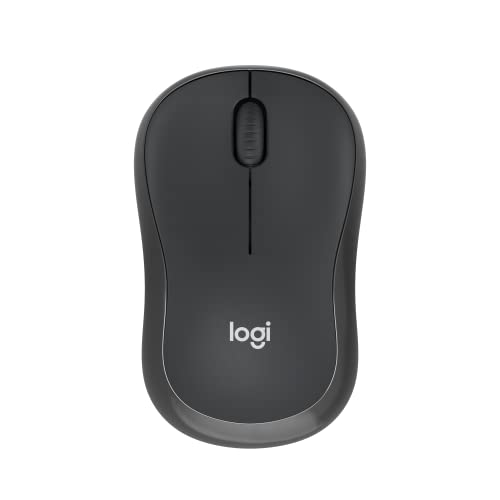
Logitech M240 Silent Bluetooth Mouse
Summary
The Logitech M240 Silent is the best ultra-budget wireless mouse for Mac — bringing SilentTouch Technology, 18-month battery life, and dongle-free Bluetooth pairing to the most accessible price in this roundup. The scroll wheel isn’t fully silent and occasional connectivity drops are reported — for premium scrolling and rock-solid connectivity, step up to the MX Anywhere 3S. For Mac users who want a reliable, quiet, featherlight first mouse at the lowest price available, the M240 is the honest starting point.
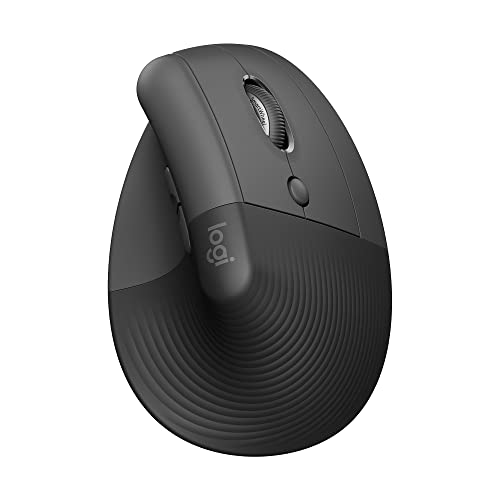
Logitech Lift Vertical Ergonomic Mouse — Best Ergonomic Pick
Quick Summary
- 🖐️ 57° vertical design — natural handshake position reduces wrist and forearm strain
- 🎯 4,000 DPI sensor — precise tracking for productivity and light creative work
- 🔇 Whisper-quiet clicks — silent operation confirmed in real-world office testing
- 🔋 24-month battery — single AA, tied for longest battery life in this roundup
- 🔌 Bluetooth + Logi Bolt — connect up to 3 devices, switch with underside button
- 🤝 Left-handed version available — Graphite color, same ergonomic design mirrored
Editor’s Note
CNN Underscored’s reviewer has used the Logitech Lift personally for years — attesting to Logitech’s two-year battery estimate on a single AA, and calling it a personal favorite because it puts your hand in a natural position that even first-time vertical mouse users instantly click with. PCWorld called it an excellent affordable vertical wireless mouse that stacks up well against rivals made by manufacturers specializing in ergonomic gear — with smooth tracking, two connectivity options, and a slick software interface. 9to5Toys confirmed the build quality feels really good right out of the box — with a soft rubbery grip and unique layered padding that keeps things comfortable throughout extended sessions. For Mac users who spend long hours at a desk and are experiencing wrist or forearm discomfort, the Lift is the most accessible entry point into ergonomic mice — independently verified by every major reviewer who’s tested it.
Pros
- 57° vertical design — immediately reduces wrist strain for most users within days
- Verified 24-month battery — CNN Underscored personally confirmed the estimate holds up
- Left-handed version available — rare feature at this price point, same ergonomic design
- 3-device connectivity — Bluetooth + Logi Bolt, remembers three paired devices
- TechGearLab, CNN Underscored, 9to5Toys tested — independently verified by multiple reviewers
Cons
- Not ideal for large hands — designed for small to medium hands specifically
- Learning curve — vertical design takes a few days of adjustment for first-time users
- No USB-C charging — AA battery only, no rechargeable option unlike MX Master 4
Why We Liked It / User Experience
The Logitech Lift’s 57-degree angle reminded CNN Underscored’s reviewer of using a gear shift in a car — you wrap your hand around its rear side and apply pressure with your thumb while moving it like gently shaking a hand. Unlike the MX Master 4, the Lift is designed for medium to small hands — those with larger hands will want to check out the beefier Logitech MX Vertical. For Mac users who’ve never tried a vertical mouse, TechRadar’s reviewer — who described themselves as a novice to ergonomic mice — found it easy to adjust and almost forgot the different grip within the first session, noting the clicks are satisfying but quiet and there was never a glitch or delay across screens or devices.
TechGearLab’s testing confirmed the Lift was incredible at both large tracking motions and smaller precision-focused movements — and while the learning curve exists, most testers ended up loving this design after only a few days of use. The honest caveat is hand size — the Lift is specifically designed for small to medium hands, and users with larger hands will find their fingertips extending past the buttons entirely — making it genuinely uncomfortable for extended sessions. For those users, the MX Vertical is the appropriate step up. For small to medium-handed Mac users experiencing wrist strain — or wanting to prevent it proactively — the Lift is the most proven, most recommended ergonomic starting point available.
Left-handed users: The Logitech Lift for Business Left offers the exact same ergonomic vertical design mirrored for left-handed use — Graphite color, full Mac compatibility, same 24-month battery life. View on Amazon →
You can read our 5 Best Left Handed Ergonomic Mouse 2026 (Review & Buying Guide) review, including Logitech Lift for Business Left mouse review.

Logitech Lift Vertical Ergonomic Mouse
Summary
The Logitech Lift Vertical is the best ergonomic wireless mouse for Mac for small to medium-handed users who want to reduce wrist strain without spending premium money. 57° vertical design, whisper-quiet clicks, verified 24-month battery life, and 3-device connectivity — all independently tested by CNN Underscored, PCWorld, TechGearLab, and 9to5Toys. The learning curve resolves within days for most users. Left-handed users have a dedicated mirrored version — the Logitech Lift for Business Left — available separately. For large-handed users, the Logitech MX Vertical is the appropriate step up.
Logitech G705 Wireless Gaming Mouse — Best Mac Gaming Pick

Quick Summary
- 🎮 8,200 DPI Lightsync sensor — responsive tracking for fast-paced Mac gaming
- 🌈 LIGHTSYNC RGB — 3-zone customizable lighting via Logitech G Hub
- ⚡ Lightspeed 2.4GHz + Bluetooth — low-latency gaming or wireless Mac pairing
- 🪶 85g ultralight — one of the lightest wireless gaming mice available
- 🔋 40-hour battery — USB-C rechargeable, confirmed accurate in real-world testing
- 🎨 Aurora Collection design — gender-inclusive White Mist aesthetic, breaks gaming mouse conventions
Editor’s Note
Logitech G’s Aurora Collection was built with a deliberate mission: create gaming peripherals for an audience that traditional gaming hardware has historically ignored. Rather than yet another peripheral for the traditional PC gaming crowd, the G705’s target audience skews younger and female — compact, stylish, and not quite like any other gaming mouse reviewed before. MacSources confirmed full macOS compatibility — connecting flawlessly via both Lightspeed receiver and Bluetooth, with the full compatibility list including macOS 10.15 or later and iPadOS 13.4 or later. For Mac gamers who’ve been forced to choose between ugly black gaming mice and underpowered productivity mice, the G705 finally offers a third option — genuine gaming performance in a design that belongs on an Apple desk.
Pros
- Lightspeed low-latency wireless — genuine gaming-grade connectivity on Mac
- 85g ultralight — fast, precise flicking for competitive gaming without fatigue
- Full macOS + iPadOS compatibility — confirmed by MacSources real-world testing
- Aurora Collection aesthetic — the only gaming mouse that looks at home on a Mac desk
- Dual connectivity — Lightspeed for gaming, Bluetooth for casual Mac/iPad use
Cons
- Small form factor — uncomfortable for medium to large hands during extended sessions
- 40-hour battery — shortest battery life in this roundup
- Requires Logitech G Hub — full RGB and button customization locked behind software
Why We Liked It
Mac gaming is no longer a niche — Apple Silicon’s performance uplift has made MacBook Pro and Mac mini genuinely capable gaming machines, and the G705 is the first mouse in this roundup designed with that audience in mind. The 1,000Hz polling rate and 8,200 DPI deliver incredibly smooth and responsive tracking — performing well across popular games without the sensor feeling like a limitation. The dual connectivity is particularly practical for Mac users — Lightspeed delivers low-latency performance for gaming sessions, while Bluetooth handles casual productivity and iPad use without swapping receivers. One cable for charging, one receiver for gaming — and Bluetooth handles everything else.
The honest trade-off is size: the G705 is too small for medium to large hands — designed specifically for smaller hands, younger users, and anyone who prefers a compact grip style. If your hands are medium or larger, the MX Master 4 is a better daily driver. The 40-hour battery life with RGB enabled is also the shortest in this roundup — compared to the MX Master 4’s 70-day run time it’s a significant step down. For Mac gamers with smaller hands who want gaming-grade performance in a design that doesn’t look out of place next to an iMac, no other pick here serves that brief.

Logitech G705 Wireless Gaming Mouse
Summary
The Logitech G705 is the best Mac gaming mouse for users with smaller hands who refuse to compromise on either performance or aesthetics. 8,200 DPI Lightspeed gaming performance, LIGHTSYNC RGB, full macOS compatibility, and an Aurora Collection design that belongs on an Apple desk — all in an 85g ultralight package. The 40-hour battery and small form factor are the honest trade-offs. For Mac gamers who want genuine gaming hardware that doesn’t look like it was designed for a Windows tower from 2015, this is the pick.
Related Post: Best MagSafe Chargers for iPhone 2026 – Certified & Reliable
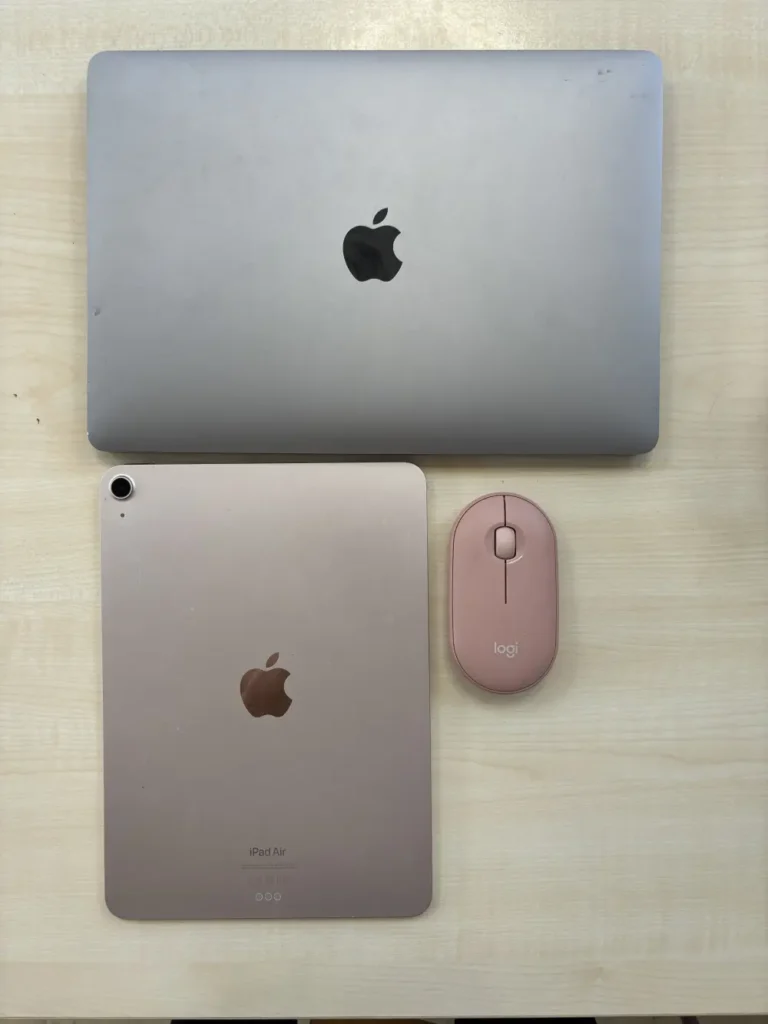
Logitech Pebble Mouse 2 M350s — Best Mouse for MacBook Neo
Quick Summary
- 🪶 76g ultralight — lightest mouse in this roundup, fits in any MacBook Neo sleeve
- 🔇 90% quieter clicks — Silent Touch Technology for libraries, cafes, and shared spaces
- 🔋 24-month battery — single AA battery, longest battery life in this roundup
- 📱 3-device Easy-Switch — pairs with MacBook Neo, iPad, and a third device simultaneously
- 🎨 Multiple colorways — Tonal Rose matches MacBook Neo’s Blush finish precisely
- ♻️ 58–76% recycled plastic — most sustainable budget mouse in this roundup
Editor’s Note
Logitech designed the Pebble Mouse 2 M350s with a very specific user in mind — and that user is the MacBook Neo owner. Real-world MacBook Air users who juggle a MacBook and iPad across home, office, and coffee shop consistently call the Pebble 2 their go-to portable productivity setup — slim enough to slip into any laptop bag, quiet enough for any environment, and smart enough to switch between three devices without re-pairing. Trusted Reviews confirmed the 4,000 DPI sensor upgrade over the original M350 makes it a significantly more responsive everyday mouse — and at 76g it remains the most effortlessly portable Logitech mouse available. For MacBook Neo owners stepping beyond the trackpad for the first time, this is the mouse that matches the Neo’s philosophy perfectly: lightweight, silent, and built to carry everywhere.
Pros
- 24-month battery — longest battery life in this roundup, no charging anxiety ever
- 3-device Easy-Switch — pairs MacBook Neo, iPad, and phone simultaneously
- 76g featherlight — fits in any MacBook Neo sleeve without adding noticeable bulk
- 90% quieter clicks — genuinely silent in any shared environment
- Multiple colorways — matches MacBook Neo’s color options including Blush/Rose
Cons
- Flat low-profile design — takes adjustment period, uncomfortable for palm-grip users in long sessions
- No rechargeable battery — requires AA replacement unlike USB-C alternatives in this roundup
- Device-switch button on underside — slightly fiddly to access during normal use
Why We Liked It
The MacBook Neo ships with no mouse — and its portable, carry-everywhere philosophy makes the Pebble M350s the most natural first mouse upgrade for Neo owners. At just 76g with a 24-month battery life on a single AA, it adds almost nothing to your bag weight and removes charging cables entirely from your carry list — a meaningful daily simplification for Neo users who already travel light. The 3-device Easy-Switch is the feature MacBook Neo owners use most: switch instantly from your Neo to your iPad to a third device with a single button press, without re-pairing or digging into Bluetooth settings. Real-world users consistently highlight seamless device switching and silent operation as the two features that make this mouse genuinely worth carrying every day.
The honest caveat is the flat profile: the low-profile design is not a very comfortable mouse to use for long for users who rest their palm during extended sessions — and iMore’s review confirms it directly. For MacBook Neo owners who use their mouse primarily for productivity tasks — browsing, document editing, and occasional creative work — the flat design is a minor trade-off for portability benefits that far outweigh it. For users who work at a fixed desk for extended daily sessions, the Logitech Lift Vertical or MX Master 4 are more ergonomically appropriate choices. For everyone who wants a quiet, featherlight, multi-device mouse that matches the Neo’s carry-anywhere DNA, the Pebble M350s is the natural companion.
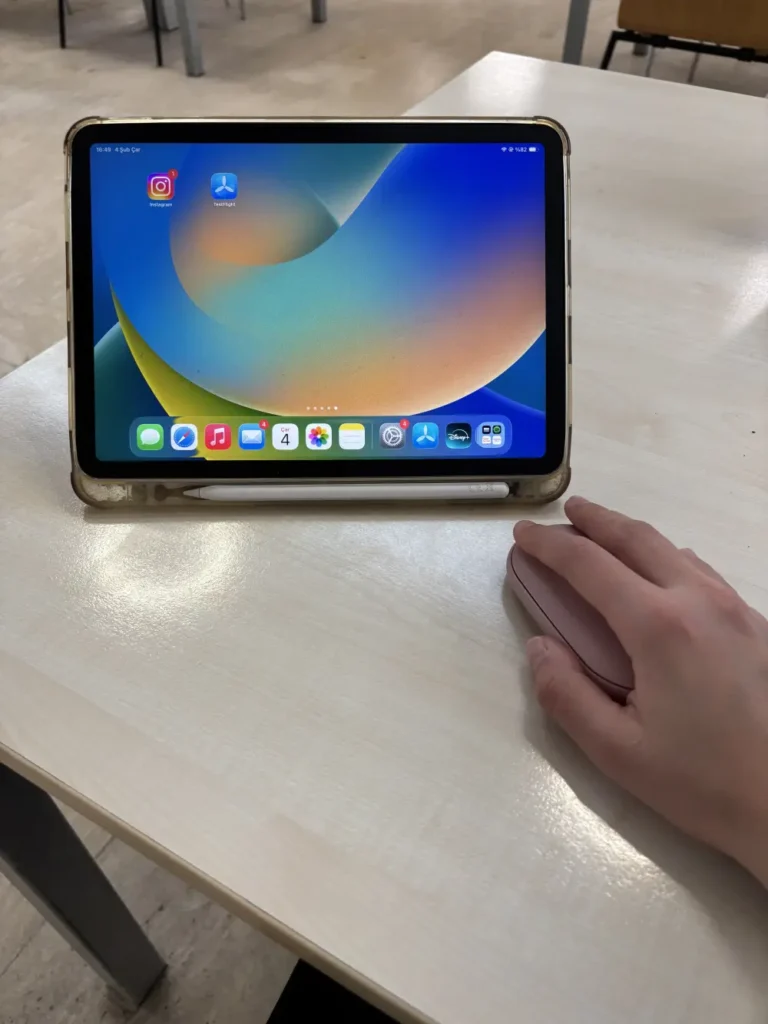
Logitech Pebble Mouse 2 M350s
Summary
The Logitech Pebble Mouse 2 M350s is the best mouse for MacBook Neo — matching the Neo’s lightweight, carry-everywhere philosophy with a 76g featherlight design, 24-month battery life, 3-device Easy-Switch, and 90% quieter clicks. The flat profile requires an adjustment period and isn’t suited for all-day desk ergonomics — for extended sessions, step up to the MX Master 4 or Lift Vertical. For MacBook Neo owners who want a silent, pocketable mouse that disappears until they need it, nothing in this roundup fits better.
Logitech Signature M650 Wireless Mouse — Best Mid-Range Pick
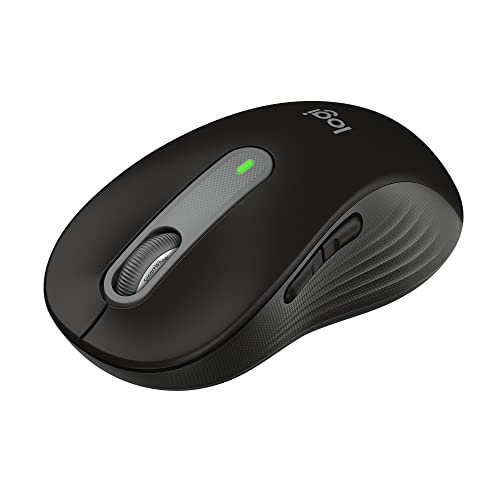
Quick Summary
- 🎯 4,000 DPI sensor — precise tracking on most everyday surfaces
- 🔇 90% quieter clicks — SilentTouch Technology for focused work environments
- 🔋 24-month battery — single AA, longest battery life in this roundup
- 📜 SmartWheel — line-by-line precision or fast free-spin mode with a flick
- 🖐️ Small/medium hand specific — contoured shape with soft thumb area and rubber grips
- ♻️ 64% recycled plastic — most eco-conscious non-premium pick in this roundup
Editor’s Note
The Gadgeteer’s reviewer — who has used Logitech mice exclusively for years — called the Signature M650 one of the best mice they’d ever used at this price point: accurate, comfortable for hours on end, and the first mouse to break the curse of requiring a USB dongle while still keeping it as an option. Tom’s Guide praised it as a great all-rounder with two connection options and customizable shortcuts — perfect for casual clickers and home office users who don’t need specialized ergonomic mice. Real-world MacBook Air users specifically highlight the ease of Bluetooth setup, silent clicks, and long battery life as the three features that make it a reliable everyday Mac companion. For Mac users who want a comfortable, quiet, affordable everyday mouse without spending premium money, the M650 is the most consistently praised mid-range pick available.
Pros
- 24-month battery — tied for longest battery life in this roundup
- Contoured ergonomic shape — soft thumb rest and rubber grips for all-day comfort
- SmartWheel — precision line-by-line and fast free-spin in one scroll wheel
- 64% recycled plastic — most sustainable mid-range pick in this roundup
- Left-handed version available — rare feature at this price point
Cons
- Single device pairing only — cannot switch between multiple devices like MX Anywhere 3S
- No glass tracking — sensor struggles on glass and very smooth surfaces
- Side buttons not silent — only main clicks have SilentTouch, side buttons click normally
Why We Liked It
The M650 is the mouse that proves premium features don’t require premium pricing — silent clicks, customizable side buttons, SmartWheel scrolling, and a contoured ergonomic shape all arrive at a fraction of the MX Master 4’s cost. For Mac users who spend long hours at a desk but don’t need haptic feedback or an Action Ring, the M650 covers everything that genuinely matters in daily use. The SmartWheel delivers line-by-line precision for documents and super-fast scrolling for long web pages — switching modes with a simple flick of a finger — a feature more associated with premium Logitech mice that the M650 brings to the mid-range category without compromise.
The honest limitation is single-device pairing: unlike the MX Anywhere 3S or Pebble M350s, the M650 connects to one device at a time — switching to a new device requires manual re-pairing each time. For Mac users who work exclusively on one machine, this is completely irrelevant. For users who regularly switch between a MacBook and iPad throughout the day, the MX Anywhere 3S or Pebble M350s are the better choices. For the focused single-Mac home office or student setup where comfort, silence, and battery longevity matter most, the M650 delivers all three more reliably than anything else at its price.

Logitech Signature M650 Wireless Mouse
Summary
The Logitech Signature M650 is the best mid-range wireless mouse for Mac for users who want ergonomic comfort, silent clicks, and a 24-month battery without overspending. SmartWheel scrolling, contoured small-to-medium hand design, 64% recycled plastic, and a left-handed version available — all independently praised by Tom’s Guide and The Gadgeteer. Single-device pairing is the honest limitation — for multi-device switching, step up to the MX Anywhere 3S or Pebble M350s. For a dedicated single-Mac everyday mouse, the M650 earns its mid-range label honestly.
Final Thoughts
The right wireless mouse for Mac isn’t the most expensive one — it’s the one that matches how you actually work. For professionals who live in creative apps and multi-device workflows, the MX Master 4’s haptics and Action Ring represent a genuine step forward in what a mouse can do. For Mac users who want Apple’s seamless gesture language at a desk, the Magic Mouse or Magic Trackpad are irreplaceable — and many serious Mac users keep both on their desk simultaneously. For MacBook Neo owners who carry everything in one bag, the Pebble M350s disappears until you need it. And for anyone who spends long hours at a desk and notices wrist fatigue, the Lift Vertical is the most impactful single change you can make before anything else.
Whatever you choose — confirm Bluetooth compatibility, install Logi Options+ if you go Logitech, and match the size to your hands. A mouse you use comfortably for years is worth more than a spec-sheet winner that sits in a drawer after a week.
What to Look for in a Wireless Mouse for Mac? – Buyer’s Guide
Connectivity — Bluetooth First for MacBook Users
Most modern mice connect wirelessly, but it’s important to check how. Many cheaper wireless mice use a small USB-A receiver — which is an issue for newer MacBooks that only have USB-C ports. For the most seamless experience with a MacBook, a mouse with Bluetooth compatibility is ideal. Some high-end mice offer both Bluetooth and a dedicated USB receiver, which can provide a more stable connection in crowded wireless environments. Every pick in this roundup supports Bluetooth — no dongles required unless you choose to use one.
Software Compatibility — Confirm Before Buying
More advanced mice often come with software to customize buttons and settings. It’s crucial to confirm that this software is compatible with macOS, especially with recent versions and Apple Silicon chips. Logitech’s Logi Options+ is fully macOS compatible and actively updated for Apple Silicon. Razer’s Synapse app lacks full macOS compatibility — worth knowing if you’re considering Razer mice outside this roundup. Every pick here is confirmed software-compatible with current macOS.
Ergonomics — Match the Mouse to Your Grip
Finding the right mouse can be one of the most important decisions you make — you can end up using a mouse for long stretches of time, and getting it wrong is a fast road to wrist strain. Consider how you hold a mouse: fingertip grip users do well with compact mice like the MX Anywhere 3S or Pebble M350s. Palm grip users need a contoured shape like the M650 or MX Master 4. Users experiencing wrist pain should start with the Lift Vertical’s 57° handshake position before considering anything else. Avoid flat, low-profile mice for extended sessions — these don’t allow your hand to rest naturally, increasing fatigue over the course of the day.
DPI — More Isn’t Always Better
DPI (dots per inch) measures cursor sensitivity — higher DPI moves the cursor further per physical movement. For Mac users on high-resolution Retina displays, 4,000 DPI is sufficient for most productivity work. 8,000 DPI benefits creative professionals doing pixel-level design, photo editing, or gaming. Bluetooth 5.0 or higher delivers better range and power efficiency — confirm your chosen mouse uses modern Bluetooth for the most reliable Mac connection.
Battery Life — AA vs Rechargeable
Both approaches have merit. Rechargeable mice like the MX Master 4 and MX Anywhere 3S offer USB-C convenience but need periodic charging. AA battery mice like the Pebble M350s, M650, and Lift Vertical offer 18–24 months between changes — set and forget. One of the advantages of Bluetooth is that it uses very little power — so AA batteries in a Bluetooth mouse can last up to two years — far longer than most users expect.
Mouse vs Trackpad — Know the Difference
This roundup includes the Apple Magic Trackpad alongside traditional mice for good reason. Apple itself told Macworld that many Apple employees use both a Magic Trackpad and a mouse — switching between them depending on the task. For gesture-heavy workflows — Mission Control, Spaces, pinch-zoom — a trackpad is unmatched. For pixel-precise design, editing, and gaming — a mouse wins. Many Mac power users keep both on their desk permanently.
MX Master 4 vs MX Master 4 for Mac — Important Distinction
There is the standard “Logitech MX Master 4” and a version called the “MX Master 4 For Mac”. Either works just fine with the Mac. The Mac version doesn’t come with the USB-C Bolt receiver bundled with the standard version. Some prefer the longer-range and more secure USB receiver — especially in busy office environments with many Bluetooth devices — so buy the standard rather than “For Mac” version if this fits your situation.
Tips for Getting the Most from Your Wireless Mac Mouse
Always Use Logi Options+ for Full Mac Integration — Every Logitech mouse in this roundup supports Logi Options+ — Logitech’s free macOS app that unlocks per-app button customization, gesture controls, and flow between devices. Without it, your mouse works fine but you’re using maybe 50% of its capability. Installing it takes two minutes and transforms a good mouse into a genuinely smart one. Download directly from Logitech’s website — not the App Store version, which is more limited.
Match Your Mouse to Your Primary Task — Not Your Budget — The most expensive mouse isn’t always the right one. A Mac gamer needs the G705’s Lightspeed connection over the MX Master 4’s haptics. A MacBook Neo student needs the Pebble M350s’s 24-month battery over the MX Anywhere 3S’s glass tracking. A wrist pain sufferer needs the Lift Vertical before any other consideration. Buy for your workflow first, budget second — the wrong mouse at any price is money wasted.
Pair via Logi Bolt for Crowded Offices — Bluetooth is convenient but can be unstable in environments with many wireless devices — open offices, co-working spaces, and university libraries. Every Logitech mouse in this roundup that includes a Logi Bolt USB-C receiver delivers a significantly more stable connection in these environments. Keep the receiver plugged into your hub and use Bluetooth only when traveling.
Use Both a Mouse and Trackpad if You Work in Multiple Modes — Many Mac power users keep both a mouse and a Magic Trackpad on their desk simultaneously — switching between them based on the task. Trackpad for gestures, Mission Control, and navigation. Mouse for precision design, editing, and detail work. If you find yourself constantly switching tasks, this setup eliminates the compromise entirely and is exactly what Apple employees themselves use.
Check Hand Size Before Buying — This is the most overlooked buying mistake. The MX Anywhere 3S, G705, Pebble M350s, and Lift Vertical are all designed for small to medium hands. The MX Master 4 and M650 suit medium hands best. If your hands are large, the MX Master 4 is the safest choice in this roundup — and for ergonomic large-hand users, the Logitech MX Vertical is worth considering outside this list.
Charge Your Mouse Before Its First Use — For USB-C rechargeable mice like the MX Master 4 and MX Anywhere 3S, a full charge before first use establishes battery health correctly. One minute of USB-C charging delivers three hours of use on both — so even a 10-minute charge before a meeting is a meaningful safety net.
Editor’s Tip — If you’re unsure between the MX Master 4 and Apple Magic Mouse — buy both and return one. They serve genuinely different workflows: the Magic Mouse extends your MacBook trackpad gestures to a desk setup, the MX Master 4 adds programmable shortcuts and precision that the trackpad can’t match. Using both for a week will tell you more about your workflow than any review can.
Frequently Asked Questions (FAQ) for MacBook Compatible Mouse 2026
Do I really need a mouse for my MacBook Pro or Air?
Not strictly — Apple’s built‑in trackpads are excellent, especially for gestures like pinch‑to‑zoom, swipe between desktops, and smooth scrolling. For many users, the trackpad alone is enough for everyday browsing and casual work.
However, a wireless Bluetooth mouse can make a big difference in certain scenarios:
- Precision tasks: Editing photos, video timelines, or design work often requires pixel‑level accuracy that’s easier with a mouse.
- Comfort for long sessions: A mouse reduces strain during extended productivity, offering a more natural hand position compared to constant trackpad use.
- Productivity shortcuts: Many mice (like Logitech MX Master or Apple Magic Mouse) support customizable buttons and smooth scrolling, which speed up multitasking.
- External setups: If you connect your MacBook to a monitor or use it at a desk, a mouse completes the desktop‑style workflow.
In short: you don’t need a mouse, but if you value precision, comfort, and efficiency, pairing your MacBook Pro or Air with a Bluetooth mouse is a smart upgrade.
Does any wireless mouse work with a Mac?
Almost yes — but with important caveats. Before choosing a mouse for your MacBook, decide what type of connection you prefer: Bluetooth, wireless with a USB receiver, or wired USB-C. Many users choose Bluetooth for convenience — but it’s worth checking Bluetooth compatibility on your Mac before buying, and confirming that any configuration software is compatible with your version of macOS. The safest approach is choosing a mouse that explicitly lists macOS compatibility — every pick in this roundup does. Avoid cheap uncertified mice that claim Mac support without listing a specific macOS version — these often have driver issues after macOS updates.
What’s the difference between Bluetooth and Logi Bolt?
Both are wireless — but they work differently. Bluetooth connects directly to your Mac without any receiver — convenient, zero ports used, and works immediately. Logi Bolt uses a small USB-C or USB-A receiver that delivers a faster, more stable, lower-latency connection — particularly valuable in crowded wireless environments like open offices, co-working spaces, and university libraries where Bluetooth interference is common. Most Logitech mice in this roundup support both simultaneously — use Bluetooth when traveling and Logi Bolt at your desk for the best of both worlds. For most home users, Bluetooth alone is completely sufficient.
Which Logitech mouse is best for students?
The Logitech Pebble Mouse 2 M350s is the best budget option. It’s lightweight, affordable, and supports multi‑device Bluetooth switching, making it ideal for students juggling laptops and tablets.
Can I use a Logitech mouse with an iPad as well as my Mac?
Yes — and it’s one of Logitech’s strongest features for Apple users. Every Logitech mouse in this roundup with Easy-Switch or multi-device pairing supports iPadOS alongside macOS. The Pebble M350s, MX Anywhere 3S, and MX Master 4 all support connecting to up to three devices simultaneously — switching between your MacBook, iPad, and a third device with a single button press, no re-pairing required. For students and professionals who work across both a MacBook and iPad throughout the day, this feature alone makes Logitech’s multi-device mice the most practical choice.
Will a vertical mouse actually fix my wrist pain?
For most users — yes, meaningfully. Using a flat, low-profile mouse forces your hand into an unnatural pronated position that increases fatigue and strain over a full day of work. A vertical mouse like the Logitech Lift keeps your hand in a natural handshake position that reduces the rotational stress on your forearm and wrist. Most users notice a difference within the first few days — though there is a short adjustment period as your muscles adapt to the new grip angle. For Mac users already experiencing wrist pain or repetitive strain symptoms, a vertical mouse is the most impactful single change you can make to your desk setup before considering more expensive ergonomic solutions.
How We Selected These Products
We recommend these items based on a thorough research process designed to highlight the best options available. While we did not physically test some products ourselves, we relied on detailed research and verified customer feedback to evaluate them.
- Detailed Research: We reviewed product specifications, manufacturer information, and feature lists to understand what each item offers.
- Customer Insights: We analyzed verified buyer reviews and ratings to learn how these products perform in real-world use.
- Comparison Factors: We compared products across price, durability, usability, and unique features to identify the strongest choices.
- Personal Experience: With over 25 years of working in internet-related technologies and following online trends since 1995, I bring a deep understanding of how products are marketed, evaluated, and used. This background helps me filter out hype and focus on what truly matters for everyday users.
- Balanced Evaluation: Our goal is to provide clear, unbiased information so you can make confident purchasing decisions.
See also How We Review Products section for more details on our process.
Written by Metin Karal
Metin Karal is a Computer Engineer with over 25 years of experience working with internet technologies, trends, and digital tools since 1995. He brings this deep background into his product reviews, combining technical expertise with careful research to deliver honest, practical insights for readers. Passionate about technology, Metin also enjoys programming in C# and is currently developing PairMem, a challenging memory game available for free on the official Microsoft Store.


Pingback: 7 Best MacBook Chargers 2026 – Fast GaN Chargers for Pro, Air & Neo
Pingback: 7 Best MacBook Neo Case & Sleeve (2026) — Complete Buyer's Guide
Pingback: Best Budget MacBooks in 2026