Written by Metin KARAL – Computer Engineer with 25+ years of experience in internet technologies. Some products here are tested directly, while others are evaluated through detailed research, specifications, and verified customer feedback. This article may contain affiliate links; as an Amazon Associate we earn from qualifying purchases at no extra cost to you.
The MacBook Neo was built around one idea: a capable, affordable Mac you can carry anywhere. The right mouse should match that brief exactly — lightweight enough to forget it’s in your bag, silent enough for any environment, and reliable enough to just work when you open it on a library desk, a coffee shop table, or a home office setup.
This roundup covers six Bluetooth mice chosen specifically for the Neo’s budget-first, portability-first audience. No gaming mice, no professional design tools, no $100 premium picks that cost more than the accessory budget most Neo buyers are working with. Every mouse here connects via Bluetooth — no USB-A dongle eating a port, no wireless receiver to lose in a bag — and every one works natively with macOS out of the box.
Two things define the right mouse for a MacBook Neo more than anything else. First, silence: the Neo’s typical owner is a student, a hybrid worker, or a mobile professional who works in shared spaces where a loud click is a distraction. Every mouse in this roundup uses either SilentTouch or equivalent quiet-click technology. Second, battery practicality: most mice here run on AA batteries lasting 18-24 months — set and forget. The exception is the Satechi OntheGo, which uses a built-in USB-C rechargeable battery that charges from the same cable as the Neo itself. Knowing which approach suits your routine is the first decision this guide helps you make.
Are you looking for a mouse that fits your MacBook Pro or Air ? Chek our comprehensive Best Mouse for MacBook Pro & Air roundup.
Best Mouse for MacBook Neo (2026)
| Mouse | Why |
|---|---|
| Logitech Signature M550 | Best Overall — contoured shape designed for small to medium hands, SmartWheel auto precision-to-speed scrolling, soft thumb area and rubber side grips, and 24-month battery. The comfort-first choice for Neo owners who spend hours at a desk. |
| Satechi OntheGo | Best Rechargeable Pick — USB-C built-in battery with no disposable AAs, 80 hours continuous use from a 2-hour charge, explicitly listed MacBook Neo 2026 compatible, 4-level DPI switching, and soft-touch aluminum build. The cleanest, lowest-maintenance setup for eco-conscious Neo owners. |
| Logitech Pebble Mouse 2 M350s | Best Slim — 4,000 DPI upgraded sensor, 3-device Easy-Switch, 24-month battery, and 76g ultralight build that mirrors the Neo’s carry-everywhere philosophy. Silent, portable, and capable — the natural first recommendation for most Neo buyers. |
| Logitech M240 Silent | Best Budget Pick — SilentTouch 90% quieter clicks, 18-month battery, 73.8g, and instant Bluetooth pairing with no complexity. The honest answer for Neo owners who want reliable silence without paying for features they won’t use. |
| Apple Magic Mouse | Best for macOS Integration — full Multi-Touch gesture surface that carries over trackpad gestures directly, auto-pairs with the Neo out of the box, USB-C rechargeable, and ~1 month battery. The only mouse in this roundup that feels like a native macOS input device rather than a peripheral. |
| Logitech POP Mouse | Best for Style — Mist colourway design, customisable emoji/shortcut button, SmartWheel scrolling, 3-device Easy-Switch, and 4,000 DPI tracking that works even on glass. The mouse that makes a considered design statement alongside the Neo. |
Logitech Signature M550 — Best Overall MacBook Neo Mouse

Quick Summary
- 🤝 Contoured ergonomic shape — designed specifically for small to medium hands; soft thumb area and rubber side grips
- 🔄 SmartWheel scrolling — auto-switches between line-by-line precision and fast scroll with a flick
- 🔇 SilentTouch Technology — 90% quieter clicks for distraction-free work environments
- 🔋 24-month battery life — single AA battery included; longest battery life alongside the M350s
- 📶 Bluetooth + Logi Bolt dual connectivity — connect via Bluetooth or the Logi Bolt USB receiver
- 🎯 4,000 DPI optical sensor — smooth, accurate tracking on any surface
- 📱 macOS, Windows, Linux, ChromeOS, iPadOS, Android — full multi-platform support
- 🌐 10m wireless range — reliable across a full room
- ♻️ Up to 65% recycled plastic — Logitech’s sustainability commitment
- 🛠️ Logi Options+ compatible — button customisation available on macOS
Editor’s Note
The MacBook Neo is a 13-inch laptop — and 13-inch laptop users tend to have smaller hands or work in more compact spaces than desktop or 15-inch laptop users. The Logitech Signature M550 is the mouse in this roundup that addresses hand fit directly: it’s designed specifically for small to medium hands, with a contoured shape, a soft thumb area, and rubber side grips that keep the hand naturally positioned for hours of use without fatigue. This is the ergonomic detail that flat mice like the Pebble M350s and M240 can’t offer — a shape that follows the natural curve of a resting hand rather than requiring the hand to adapt to a flat surface. The SmartWheel is the feature that immediately converts users from basic scroll wheels: scrolling slowly through a document triggers precise line-by-line control, while a quick flick switches the wheel to free-spinning fast-scroll mode for long web pages and documents — no button press required, just speed of finger movement. At the same time, the M550 doesn’t compromise on portability: it fits comfortably in a laptop bag and weighs well within the range of everyday carry. For MacBook Neo owners who use their mouse primarily at a desk and want better hand support than flat mice provide, the M550 is the ergonomic step up that doesn’t require spending significantly more.
Just bought a MacBook Neo? Once you’ve picked your mouse, protecting the laptop itself is the next priority. Our MacBook Neo Case guide covers every case style — from slim sleeves under $10 to military-grade carrying cases — so your Neo’s aluminum finish stays scratch-free from day one.
Pros
- Contoured ergonomic shape — the best hand support in this roundup for small to medium hands
- SmartWheel — automatic precision/speed scroll switching; the most useful scroll feature at this price
- 24-month battery — same exceptional battery life as the Pebble M350s
- Soft thumb area and rubber grips — reduces fatigue during extended daily sessions
- Dual Bluetooth + Logi Bolt connectivity — flexibility to use with or without a dongle
- 4,000 DPI tracking — responsive and accurate on any surface
- 65% recycled plastic — strong eco credentials
- Logi Options+ on macOS — button customisation available
Cons
- Right-hand biased — contoured shape is not truly ambidextrous; less comfortable for left-handed users
- No side button customisation without dongle — Logi Bolt receiver required for full button remapping on some configurations
- Glossy finish attracts fingerprints — top shell shows smudges with regular use
Why We Liked It
The M550’s argument is straightforward: for MacBook Neo owners who spend meaningful daily time at a desk, hand comfort matters more than portability, and the M550 is the best overall mouse in this roundup that takes hand fit seriously. The flat-profile mice — M350s, M240, Magic Mouse — are excellent for their portability and aesthetic, but they ask the hand to adopt a slightly unnatural position during extended use. The M550’s contoured shape does the opposite: the mouse fits around the hand rather than requiring the hand to accommodate the mouse.
The SmartWheel is the daily-use feature that MacBook Neo users who work with long documents, web research, or spreadsheets will notice most clearly. Standard scroll wheels require multiple rotations to navigate a long page. SmartWheel’s free-spin mode reduces that to a single fast flick — the kind of efficiency gain that sounds small until you’ve used it for a week and then try going back. The transition between precision and speed modes is triggered automatically by scroll speed, meaning it happens without any conscious action.
The rubber side grips address the specific problem that smooth-bodied mice create in laptop bag environments: picking up the mouse after it’s been sitting in a pouch or on a textured surface. The grips give the fingers immediate purchase without needing to look at or reposition the mouse — a small detail that improves the experience of working across different environments.

Logitech Signature M550
Summary
The Logitech Signature M550 is the best overall ergonomic mouse for the MacBook Neo — combining a contoured shape designed for small to medium hands, SmartWheel precision-to-speed scrolling, SilentTouch 90% quieter clicks, 24-month battery, and 4,000 DPI tracking in the most comfort-focused mouse in this roundup. Single-device Bluetooth and right-hand bias are the honest trade-offs. For MacBook Neo owners who spend hours at a desk and want a mouse that fits the hand rather than the hand fitting the mouse, the M550 is the clear ergonomic choice.
Logitech Pebble Mouse 2 M350s — Best Slim

Quick Summary
- 🖱️ 4,000 DPI optical sensor — major upgrade over the original M350’s 1,000 DPI; responsive and precise for everyday tasks
- 🔇 Silent Touch Technology — 90% quieter clicks; ideal for libraries, cafés, and shared spaces
- 📱 3-device Easy-Switch — pair MacBook Neo, iPad, and a third device; switch instantly with one button
- 🔋 24-month battery life — longest in this roundup; AA battery included, auto-sleep conserves charge
- ⚖️ 76g lightweight — featherlight and slim; disappears in any bag or pocket
- ♻️ 58% recycled plastic — FSC-certified packaging, sustainably made
- 📲 Logi Options+ compatible — customise the middle button with app shortcuts on macOS
- 🌐 Works on macOS, Windows, iPadOS, ChromeOS, Android — one mouse for every device you own
- 💙 Bluetooth 5.1 — stable, fast pairing; no dongle, no USB port required
Editor’s Note
The MacBook Neo was designed around one idea: a capable, carry-anywhere laptop that doesn’t weigh you down. The Logitech Pebble Mouse 2 M350s extends that philosophy directly into your mouse. At 76 grams with a slim, flat profile built from recycled plastic, the M350s is the mouse that genuinely belongs in the same bag as a Neo — you stop noticing it’s there until you need it. What separates the M350s from earlier Pebble models is the 4,000 DPI sensor — a major internal upgrade over the original M350’s 1,000 DPI that makes cursor tracking noticeably more responsive and accurate for the productivity tasks MacBook Neo owners do daily. The 3-device Easy-Switch is the practical standout: MacBook Neo, iPad, iPhone, or any Bluetooth device can be paired simultaneously, and a single button press jumps between them instantly. For the MacBook Neo buyer who also carries an iPad or works across multiple screens, this eliminates the re-pairing friction that single-device mice create. The 24-month battery life — the longest in this roundup — removes one more thing to think about, especially on the move. The honest trade-off is the flat profile: Trusted Reviews and iMore both noted it takes adjustment coming from a raised mouse, and for extended daily desk sessions it’s less ergonomically optimal than a contoured alternative. But for the MacBook Neo’s carry-everywhere use case, portability wins that trade-off comfortably.
Pros
- 4,000 DPI upgraded sensor — significantly more responsive than the original M350
- 3-device Easy-Switch — pairs Neo, iPad, and a third device simultaneously
- 24-month battery — longest in this roundup; virtually zero maintenance
- 76g ultralight — the most portable mouse here; fits any bag effortlessly
- Silent Touch — library and café-friendly; 90% quieter without losing click feel
- Logi Options+ customisation — middle button can be programmed for macOS shortcuts
- Bluetooth 5.1 stable connection — no dongle, no port required
- 58% recycled plastic — eco-conscious build matches MacBook Neo’s modern sensibility
Cons
- Flat profile — less ergonomic than contoured mice for extended daily desk use
- No scroll speed switching — no SmartWheel; line-by-line only (unlike POP Mouse)
- No customisable side buttons — two-button plus scroll only; minimal customisation
The first Apple Macintosh in 1984 introduced the mouse as a standard input device — a move that revolutionized personal computing and made point‑and‑click navigation mainstream.
Why We Liked It
The M350s earns its Best Slim Mouse position by matching the MacBook Neo’s core design philosophy. The Neo is a budget laptop built around portability — and the M350s is a budget mouse built around exactly the same principle. That alignment isn’t accidental: Logitech’s Pebble line was specifically designed for the mobile productivity user who carries a slim laptop and needs a mouse that doesn’t add bulk or weight to the equation.
The sensor upgrade from 1,000 to 4,000 DPI is the internal improvement that makes the M350s feel current rather than legacy. The original M350 was a capable mouse for its time, but 1,000 DPI in 2026 on a high-resolution MacBook Neo display creates a tracking experience that feels laggy and imprecise compared to what the M350s delivers. At 4,000 DPI, cursor movement is responsive and controlled across both the Neo’s 13-inch display and any external monitor.
Real-world buyers consistently describe the M350s as their go-to travel companion — fitting inside a laptop bag pocket, connecting silently in any environment, and switching between devices without re-pairing. One verified buyer noted they bought two: one for their MacBook and one for their Windows machine. That cross-platform fluency reflects exactly the multi-device reality most MacBook Neo owners live in.

Logitech Pebble Mouse 2 M350s
Summary
The Logitech Pebble Mouse 2 M350s is the best lightweight slim mouse for the MacBook Neo — combining a 4,000 DPI upgraded sensor, 3-device Easy-Switch, 24-month battery, Silent Touch Technology, and a 76g ultralight build in a mouse that mirrors the Neo’s carry-everywhere philosophy perfectly. The flat profile trades some desk ergonomics for portability. For MacBook Neo owners who move between home, office, and coffee shop and want one silent, lightweight mouse that handles all three without fuss — the M350s is the natural match.
Logitech M240 Silent — Best Budget Mouse for MacBook Neo
Quick Summary
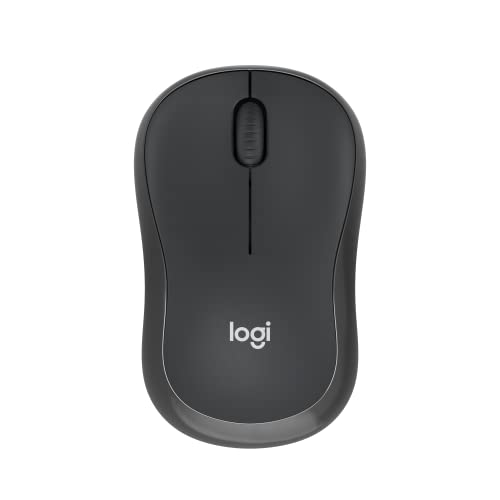
- 🔇 SilentTouch Technology — 90% quieter clicks; same tactile feedback as a standard mouse
- ⚖️ 73.8g — one of the lightest mice in this roundup; genuinely portable
- 🔋 18-month battery life — long-lasting AA battery included; auto-sleep extends charge
- 📶 Bluetooth 5.1 — fast, stable pairing to MacBook Neo; no dongle or port required
- 📏 10m wireless range — reliable connection up to 33 feet from your Mac
- 🤝 Ambidextrous design — comfortable for both left and right-handed users
- 🌐 macOS, Windows, ChromeOS, Linux, iPadOS, Android — broadest OS compatibility in this roundup
- 🖱️ 400–4,000 DPI optical tracking — smooth and accurate on any surface
- ♻️ Up to 48% recycled plastic — Logitech’s sustainability commitment
Editor’s Note
The MacBook Neo was designed for students, first-time Mac buyers, and budget-conscious professionals — and the Logitech M240 Silent was designed for exactly the same person. At under $19, it is the most honest budget mouse in this roundup: no multi-device switching, no customisable buttons, no SmartWheel — just silent, reliable Bluetooth tracking that pairs in seconds with a MacBook Neo and works flawlessly from day one. The 18-month battery life removes the primary anxiety of budget wireless mice — dying at an inconvenient moment — and the ambidextrous shape makes it genuinely comfortable for both hands in a way that many asymmetric budget mice aren’t. Verified buyers consistently describe instant MacBook pairing, hours of comfortable use, and silent operation that works in libraries, lecture halls, and quiet offices without drawing attention. The honest limitation is single-device Bluetooth — unlike the Pebble M350s, the M240 pairs with one device at a time and requires manual re-pairing to switch. For MacBook Neo owners who use one device at a time and want the lowest-cost silent wireless mouse available, this limitation rarely matters. For the Neo’s budget-first audience, the M240 is the mouse that makes the most practical sense.
Pros
- Perfect priced — genuine value for quality delivered
- SilentTouch 90% quieter — whisper-quiet in any environment without losing click feel
- 73.8g lightweight — easy to carry in any bag; genuinely portable
- 18-month battery — long-lasting; included AA battery, auto-sleep extends life further
- Ambidextrous — left and right-handed comfort equally well served
- Instant Bluetooth pairing — no setup complexity; connects to MacBook Neo in seconds
- 10m range — reliable connection across a full room
- Broadest OS compatibility — includes Linux; works on every platform
Cons
- Single device only — no multi-device switching; must re-pair manually to change devices
- No customisable buttons — basic two-button plus scroll only
- No DPI switching — fixed tracking sensitivity; cannot adjust on the fly
- Compact size — may feel small for larger hands during extended use
Why We Liked It
The M240’s case is built on a simple, honest proposition: for MacBook Neo owners who want a reliable silent Bluetooth mouse and don’t want to spend more than necessary, nothing in this roundup comes closer to getting every essential right at the lowest price.
The SilentTouch click technology is the feature that matters most for the Neo’s typical buyer. Students in lecture halls, remote workers in shared spaces, and commuters on public transport all benefit from a mouse that doesn’t announce every click to the surrounding environment. The M240’s 90% noise reduction is audible from the first click — the difference between a mouse that sounds like an office tool and one that sounds like nothing at all.
The ambidextrous design deserves specific attention because it’s executed correctly here rather than just claimed. Many mice described as ambidextrous are actually right-hand-biased designs with cosmetic symmetry. The M240’s shape is genuinely neutral — the contour curves work equally well for both hands, and reviewers from multiple platforms consistently confirm left-handed users find it as comfortable as right-handed ones. For a budget mouse aimed at a diverse student and professional audience, that genuine inclusivity matters.
The instant pairing with macOS is consistently praised across verified buyer reviews — no driver installation, no configuration, no troubleshooting. Open the box, turn on the mouse, select it in Bluetooth settings, done. That frictionless setup matches the MacBook Neo’s own plug-and-play philosophy.

Logitech M240 Silent
Summary
The Logitech M240 Silent is the best budget mouse for the MacBook Neo — delivering SilentTouch 90% quieter clicks, 18-month battery life, 73.8g portable build, instant Bluetooth 5.1 pairing, and ambidextrous comfort at the lowest price in this roundup. Single-device pairing and no button customisation are the honest trade-offs. For MacBook Neo owners who want a reliable, quiet, no-fuss wireless mouse without spending more than necessary, the M240 delivers everything that matters and nothing that doesn’t.
Apple Magic Mouse — Best Native macOS Experience

Quick Summary
- 🍎 Multi-Touch surface — full-surface gesture control replaces the scroll wheel; swipe, scroll, and navigate like a trackpad
- 🔗 Auto-pairs with MacBook Neo — Bluetooth pairing out of the box; no setup required
- 🔋 ~1 month battery life — rechargeable; included USB-C cable for charging
- ⚡ USB-C charging — matches MacBook Neo’s USB-C ecosystem; no Lightning cable needed
- 🎯 1,300 DPI optical sensor — smooth, precise tracking optimised for macOS
- ⚖️ 99g — slightly heavier than Logitech alternatives but premium in feel
- 🤝 Ambidextrous — symmetrical design works for both hands
- 🖥️ macOS-exclusive optimisation — gestures map directly to macOS system features
- 🌊 Optimised foot design — glides smoothly on desks and most surfaces without a mouse pad
Editor’s Note
No mouse in this roundup integrates with the MacBook Neo as deeply as the Apple Magic Mouse — and no mouse carries a design controversy as persistent either. The Multi-Touch surface is the Magic Mouse’s defining feature and the reason Apple buyers reach for it over every Logitech alternative: the entire top surface is a touch-sensitive glass panel that responds to the same gestures you use on your MacBook’s trackpad. Swipe left or right to navigate browser history. Scroll any direction with a single-finger swipe. The gesture language you’ve already learned on your Neo carries over directly, making the Magic Mouse feel like a natural extension of the machine rather than a separate input device. The USB-C charging replaces the older Lightning connector, aligning with the Neo’s port setup cleanly. The auto-pairing with a new Mac — plug in the USB-C cable and the Magic Mouse pairs automatically — is the kind of Apple ecosystem detail that removes friction entirely for buyers switching from Windows or adding their first mouse. The honest and well-known limitation: the charging port is on the bottom, meaning the mouse cannot be used while charging. In practice, the month-long battery life means this rarely matters day-to-day — a quick 15-minute charge delivers hours of use — but it remains a genuine design criticism that Apple has not resolved despite switching from Lightning to USB-C.
Pros
- Multi-Touch surface — trackpad-style gestures on a mouse; the most natural macOS navigation available
- Auto-pairs with MacBook Neo — zero-friction setup; plug in USB-C and it’s paired
- USB-C charging — aligns with Neo’s ecosystem; no adapter needed
- ~1 month battery — long between charges; rechargeable eliminates AA battery replacement
- macOS gesture integration — scroll, swipe, navigate with the gestures you already know
- Premium glass surface — smooth, effortless movement; feels distinctly high quality
- No dongle — Bluetooth only; no USB-A or USB-C port consumed during use
Cons
- Charging port on the bottom — cannot use while charging; a well-documented design frustration
- Low profile ergonomics — very flat design causes hand fatigue during extended sessions for some users
- No mechanical scroll wheel — gesture scrolling has a learning curve from traditional mice
- Price premium — most expensive mouse in this roundup; budget-conscious Neo buyers may find value elsewhere
- 1,300 DPI — lower DPI than Logitech alternatives in this roundup
Why We Liked It
The Apple Magic Mouse earns its place in this roundup through one capability that no Logitech alternative here can replicate: native macOS gesture integration that feels like a natural extension of your MacBook Neo rather than a peripheral attached to it. When MacBook users move from trackpad to mouse, the most common complaint is losing the gesture fluency that makes macOS navigation fast and intuitive. The Magic Mouse eliminates that regression entirely — the gestures transfer directly, the scroll direction feels consistent with the trackpad, and the overall experience of switching between Magic Mouse and MacBook touchpad is seamless rather than jarring.
The USB-C transition from Lightning is more significant for MacBook Neo buyers specifically than for any other Apple laptop owner. The Neo ships with USB-C ports exclusively — the older Lightning Magic Mouse required a separate adapter or dongle to charge, creating exactly the kind of cable inconsistency that budget buyers find frustrating. The USB-C Magic Mouse charges from the same cable as the Neo, removing that friction entirely.
The charging port on the bottom criticism is legitimate and worth stating clearly — it is a genuine design compromise, not an overblown complaint. However, the practical impact for most users is minimal: the battery lasts approximately a month between charges, and a 10-15 minute charge provides several hours of use. The scenario where you run the battery to zero mid-workday without warning is less common than the criticism suggests, especially with the USB-C cable included making top-up charging easy.

Apple Magic Mouse
Summary
The Apple Magic Mouse delivers the most native macOS experience of any mouse in this roundup — a Multi-Touch surface with full gesture support, automatic MacBook Neo pairing, USB-C charging, and ~1 month rechargeable battery in Apple’s premium design language. The bottom-mounted charging port and low ergonomic profile are the honest long-standing trade-offs. For MacBook Neo owners who want trackpad-style gesture control in a mouse and full Apple ecosystem integration, the Magic Mouse is the only pick that delivers both.
Logitech POP Mouse — Best for Style-Conscious MacBook Neo Owners

Quick Summary
- 🎨 Mist colourway — soft grey and natural sand palette; understated and distinctive
- 😊 Customisable emoji/shortcut button — opens emoji menu in chats or reassignable to mic mute, screen snip, or any shortcut
- 🔄 SmartWheel scrolling — auto-switches between precision and speed scroll with a flick
- 🔇 SilentTouch Technology — 90% quieter clicks for library and café use
- 📱 3-device Easy-Switch — connect MacBook Neo, iPad, and a third device; switch instantly
- 🔋 24-month battery — single AA battery; magnetic top pops off for easy replacement
- 🎯 4,000 DPI optical sensor — smooth tracking confirmed even on glass surfaces
- ⚖️ 82g — compact and lightweight; fits in a handbag or laptop case
- 🌐 Bluetooth multi-device + FLOW — switch with Easy-Switch button or Logi FLOW between screens
- ♻️ 29% recycled plastic (Mist) — eco-conscious Logitech construction
Editor’s Note
Every other mouse in this roundup is, to varying degrees, a tool. The Logitech POP Mouse is the first mouse in this roundup that’s also a statement. The Mist colourway — soft grey meeting natural sand at the midline — is the design choice that signals MacBook Neo owners who care how their desk looks and what their accessories say about them. It’s not loud, it’s not garish — it’s the kind of considered aesthetic that reads intentional rather than incidental. Beyond the design, the POP Mouse delivers genuine technical capability: SmartWheel for automatic precision-to-speed scrolling, 3-device Easy-Switch for instant switching between the Neo, an iPad, and a third device, 4,000 DPI tracking that verified buyers confirm works on glass and virtually any surface, and Silent Touch quiet clicks for shared environments. The emoji/shortcut button below the scroll wheel is the POP’s signature feature — and it’s more practical than it first appears. On macOS, it opens an emoji picker by default, useful for anyone who communicates in chat or collaboration tools daily. Via Logi Options+, it can be reassigned to mic mute, screen capture, or any other shortcut — making it a genuinely useful third button rather than a novelty. Tom’s Hardware noted the emoji button has a slightly louder click and a recessed position that takes adjustment — an honest trade-off worth knowing.
Pros
- Mist design — the most distinctive aesthetic in this roundup; elevates any desk setup
- Customisable emoji/shortcut button — practical macOS shortcut or emoji picker via Logi Options+
- SmartWheel — same automatic precision/speed scroll as the M550
- 3-device Easy-Switch — instant switching between Neo, iPad, and a third device
- 4,000 DPI tracking — works on glass and virtually any surface
- SilentTouch — quiet in any environment
- 24-month battery — magnetic top for easy AA replacement
- FLOW multi-device — cursor moves between screens via Logi Options+
Cons
- Emoji button louder and recessed — Tom’s Hardware confirmed the emoji button click is more audible than main buttons and slightly harder to reach
- 82g — slightly heavier than M350s and M240 for a mouse of similar size
- No ergonomic contouring — rounded pebble shape suits casual use better than extended desk sessions
- Logi Options+ needed for reassignment — emoji button shortcut requires software install on macOS
Why We Liked It
The POP Mouse earns its position through a combination that no other mouse in this roundup offers: genuine design personality alongside the SmartWheel and 3-device functionality that justify buying it on practical grounds alone. Most mouse buyers treat aesthetics as secondary to function — but MacBook Neo owners who’ve already invested in a well-designed portable laptop often want accessories that match that intentionality. The POP Mouse in Mist is the mouse that looks like it belongs next to a Neo rather than sitting awkwardly alongside it.
The SmartWheel matches the M550 for scroll intelligence and represents a meaningful upgrade over the basic scroll wheels found on the M240 and Magic Mouse. For MacBook Neo users who work across long documents, browser research, or content feeds, the automatic precision-to-speed transition removes the frustration of either too-slow precise scrolling or overshooting with a fast scroll wheel.
The FLOW functionality via Logi Options+ is worth mentioning for MacBook Neo owners who also use an iPad or secondary computer: FLOW allows the cursor to literally move off the edge of one screen and appear on the connected device, with copy-paste working across them. For the growing number of Neo owners who use their iPad as a secondary display or secondary productivity device, FLOW transforms the multi-device switching from a button press to a seamless cursor movement.
The magnetic top cover is the practical detail buyers discover after purchase and appreciate daily: pop it off to replace the AA battery, no tools required, snaps back firmly. It sounds trivial until every other mouse in this roundup requires a screwdriver or nail-bending effort to access the battery compartment.

Logitech POP Mouse
Summary
The Logitech POP Mouse is the best mouse for style-conscious MacBook Neo owners — combining Mist colourway design, customisable emoji/shortcut button, SmartWheel auto-scrolling, 3-device Easy-Switch, 4,000 DPI tracking on any surface, and 24-month battery in the most personality-forward mouse in this roundup. The louder emoji button click and lack of ergonomic contouring are the honest trade-offs. For MacBook Neo owners who want a quiet, capable, multi-device mouse that makes a considered design statement — the POP Mouse in Mist is the one that matches the Neo’s own aesthetic sensibility.
Satechi OntheGo Bluetooth Mouse — Best Rechargeable Mouse for MacBook Neo

Quick Summary
- 🔌 USB-C rechargeable — built-in 300mAh lithium-ion battery; no disposable AA batteries ever
- ⏱️ 80 hours continuous / ~45 days typical use — charges fully in 2 hours via USB-C to USB-C cable
- 🍎 Explicitly MacBook Neo 13-inch 2026 compatible — listed in Satechi’s official compatibility matrix
- 🎛️ 4-level DPI switching — 800 / 1200 / 1600 / 2400 DPI adjustable on the fly via onboard button
- 📱 3-device Bluetooth 5.1 pairing — switch between MacBook Neo, iPad, and a third device
- 🤏 Compact dimensions — 10.9cm x 6cm x 3.1cm; genuinely pocket-sized
- 🛡️ Soft-touch + aluminum construction — premium material feel at a budget-adjacent price
- 🔇 Quiet clicks — distraction-free in shared workspaces
- 🛡️ 2-year limited warranty — strong coverage for a compact Mac-focused accessory brand
- ✅ Debuted at IFA 2025 — newest mouse in this roundup; designed for the 2025-2026 MacBook ecosystem
Editor’s Note
Every other mouse in this roundup runs on AA batteries — a reliable but disposable solution that creates a recurring cost and a waste stream over time. The Satechi OntheGo is the only mouse in this roundup with a built-in rechargeable battery, and it charges via USB-C — the same cable as the MacBook Neo itself. That alignment is deliberate: Satechi has been one of the most Mac-ecosystem-focused accessory brands since being among the first to launch USB-C accessories, and the OntheGo is specifically designed around the 2025-2026 Apple portable lineup. The MacBook Neo 13-inch 2026 is explicitly listed in Satechi’s official compatibility matrix — a rare and valuable specificity for Neo buyers who want confirmed compatibility rather than general Bluetooth assurance. The 80 hours of continuous use from a single 2-hour charge means this mouse handles multiple full workweeks before needing to be topped up, and the USB-C cable that charges it lives in the same pouch as the Neo’s charging cable. The 4-level DPI switching — 800 to 2400, adjustable via an onboard button — adds the tracking flexibility that no other mouse in this price range offers with this precision. Debuted at IFA 2025, the OntheGo is the newest mouse in this roundup and the one built most specifically for the current MacBook Neo generation.
Pros
- USB-C rechargeable — no disposable batteries; charges with the same cable as the MacBook Neo
- MacBook Neo explicitly listed — confirmed compatibility from Satechi’s official matrix
- 4-level DPI switching on the fly — 800/1200/1600/2400; no other mouse in this roundup offers this
- 80 hours / ~45 days battery — strong endurance for a rechargeable mouse
- 2-hour full charge — fast recharge when needed
- Soft-touch + aluminum body — premium material feel above its price
- 3-device Bluetooth 5.1 — instant switching between Neo, iPad, and a third device
- Compact dimensions — genuinely pocket-portable
- 2-year warranty — strong coverage for an accessory brand
Cons
- No SmartWheel — standard scroll wheel only; no auto precision/speed switching
- 100g — slightly heavier than the M350s and M240 for a similarly sized mouse
Why We Liked It
The Satechi OntheGo’s defining advantage over every Logitech mouse in this roundup is a single, practical one: you never buy a battery for it. The AA batteries in the Logitech mice last impressively long — 18 to 24 months — but they run out eventually, at unpredictable moments, requiring a trip to find a replacement. The OntheGo’s built-in battery eliminates that friction entirely. Plug in the USB-C cable for 2 hours, get 80 hours of continuous use, charge it again when convenient. For MacBook Neo owners who already manage USB-C cable charging as part of their daily routine, adding the mouse to that routine is natural rather than burdensome.
The MacBook Neo explicit compatibility listing is the detail that separates the Satechi from generic Bluetooth mice that claim broad compatibility without specific validation. Satechi lists the MacBook Neo 13-inch 2026 directly in their compatibility matrix — the kind of manufacturer-level confirmation that gives buyers genuine confidence rather than a hope-it-works Bluetooth assumption.
The 4-level DPI switching is the practical productivity feature that desktop power users value and casual buyers often underestimate. At 800 DPI, cursor movement is slow and precise — ideal for detailed work on a small display. At 2400 DPI, the cursor covers the full Neo screen in a single comfortable wrist movement. Being able to switch between these with a single button press rather than opening system preferences is the kind of on-the-fly control that changes how you interact with the mouse in different task contexts.
MacRumors covered the OntheGo at IFA 2025, noting the compact durable construction and quiet operation — genuine editorial validation from the most respected Apple-focused publication that confirms the Satechi is built with the Mac ecosystem specifically in mind.

Satechi OntheGo Bluetooth Mouse
Summary
The Satechi OntheGo is the best rechargeable mouse for the MacBook Neo — combining USB-C charging with no disposable batteries, 80 hours continuous use from a 2-hour charge, explicit MacBook Neo 2026 compatibility, 4-level DPI switching, 3-device Bluetooth 5.1, and soft-touch aluminum construction, backed by a 2-year warranty. No SmartWheel and a lower 2,400 DPI ceiling are the honest trade-offs. For MacBook Neo owners who want a premium-feeling rechargeable mouse that charges from the same cable as their laptop and was designed specifically for their device — the Satechi OntheGo is the only mouse in this roundup that ticks every one of those boxes.
Summary
Choosing the right mouse for your MacBook Neo comes down to one honest question: how and where do you actually use your laptop? If you move constantly between home, office, and coffee shop, the Pebble M350s handles all three without adding weight or complexity. If budget is the primary constraint, the M240 Silent delivers everything a daily Bluetooth mouse needs to do at the lowest price in this roundup. If you spend most of your time at a fixed desk and your hands tire after long sessions, the M550’s ergonomic contouring is worth the small step up in price. If macOS gesture fluency matters more than anything else, the Magic Mouse is the only pick that delivers it. If your desk setup is as considered as your laptop choice and you want accessories that reflect that, the POP Mouse in Mist makes the statement the others don’t. And if you’re done buying AA batteries entirely, the Satechi OntheGo is the only mouse here that charges from the same cable as the Neo and was specifically designed for it.
The MacBook Neo was built to be carried everywhere and used by everyone — and every mouse in this roundup matches some version of that mission. The right one is whichever fits the way you actually work, not the one with the most features on paper
Frequently Asked Questions for MacBook Neo Mouse
Do I need a special mouse for the MacBook Neo, or will any Bluetooth mouse work?
Any Bluetooth mouse will work with the MacBook Neo at a basic level — left click, right click, scroll. What differs between mice is how well they integrate with macOS specifically. Third-party mice from Logitech, Satechi, and others connect instantly via Bluetooth and work for all standard tasks without any driver or software installation. The Apple Magic Mouse goes further than any third-party option by integrating Multi-Touch gestures directly — scroll, swipe between pages, and navigate macOS with the same finger movements you use on the Neo’s trackpad. For buyers who want that gesture continuity, the Magic Mouse is the only option. For buyers who simply want reliable pointer control with quiet clicks and long battery life, any of the Logitech picks in this roundup deliver that without any configuration. One practical note specific to the Neo: it has two USB-C ports and no USB-A ports, so avoid any mouse that requires a USB-A wireless dongle — every mouse in this roundup is pure Bluetooth and uses no ports at all during normal operation.
What’s the difference between a 3-device mouse and a single-device mouse, and does it matter for the Neo?
A 3-device mouse — the Pebble M350s, POP Mouse, and Satechi OntheGo in this roundup — stores Bluetooth pairings for three devices simultaneously and switches between them with a single button press, no re-pairing required. A single-device mouse — the M240 — connects to one device and requires manual re-pairing through Bluetooth settings to switch to a different one. Whether this matters depends entirely on your setup. If your MacBook Neo is your only device and you never use the mouse with an iPad, a second laptop, or a home desktop, single-device is perfectly adequate and the M240’s simplicity is an advantage rather than a limitation. If you regularly use the Neo alongside an iPad for note-taking, or switch between a personal and work laptop, 3-device switching removes a friction point that becomes genuinely annoying if you do it multiple times per day. The Logitech M550 sits in between — it doesn’t offer 3-device button switching, but pairs via both Bluetooth and Logi Bolt USB receiver, giving you flexibility without multi-device pairing. For most MacBook Neo buyers who are considering an iPad companion, the 3-device option is worth prioritising from the start even if the second device doesn’t exist yet — it costs nothing extra and saves re-pairing hassle later.
Is the Apple Magic Mouse worth it for a budget MacBook Neo, given the price difference?
This is the most frequently debated question in Mac peripheral buying, and the honest answer depends on one specific consideration: how much you rely on trackpad gestures in your daily macOS workflow. The Magic Mouse costs significantly more than the Logitech options in this roundup, and that premium buys exactly one thing that no Logitech mouse here can replicate — a continuous Multi-Touch surface that responds to the same swipe and scroll gestures as the Neo’s built-in trackpad. If you frequently swipe between full-screen apps, use two-finger swipe for back/forward navigation in Safari, or scroll in any direction with a single finger, the Magic Mouse preserves that behaviour exactly. Switching to a Logitech scroll-wheel mouse changes how you navigate macOS, and some users find the adjustment natural while others never fully adapt. If gesture fluency is important to your workflow, the Magic Mouse price premium is justified even on a budget laptop. If you primarily use the mouse for click and vertical scroll tasks and don’t rely heavily on swipe gestures, a Logitech from this roundup delivers better ergonomics, longer battery life, and more practical portability for less money. The one universally valid criticism of the Magic Mouse — the charging port on the bottom — is a real limitation, but with a month-long battery life the practical impact is minimal for most users.
Should I choose a rechargeable mouse or a AA battery mouse for the MacBook Neo?
Both approaches have genuine advantages and the right choice depends on your habits rather than one being objectively better. AA battery mice — the Logitech picks in this roundup — run for 18 to 24 months on a single battery, meaning you might replace the battery once or twice across the life of your MacBook Neo. The battery replacement itself takes under a minute and costs almost nothing. The advantage is zero charging anxiety: a AA battery mouse is always ready to use and the power source is universally available anywhere in the world. Rechargeable mice — the Satechi OntheGo in this roundup — eliminate disposable battery waste entirely and align with the Neo’s USB-C ecosystem, charging from the same cable. The advantage is never needing to buy or carry replacement batteries, and the environmental benefit of removing single-use batteries from your setup. The practical consideration with rechargeable mice is that you need to remember to charge them before they die — the Satechi’s 80-hour runtime and 45-day typical use makes this infrequent, but forgetting to charge means no mouse until the 2-hour recharge completes. For eco-conscious buyers, students with a tidy one-cable setup, or anyone who dislikes the idea of buying batteries, the Satechi’s rechargeable approach is worth the small extra cost. For everyone else, the Logitech AA mice are the lower-friction choice with exceptional battery longevity.
Will these mice work when I connect my MacBook Neo to an external monitor?
Yes — all six mice in this roundup work identically whether the Neo is being used standalone, in clamshell mode connected to an external display, or in a dual-screen setup with an external monitor alongside the Neo’s own screen. Bluetooth mice connect to the MacBook itself rather than to any display, so the connection and tracking behaviour are unaffected by monitor configuration. The practical consideration for external monitor setups is DPI sensitivity: on a large external display at higher resolution, a mouse set to lower DPI can feel sluggish because the cursor has more screen area to cover. The Satechi OntheGo’s 4-level DPI switching — adjustable between 800 and 2400 on the fly — is specifically useful here, letting you dial up sensitivity for a large monitor and dial it back for the Neo’s 13-inch display without opening any settings. The Logitech mice via Logi Options+ also allow DPI adjustment through software, though not from a button on the mouse itself. The Apple Magic Mouse’s 1,300 DPI is the lowest in this roundup and may feel less responsive on large external displays — something worth considering if an external monitor is a significant part of your Neo setup.
Written by Metin Karal
Metin Karal is a Computer Engineer with over 25 years of experience working with internet technologies, trends, and digital tools since 1995. He brings this deep background into his product reviews, combining technical expertise with careful research to deliver honest, practical insights for readers. Passionate about technology, Metin also enjoys programming in C# and is currently developing PairMem, a challenging memory game available for free on the official Microsoft Store.



Pingback: 6 Best MacBook Neo Charger Adapter (2026) — Faster Than Apple's Stock Adapter
Pingback: 7 Best MacBook Neo Case (2026) — From $9.99
Pingback: Better Than Apple? 9 Best Mouse for MacBook Air, Pro & Neo (2026)
Pingback: 8 Best MacBook Neo Accessories (2026) — Complete Setup Guide
Pingback: 5 Best Left Handed Ergonomic Mouse 2026 (Review and Buying Guide) | IZReview