Written by Metin KARAL – Computer Engineer with 25+ years of experience in internet technologies. Some products here are tested directly, while others are evaluated through detailed research, specifications, and verified customer feedback. This article may contain affiliate links; as an Amazon Associate we earn from qualifying purchases at no extra cost to you.
Apple’s Mac mini has carried the “BYODKM” branding — Bring Your Own Display, Keyboard, and Mouse — since 2005, and that hasn’t changed with the new M6 or M5 Pro chips. What catches most first-time buyers off guard isn’t the storage or the missing ports we’ve already covered in dedicated roundups — it’s realizing the box doesn’t include a screen, a keyboard, a mouse, or even a built-in camera or speakers, unlike every current MacBook or iMac.
Rather than sending you off to research nine separate product categories on your own, we picked one genuine standout per category — the pick we’d actually put on our own desk, not just a list of options to compare. Where a category already has a dedicated deep-dive on our site, we’ve linked out to it directly for anyone who wants more choices.
Short Answer
The Satechi Hub & Stand is the best SSD dock for the Mac mini, matching Apple’s design language while solving the machine’s 256GB base storage problem. The Dell S2725QC is the pick for Best Monitor, delivering genuine 4K resolution at 120Hz without Apple Studio Display pricing. The Anker PowerConf C200 is the top pick for Best Webcam, solving the one gap every Mac mini owner runs into immediately — the machine ships with no built-in camera at all.
Best Mac Mini Accessories — 2026
| Pick | Why |
|---|---|
| Satechi Hub & Stand | Best SSD Dock — perfect Mac mini design match, Macworld-confirmed 966MB/s speed, power button recess. Solves 256GB base storage without looking bolted-on. |
| Anker 8-in-1 Hub | Best USB-C Hub — genuine 10Gbps on every port, real 4K@60Hz HDMI, dedicated Ethernet. Essential connectivity in a compact aluminum unit. |
| Dell S2725QC | Best Monitor — genuine 4K at 120Hz, 99% sRGB, single-cable USB-C setup. Apple Studio Display clarity without the price. |
| SanDisk Extreme Portable SSD | Best External SSD — 1050MB/s reliably achievable on every Mac, IP55 rated, 2-meter drop protection. Genuinely portable storage that travels. |
| Logitech MX Keys S for Mac | Best Keyboard — Mac-specific layout, 3-device Bluetooth switching, Smart Actions automation. Built around macOS, not adapted to it. |
| Logitech Signature M650 | Best Mouse — genuinely ergonomic shape, SilentTouch 90% quieter clicks, SmartWheel auto-switching scroll. Real daily comfort over Apple’s flatter design. |
| Apple Magic Trackpad | Best Trackpad — independently called “the best trackpad in the world,” full Force Touch and Multi-Touch gestures. The genuine MacBook experience, on your desktop. |
| Anker PowerConf C200 | Best Webcam — 2K resolution, dual noise-cancelling mics, low-light correction. Solves the one gap every Mac mini owner runs into first. |
| Edifier R1280T | Best Speakers — genuinely room-filling 42-watt output, warm sound signature, dual AUX inputs. Real audio the built-in speaker was never going to deliver. |
Satechi Mac Mini Hub & Stand — Best SSD Dock

The Satechi Hub & Stand is the best SSD dock for the Mac mini, solving Apple’s biggest omission — the mini shipped with just 256GB of base storage — while matching Apple’s own aluminum design language so closely it looks factory-installed. Macworld’s own testing confirms real-world speeds around 966MB/s read, genuinely enough for daily productivity, photo libraries, and backups. Best for Mac mini owners who want more storage and daily-use ports without a dock that looks bolted-on.
Quick Facts
- 🎨 Design match — brushed aluminum identical to Apple’s own Mac mini finish, 5″x5″x0.8″ footprint
- 🔌 5-in-1 front-facing ports — 2x USB-A 3.2 (10Gbps), 1x USB-A 2.0, SD card reader (up to 312MB/s)
- 💾 NVMe SSD enclosure up to 4TB — M.2 2230/2242/2260/2280
- ⚡ Real-world speed confirmed by Macworld — 966MB/s read / 847MB/s write
- 🔘 Power button recess — makes the Mac mini’s bottom-mounted power button reachable without lifting the machine
- 📅 Warranty — 2-year Satechi coverage
Editor’s Note
The Mac mini’s biggest problem for most buyers isn’t the chip — it’s that Apple still ships every current model with just 256GB of base storage, which fills up fast once photo libraries and everyday apps accumulate. Satechi solves that directly with a genuine NVMe SSD enclosure, at a fraction of what Apple charges for the same capacity internally, while also fixing the second most common Mac mini frustration: the power button Apple relocated to the underside of the machine. Satechi’s recessed access point at the rear makes it reachable without lifting anything, every single restart.
Macworld’s own hands-on testing confirms real-world speeds around 966MB/s read and 847MB/s write — genuinely sufficient for daily productivity, photo work, and backups, without the fan noise or bulk that higher-speed docks require. The front-facing port placement matters more day to day than it sounds — every competing dock routes its ports to the side or back, while Satechi puts USB-A and an SD card slot directly at the front of your desk, within actual reach.
If you want the full breakdown of how this compares against 7 other Mac mini docks — including genuine Thunderbolt 5 options reaching up to 6,000MB/s — our 8 Best Mac Mini Docks with SSD Support roundup covers every speed tier and use case in depth.
Pros
- 966MB/s confirmed real-world speed — independently tested by Macworld, genuinely enough for daily use
- Perfect Mac mini design match — looks factory-installed, not bolted-on
- Power button recess — solves the Mac mini’s most common daily frustration
- Front-facing ports — USB-A and SD card reader within actual reach
- 2-year warranty — solid coverage for the accessory tier
Cons
- 4TB SSD ceiling — buyers wanting 8TB or genuine Thunderbolt 5 speed should see our full dock roundup for alternatives
- Shared 10Gbps bandwidth — running multiple devices simultaneously reduces SSD speed
- No display output — relies entirely on the Mac mini’s own HDMI and Thunderbolt ports
Do I actually need to add storage, or is the Mac mini’s built-in 256GB enough?
For most people, 256GB fills up faster than expected — macOS itself, a handful of apps, and a modest photo library can eat a meaningful chunk of that before you’ve even started serious file storage. If you’re already seeing “storage almost full” warnings or manually deleting files to make room, an external NVMe dock like this one solves that permanently, at a fraction of what Apple charges to upgrade internal storage at time of purchase.
Why We Liked It
Satechi earns Best SSD Dock by solving two real Mac mini frustrations — storage and the buried power button — in one purchase that looks like it belongs under the machine rather than added to it. I think the front-facing port placement is the detail that separates this from competitors that treat “add some ports” as good enough; Satechi actually considered how you’ll reach them every day.
Compared to cheaper generic hubs that also add a USB-A port or two, Satechi’s real advantage is the combination of genuine NVMe storage and design integrity at the same time — most budget alternatives pick one or the other, either bolting an SSD enclosure onto an otherwise plain plastic hub, or matching the Mac mini’s aesthetic without adding any real storage expansion at all. Getting both in a single, coherent product is genuinely rare at this price point, and it’s the reason this stays the default recommendation over building your own solution from a separate SSD enclosure plus a generic port hub.
The power button recess deserves a second mention here specifically because of how much daily friction it removes — this is a detail you’ll notice every single time you turn the Mac mini on or off, not a one-time setup convenience. Competing docks that skip this leave you lifting the entire machine to reach the underside power button on every restart, which becomes a genuinely tedious habit over months of ownership. Satechi solved a problem Apple created, rather than just adding ports around it.
Against faster, bulkier docks like the ones covered in depth in our complete Mac mini dock roundup, Satechi’s real case is that most Mac mini owners genuinely don’t need 40Gbps or Thunderbolt 5 speed — they need reliable everyday storage, a few accessible ports, and a dock that doesn’t look like an afterthought sitting under an otherwise beautifully designed machine. For that use case specifically, nothing else in this roundup, or the dedicated dock roundup, matches the combination of design integrity and daily practicality this delivers.
Best For
Mac mini owners who want genuine storage expansion and a design-matched daily-use dock, without needing 40Gbps or Thunderbolt 5 speeds.

Satechi Mac Mini Hub & Stand — Best SSD Dock
Summary
Satechi earns Best SSD Dock through Macworld-confirmed 966MB/s speed, a perfect Mac mini design match, and a power button recess that solves the machine’s most common frustration. For the full lineup of speed tiers and options, our complete dock roundup covers everything from budget picks to Thunderbolt 5.
Anker USB-C Hub (8-in-1) — Best USB-C Hub

The Anker 8-in-1 is the best USB-C hub for the Mac mini, packing HDMI, Ethernet, an SD/microSD reader, and both USB-A and USB-C data ports into a single, genuinely compact aluminum unit. It’s Amazon’s Choice with a large, established review base, and delivers 85W pass-through charging alongside 10Gbps data speeds. Best for Mac mini owners who want essential connectivity solved in one purchase without the price or bulk of a full NVMe dock.
Quick Facts
- 🔌 8-in-1 connectivity — HDMI 4K@60Hz, Ethernet, microSD/SD reader, USB-C data port, 2x USB-A data ports
- ⚡ 85W max pass-through charging — Power Delivery input keeps a connected laptop charged; requires a separate 100W charger to unlock full capacity
- 🖥️ 4K@60Hz HDMI — for DP 1.4-capable hosts; 4K@30Hz on DP 1.2 hosts
- 📶 10Gbps data speed — both USB-C and USB-A data ports run at full speed
- 🧱 Aluminum build — compact, 4.76″x2.17″x0.6″ footprint
- 📅 Warranty — 18-month Anker coverage
- ⚠️ Note — the USB-C port on this hub is data-only; it does not support video output, so HDMI is the only display path
Editor’s Note
The Mac mini ships with genuinely limited native connectivity — no USB-A, no SD card slot, no built-in Ethernet beyond what’s already there — and Anker’s 8-in-1 solves nearly all of that gap in a single, pocketable unit rather than a full desk-anchored dock. What separates this from cheaper 4-in-1 or 5-in-1 alternatives is the combination of genuine 10Gbps data speed on both USB-A and USB-C, real 4K@60Hz HDMI output, and a dedicated Ethernet port — most budget hubs at a similar price cut at least one of those to hit their number.
Worth being precise about one limitation buried in Anker’s own FAQ: the USB-C port here is data-only — it does not carry video output, so if you’re expecting to run a second display through USB-C alongside HDMI, that’s not how this hub is built. HDMI is your only display path. That’s a real constraint worth knowing before buying if a dual-display setup is part of your plan. If this specific hub isn’t quite the right fit, our 6 Best USB-C Hubs for Mac Mini & MacBook roundup covers alternatives built around dual-display support and other configurations.
Pros
- 8-in-1 connectivity in a genuinely compact unit — HDMI, Ethernet, card reader, and data ports without desk-dominating bulk
- 10Gbps data speed on both USB-A and USB-C — many cheaper hubs cut this to 5Gbps or slower
- 85W pass-through charging — keeps a connected laptop topped up alongside the Mac mini setup
- Aluminum build — sturdier than the plastic housings common at this price
- 18-month warranty — solid coverage for the accessory tier
Cons
- USB-C port is data-only — no video output through USB-C; HDMI is the sole display path
- Requires a separate 100W charger to unlock the full 85W pass-through — not included in the box
- Runs warm under full load — Anker’s own documentation confirms this is normal, not a defect
Do I need this hub if I already have Satechi’s dock reviewed above?
They solve different problems, and many Mac mini owners genuinely use both. Satechi’s dock adds NVMe storage plus a handful of front-facing ports; this Anker hub adds HDMI display output, Ethernet, and a card reader — none of which Satechi’s dock provides. If your priority is storage expansion, start with the dock. If your priority is display output, wired networking, and a card reader without needing more storage, this hub covers that directly and costs meaningfully less.
Why We Liked It
Anker earns Best USB-C Hub by hitting genuine 10Gbps speed on every data port rather than the 5Gbps compromise most similarly-priced hubs quietly make — a real, checkable difference that matters the moment you’re transferring anything larger than a few photos. Compared to bulkier full docks like the ones in our Mac mini dock roundup, this hub is the right call specifically when storage isn’t the problem you’re solving — you just need HDMI, Ethernet, and a card reader without paying for an NVMe enclosure you won’t use.
Where this pulls ahead of cheaper 4-in-1 alternatives on the market is the Ethernet port specifically — a genuinely useful inclusion for anyone whose Wi-Fi isn’t reliable enough for video calls or large file transfers, and one that budget hubs frequently skip to hit a lower price point. I think that’s the detail that justifies paying slightly more here than the absolute cheapest option available: you’re not just getting more ports, you’re getting the specific ports that solve real Mac mini connectivity gaps rather than duplicating what the machine already has. If you want to see how this stacks up against 5 other USB-C hub options specifically, our full USB-C hub roundup covers that comparison directly.
Best For
Mac mini owners who need HDMI display output, wired Ethernet, and a card reader, without requiring NVMe storage expansion.

Anker USB-C Hub (8-in-1) — Best USB-C Hub
Summary
Anker earns Best USB-C Hub through genuine 10Gbps data speed on every port, real 4K@60Hz HDMI, and a dedicated Ethernet port — features cheaper hubs commonly cut to hit a lower price. The USB-C port’s lack of video output and the separate charger requirement for full 85W pass-through are the honest trade-offs. For Mac mini owners who need display and networking solved without storage expansion, this is the pick.
Dell 27 Plus 4K Monitor (S2725QC) — Best Monitor

The Dell S2725QC is the best monitor for the Mac mini, solving the single biggest setup requirement Apple leaves entirely up to you — the Mac mini ships as a BYODKM machine (Bring Your Own Display, Keyboard, and Mouse), with zero built-in screen. This 4K IPS panel delivers 99% sRGB coverage, 120Hz refresh, and a single-cable USB-C connection that both drives the display and charges a connected laptop simultaneously. Best for Mac mini owners who want a genuine 4K workspace without stepping into Apple Studio Display pricing.
Quick Facts
- 🖥️ 27″ 4K UHD IPS panel — 3840×2160 resolution, 163 PPI
- 🎨 99% sRGB coverage — genuine colour accuracy for photo work and everyday use
- ⚡ 120Hz refresh rate — smoother motion than the standard 60Hz most 4K monitors offer at this price
- 🔌 Single USB-C cable, 65W Power Delivery — drives the display and charges a connected device from one cable
- 🔊 Built-in speakers — Dell states enhanced output over the previous generation
- 🛡️ TÜV Rheinland 4-star eye comfort certification — low blue light without sacrificing colour accuracy
- 📐 Full ergonomic adjustment — tilt, height, swivel, and pivot all included in the stand
- 🔗 4 total USB ports — including front-accessible pop-out USB-C and USB-A for easy peripheral connections
- 📅 Warranty — 1-year Advanced Exchange Service with Premium Panel Exchange
Editor’s Note
The Mac mini’s biggest hidden cost for first-time buyers isn’t the chip tier — it’s realizing the box doesn’t include a screen at all. Apple’s own Mac mini branding has carried the “BYODKM” label since 2005, and that hasn’t changed with M6 or M5 Pro. The Dell S2725QC solves that gap without pushing you toward Apple’s own Studio Display, which starts at a meaningfully higher price for broadly comparable core specs.
What genuinely separates this from cheaper 4K options at a similar price is the 120Hz refresh rate — most 4K monitors in this range top out at 60Hz, and the smoother motion is noticeable the moment you’re scrolling a long webpage or dragging a window across the screen. The single USB-C cable with 65W Power Delivery is the other detail worth highlighting specifically for a Mac mini setup: since the Mac mini itself doesn’t need charging through the monitor the way a MacBook would, that Power Delivery capacity is genuinely useful if you’re also running a MacBook alongside your Mac mini on the same desk, letting one cable handle both video and charging duty.
Pros
- 120Hz refresh at 4K — genuinely smoother than the 60Hz most competitors offer at this price
- 99% sRGB colour accuracy — real accuracy for photo and creative work, not just marketing language
- Single-cable USB-C setup — drives the display and delivers 65W charging simultaneously
- TÜV Rheinland eye comfort certification — a real, independently verified low-blue-light standard
- Full ergonomic stand adjustment — tilt, height, swivel, and pivot all included, no separate purchase needed
- Front-accessible ports — pop-out USB-C and USB-A within easy reach, not buried on the rear panel
Cons
- Built-in speakers are functional, not a genuine sound system — fine for calls and casual use, not a replacement for dedicated speakers
- 1-year warranty — shorter coverage than some competitors, though Dell’s Premium Panel Exchange adds real value within that window
- 4K at 27″ means smaller default text/UI — some users may need to adjust macOS display scaling for comfortable readability
Do I really need a 4K monitor, or would a cheaper 1080p/1440p display be enough for a Mac mini?
It depends on what you’re doing with it. For general productivity, web browsing, and document work, 1080p or 1440p is genuinely sufficient and meaningfully cheaper. 4K earns its keep specifically for photo or video work, or simply wanting sharper text and UI elements at this screen size — macOS renders noticeably crisper on a 4K panel than a 1080p one at 27 inches, since you’re packing significantly more pixels into the same physical space. If you’re mainly using your Mac mini for email, browsers, and office work, a 1440p monitor will save you money without a meaningful downgrade in daily experience.
Why We Liked It
The S2725QC earns Best Monitor by delivering genuine 4K clarity, real colour accuracy, and a 120Hz refresh rate that most competing 4K monitors in this price range simply don’t offer — many cut refresh rate to 60Hz to hit a similar price point, which makes everyday scrolling and window movement noticeably less smooth by comparison. I think the single-cable USB-C setup is the detail that makes this genuinely well-suited to a Mac mini desk specifically, rather than a generic monitor that happens to work — it keeps cable clutter to an absolute minimum, which matters more on a compact desktop setup than it would on a larger workstation with room to spare.
Compared to Apple’s own Studio Display, this delivers comparable resolution and colour accuracy at a price that leaves real budget left over for the rest of your Mac mini setup — the speakers, webcam, and keyboard this same roundup covers. For buyers weighing whether the Apple-branded display is worth its premium, the honest answer is that the core visual experience here is close enough that the savings are hard to ignore unless you specifically need Apple’s exact ecosystem integration features.
Best For
Mac mini owners who want a genuine 4K workspace with smooth 120Hz motion and real colour accuracy, without paying Apple Studio Display pricing.

Dell 27 Plus 4K Monitor (S2725QC) — Best Monitor
Summary
The Dell S2725QC earns Best Monitor through genuine 4K resolution at 120Hz, 99% sRGB colour accuracy, and a single-cable USB-C setup that keeps a Mac mini desk clutter-free. Basic built-in speakers and a standard 1-year warranty are the honest trade-offs. For Mac mini owners who want real 4K clarity without Apple Studio Display pricing, this is the pick.
SanDisk Extreme Portable SSD (2TB) — Best External SSD

The SanDisk Extreme Portable SSD is the best external SSD for the Mac mini, delivering genuine 1050MB/s read speed via USB 3.2 Gen 2 — a speed reliably supported across virtually every Mac’s USB-C port, unlike the faster Gen 2×2 variants that require Thunderbolt/USB4 hardware to actually hit their rated numbers. It’s the #1 Best Seller in External Solid State Drives with a genuinely massive review base. Best for Mac mini owners who want fast, truly portable backup and project storage they can grab and take anywhere, rather than storage permanently docked to the desk.
Quick Facts
- ⚡ Up to 1050MB/s read / 1000MB/s write — USB 3.2 Gen 2 (10Gbps), a speed reliably achievable on standard Mac USB-C ports
- 💾 2TB capacity — pocket-sized, 5″L x 2″W footprint
- 🛡️ IP55 water and dust resistance — genuine environmental protection, not just a drop-proof claim
- 📉 Up to 2-meter drop protection — rated for real accidental drops, not just careful desk use
- 🔒 256-bit AES hardware encryption — password protection built directly into the drive
- 🔗 Carabiner loop — secure attachment to a bag or belt loop for genuine portability
- 📅 Warranty — 5-year limited manufacturer warranty
Editor’s Note
Worth being precise about the speed claim here, since SanDisk also sells a newer variant of this exact drive rated for 2000MB/s. That figure requires USB 3.2 Gen 2×2, a dual-lane USB standard — and no Mac has ever supported it, at any generation, including current Thunderbolt 4 and Thunderbolt 5 machines. This isn’t a matter of needing a faster or newer port; Apple simply never implemented Gen 2×2 in macOS or Apple Silicon, full stop. Plug a Gen 2×2 drive into any Mac, and it falls back to standard Gen 2 speed — roughly the same 1050MB/s this Old Model is rated for natively. This Old Model’s 1050MB/s rating is therefore the real, achievable speed on every Mac mini, while the newer 2000MB/s variant would perform identically on a Mac despite costing more for a spec you can never actually use.
If you split time between a Mac mini at your desk and a MacBook elsewhere, our 7 Best SSD for MacBook Pro roundup covers more capacity tiers and Thunderbolt-specific options for drives that travel between both machines.
The IP55 rating and 2-meter drop protection are genuine, tested specs rather than vague “rugged” marketing language — this is a drive built to survive being tossed in a bag, not just sitting carefully on a desk. Combined with the 5-year warranty, SanDisk is backing long-term reliability, not just a headline speed number.
Pros
- 1050MB/s read speed, reliably achievable on any Mac’s USB-C port — no Thunderbolt or USB4 requirement to hit the rated number
- Genuine IP55 water and dust resistance — real environmental protection, independently tested
- 2-meter drop protection — built to survive real accidental drops, not just desk use
- 256-bit AES encryption built in — password protection without needing third-party software
- #1 Best Seller with a massive review base — genuinely large-scale market validation
- 5-year warranty — among the longest coverage periods of any product in this roundup
Cons
- 2TB may not be enough for large video libraries — larger capacities are available but at a meaningfully higher price
- Mac-native encryption software requires a separate download — password protection works on macOS but needs the SanDisk app installed first
Should I get this Old Model or the newer 2000MB/s version for my Mac mini?
Get this Old Model — on a Mac, there’s no meaningful difference to pay extra for. Apple has never supported USB 3.2 Gen 2×2 on any Mac, including current Thunderbolt 4 and Thunderbolt 5 machines, so a drive rated for 2000MB/s simply falls back to the same ~1050MB/s speed this Old Model delivers natively. You’d be paying more for a spec ceiling your Mac mini can never reach, regardless of which port you use.
Why We Liked It
The SanDisk Extreme earns Best External SSD by prioritizing a speed rating you’ll actually hit over a higher number that depends on port hardware most buyers won’t think to verify. I think that’s a meaningfully more honest approach than chasing the biggest headline figure — a drive that reliably delivers its stated speed on every Mac beats one that only hits its rated number under ideal, specific conditions.
Compared to Satechi’s dock reviewed earlier in this roundup, this SanDisk drive solves a genuinely different problem — it’s built for portability, not permanent desk storage. If you need a drive that travels with you between your Mac mini at home and a laptop elsewhere, or one that survives being tossed in a bag alongside your other gear, this earns its place specifically because of the IP55 rating and drop protection that a permanently-docked NVMe enclosure was never designed to offer.
Best For
Mac mini owners who want genuinely portable, rugged external storage that travels between devices and locations, rather than storage permanently docked to the desk.

SanDisk Extreme Portable SSD (2TB) — Best External SSD
Summary
The SanDisk Extreme Portable SSD earns Best External SSD through 1050MB/s speed reliably achievable on any Mac, genuine IP55 water and dust resistance, and 2-meter drop protection — backed by a 5-year warranty and the #1 Best Seller position in its category. A newer, faster variant exists but requires port hardware not every Mac mini reliably supports. For genuinely portable, rugged storage that travels with you, this is the pick.
Logitech MX Keys S for Mac — Best Keyboard

The Logitech MX Keys S for Mac is the best keyboard for the Mac mini, one of the two products on this page — alongside our mouse pick — genuinely required for daily operation given the Mac mini’s BYODKM design. Built with a dedicated Mac key layout and matching Apple finishes, it pairs smart backlighting, macOS-native Smart Actions shortcuts, and 3-device Bluetooth switching in a low-profile design engineered for long typing sessions. Best for Mac mini owners who want a keyboard that feels like it was designed alongside macOS, not adapted to it.
Quick Facts
- ⌨️ Mac-specific key layout — dedicated modifier keys, matching Apple finishes in Space Grey and Pale Grey
- 💡 Smart backlighting — keys illuminate as your hands approach, adapting brightness to ambient light
- 🔌 USB-C rechargeable, 10-day battery life — a real upgrade from older AA-battery Logitech keyboards
- 🔗 3-device Bluetooth pairing — switch between Mac, iPad, and iPhone at the push of a button
- ⚡ Smart Actions shortcuts — automate multi-step tasks with a single keystroke via Logi Options+
- 🖐️ Low-profile, spherically dished keys — shaped for fingertips, designed to reduce mistypes
- ♻️ Recycled materials — 26% post-consumer recycled plastic (Space Grey), low-carbon aluminum plate
Editor’s Note
A keyboard is one of the two genuinely non-optional purchases on this entire roundup — the Mac mini’s BYODKM design means you’re buying one regardless, so the real question is whether you settle for a generic option or one built specifically around how macOS actually works. The MX Keys S earns its place here through the Mac-specific key layout — not just relabeled keys, but modifier placement and shortcuts that match what macOS actually expects, alongside Apple’s own finish colors so it doesn’t look mismatched sitting next to your Mac mini.
The 3-device Bluetooth switching is the detail that separates this from Apple’s own Magic Keyboard for anyone running more than one device — switch between your Mac mini, an iPad, and an iPhone at the push of a button, rather than manually re-pairing through Bluetooth settings every time. That’s a genuinely useful daily-use advantage worth weighing directly against our Magic Trackpad pick later in this roundup, which — as we’ll cover there — lacks this exact multi-device switching capability.
Pros
- Mac-specific key layout and finish — designed around macOS, not adapted from a generic PC keyboard
- 3-device Bluetooth switching — genuine multi-device convenience with a single button press
- 10-day battery on USB-C charging — a real upgrade from older AA-battery designs
- Smart Actions automation — genuine productivity gains for repetitive multi-step tasks
- Low-profile, fingertip-shaped keys — designed specifically to reduce typos over long sessions
- Recycled materials + low-carbon aluminum — a genuine sustainability commitment, not just marketing language
Cons
- Membrane, not mechanical, switches — some users specifically prefer mechanical tactile feedback for typing feel
- Requires the Logi Options+ app for full functionality — Smart Actions and backlighting customization aren’t accessible without installing separate software
- Bluetooth-only — no included USB receiver for a wired fallback if Bluetooth ever has connectivity issues
Do I really need a Mac-specific keyboard, or would any Bluetooth keyboard work fine?
Any Bluetooth keyboard will technically function, but a Mac-specific layout genuinely changes daily typing accuracy — the modifier key placement (Command instead of Control as the primary shortcut key, for example) is different enough from Windows-oriented keyboards that muscle memory built on a generic layout will fight you constantly on macOS. If you’re setting up a Mac mini as your primary or only computer, a Mac-native layout like this one removes that friction entirely rather than asking you to adapt to mismatched key positions every single day.
Why We Liked It
The MX Keys S earns Best Keyboard by delivering genuine multi-device Bluetooth switching that Apple’s own Magic Keyboard doesn’t offer, alongside a Mac-specific layout that removes the friction a generic keyboard introduces. I think the Smart Actions system is the detail that actually separates this from other Mac-compatible third-party keyboards on the market — it’s not just a keyboard that types correctly, it’s one that can genuinely automate repetitive workflows, which matters more the longer you use it daily.
Compared to Apple’s own Magic Keyboard, this costs roughly the same but adds backlighting, 3-device switching, and Smart Actions — features Apple’s own keyboard simply doesn’t include at a comparable price point. For Mac mini owners setting up a desk that also includes an iPad or iPhone in daily rotation, that switching capability alone justifies choosing this over the first-party option.
In addition to keyboard only MX Keys S, there is a combo version, including same keyboard and a Bluetooth mouse.
Best For
Mac mini owners who want a Mac-native typing experience with genuine multi-device switching, and who already use or plan to use an iPad or iPhone alongside their desktop setup.

Logitech MX Keys S for Mac — Best Keyboard
Summary
The MX Keys S earns Best Keyboard through a genuine Mac-specific key layout, 3-device Bluetooth switching, and Smart Actions automation — features that go meaningfully beyond Apple’s own Magic Keyboard at a comparable price. Membrane switches and a Bluetooth-only connection are the honest trade-offs for anyone who specifically wants mechanical feel or a wired fallback. For Mac mini owners who want a keyboard genuinely built around macOS, this is the pick.
Logitech Signature M650 — Best Mouse
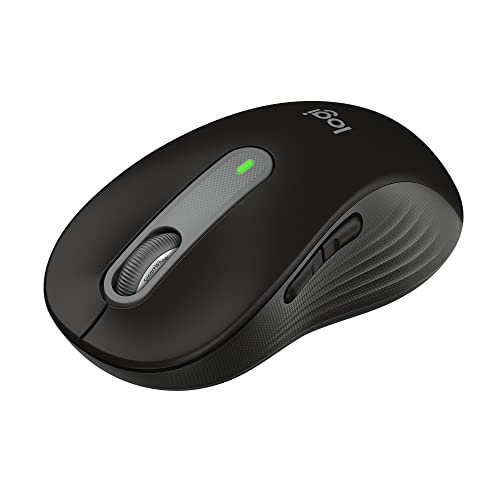
The Logitech Signature M650 is the best mouse for the Mac mini, the second genuinely non-optional purchase on this roundup given the machine’s BYODKM design. It pairs a comfortable, ergonomic shape with SilentTouch technology for 90% quieter clicks, a SmartWheel that auto-switches between precise line-by-line and fast free-spin scrolling, and full macOS compatibility through Logitech Options+. Best for Mac mini owners who want a genuinely comfortable daily-use mouse without paying Apple’s Magic Mouse pricing for a design many find ergonomically compromised.
Quick Facts
- 🖱️ SmartWheel scrolling — auto-switches between line-by-line precision and fast free-spin with a flick
- 🔇 SilentTouch technology — 90% less click noise than standard mice
- 🔗 Bluetooth or Logi Bolt USB receiver — connect however suits your setup
- ⚙️ Customizable side buttons — remap shortcuts through Logitech Options+ on macOS
- 🔋 24-month battery life — a single AA battery, included
- ♻️ Recycled materials — up to 64% certified post-consumer recycled plastic
- 📐 Multiple sizes and hand orientations — small-medium and large, left- and right-handed options available
Editor’s Note
A mouse is the other genuinely required purchase this roundup covers, and the real decision for most Mac mini owners is whether to default to Apple’s own Magic Mouse or look elsewhere — the M650 is worth that consideration specifically because of ergonomics. Apple’s Magic Mouse has a flat, low-profile shape that many users find genuinely uncomfortable over long sessions, since it offers minimal palm support compared to a curved, ergonomic design. The M650’s shape, soft thumb area, and rubber side grips are built specifically to address that long-session comfort gap.
The SmartWheel is the detail that actually changes daily use rather than just sounding good on a spec sheet — it automatically detects whether you’re scrolling slowly through a document (line-by-line precision) or quickly through a long webpage (free-spin mode), switching between the two with a flick rather than requiring a manual mode button. Combined with SilentTouch’s 90% quieter clicks, this is a genuinely considerate design for anyone working in a shared space or on video calls where mouse clicks are audible to others.
Pros
- Genuinely ergonomic shape — curved design with palm and thumb support, a real comfort upgrade over flat mouse designs
- SmartWheel auto-switching scroll — precise and fast scrolling without a manual mode toggle
- 90% quieter clicks via SilentTouch — genuinely useful for shared spaces and video calls
- 24-month battery life on a single AA — no proprietary rechargeable battery to eventually degrade
- Customizable side buttons through Logitech Options+ — genuine macOS shortcut integration
- Multiple size and handedness options — a real fit consideration most mice don’t offer
Cons
- AA battery power, not USB-C rechargeable — some users prefer a built-in rechargeable battery over swapping AA cells
- Requires Logitech Options+ for full customization — side button remapping isn’t accessible without installing the app
- Optical tracking, not the laser-precision sensors found on gaming-focused mice — fine for productivity, not built for competitive gaming use
Should I get a mouse if I’m already getting the trackpad reviewed later in this roundup?
Many Mac mini owners genuinely use both, and it’s worth understanding why rather than picking just one. A trackpad excels at gesture navigation — swiping between full-screen apps, pinch-to-zoom — but a mouse remains meaningfully more precise for tasks like photo editing, detailed selection work, or extended gaming sessions where exact cursor placement matters. If your budget allows for one purchase now, a mouse covers more general-purpose daily tasks; a trackpad is the better second addition once your core setup is solved, for the gesture-based workflows a mouse can’t replicate.
Why We Liked It
The M650 earns Best Mouse by solving the specific comfort problem Apple’s own Magic Mouse is well-known for — a flat profile that many users find genuinely tiring over long sessions, without the palm support an ergonomic shape provides. I think that’s the detail that actually matters for daily use over months of ownership, not just an initial impression: a mouse you use for hours every day needs to feel right hour four, not just hour one.
Compared to gaming-focused mice at a similar price, this prioritizes quiet operation and all-day comfort over RGB lighting and DPI numbers most Mac mini owners will never actually use. If you want to explore more mouse options — including picks specifically built for MacBook portability — our Best Mouse for MacBook roundup covers additional choices across styles and price points.
Best For
Mac mini owners who want a genuinely comfortable, quiet daily-use mouse without Apple’s Magic Mouse pricing or its flatter ergonomic profile.

Logitech Signature M650 — Best Mouse
Summary
The Logitech Signature M650 earns Best Mouse through a genuinely ergonomic, comfortable shape, SilentTouch’s 90% quieter clicks, and a SmartWheel that adapts scrolling automatically to what you’re doing. AA battery power instead of USB-C rechargeable and app-dependent customization are the honest trade-offs. For Mac mini owners who want daily comfort over Apple’s flatter Magic Mouse design, this is the pick.
Apple Magic Trackpad — Best Trackpad

The Apple Magic Trackpad is the best trackpad for the Mac mini, and Cult of Mac’s own hands-on review calls it flatly “the best trackpad in the world and the best input device for macOS.” Apple’s own support documentation walks through connecting it directly to a Mac mini, and the 2024 redesign brought genuine USB-C charging in place of the old Lightning port. Best for Mac mini owners who miss the gesture navigation of a MacBook trackpad and want that exact experience on the desktop.
Quick Facts
- 🖐️ Full Multi-Touch gesture support — the same gestures MacBook trackpads use, edge-to-edge glass with no dead zones
- 💪 Force Touch technology — senses pressure differences for deeper contextual actions
- 🔌 USB-C charging — the 2024 redesign replaced the old Lightning port
- 🔋 About a month or more per charge — genuine wireless convenience, rechargeable battery
- ⚙️ Automatic pairing with your Mac — no manual setup required, works out of the box
- 📐 Wider than the previous AA-battery version — Cult of Mac specifically notes it’s “barely under the limit of being too wide”
Editor’s Note
Cult of Mac’s own review doesn’t hedge on the core verdict: this “still holds the crown for the best Mac peripheral,” specifically citing Force Touch and Apple’s perfected multitouch gestures as unmatched anywhere else. That’s a genuinely strong endorsement worth trusting, since Cult of Mac has covered every generation of this product and has real comparison points to draw on.
Worth being direct about a real limitation, though, flagged independently by Adam Talks Tech’s review: unlike Logitech’s devices — including both the MX Keys S keyboard and Signature M650 mouse reviewed earlier in this roundup — the Magic Trackpad has no “Easy-Switch” button. Switching between paired devices requires manually going into Bluetooth settings to unpair and re-pair, which Adam Talks Tech calls “a clumsy process that feels decidedly un-Apple.” If you’re running this alongside multiple devices in daily rotation, that’s a genuine daily-use friction point the Logitech peripherals elsewhere in this roundup don’t share.
Cult of Mac also flags the physical redesign directly — the 2024 version is noticeably wider than the old AA-battery model, describing it as “barely under the limit of being too wide” for comfortable one-handed repositioning on a desk. That’s a real, hands-on observation worth knowing before buying, not something Apple’s own marketing mentions.
Pros
- Independently praised as “the best trackpad in the world” — Cult of Mac’s direct, unhedged assessment
- Full Force Touch and Multi-Touch gesture support — the genuine MacBook trackpad experience, brought to the desktop
- USB-C charging — a real 2024 upgrade from the old Lightning connector
- Automatic pairing — works immediately with any Mac, including the Mac mini, no setup friction
- Edge-to-edge glass surface — no dead zones, gestures register anywhere on the surface
- About a month of battery life per charge — genuinely low-maintenance daily use
Cons
- No Easy-Switch multi-device button — switching between paired devices requires manual Bluetooth re-pairing, unlike Logitech’s peripherals reviewed elsewhere in this roundup
- No built-in Touch ID — a feature buyers sometimes expect at this price point, independently flagged by Cult of Mac as a missed opportunity
- Noticeably wide — Cult of Mac describes it as “barely under the limit of being too wide” for easy one-handed repositioning
Do I need a trackpad if I already have the mouse reviewed earlier in this roundup?
Not strictly, but many Mac mini owners genuinely keep both for different reasons. A mouse remains more precise for detailed work like photo editing or extended gaming; a trackpad specifically replicates the gesture-based navigation — swiping between full-screen apps, pinch-to-zoom, three-finger app switching — that MacBook users rely on daily and simply can’t get from a mouse. If you’re coming from a MacBook and specifically miss that gesture workflow on your Mac mini desktop, this is the addition that restores it; if you never relied on trackpad gestures before, a mouse alone likely covers your needs.
Why We Liked It
The Magic Trackpad earns Best Trackpad by delivering the exact gesture experience MacBook users already know, brought faithfully to a Mac mini desktop setup — and Cult of Mac’s independent, multi-generation comparison backs that up directly rather than leaving it as an unverified claim. I think the Force Touch implementation specifically is what separates this from any third-party trackpad alternative on the market; Apple’s pressure-sensing technology genuinely isn’t replicated elsewhere with the same precision.
Compared to sticking with a mouse alone, the real value case here is for anyone who’s spent years building muscle memory around MacBook trackpad gestures — swiping between spaces, force-clicking for Quick Look — and doesn’t want to lose that workflow just because they’ve moved to a desktop machine. The lack of Easy-Switch is a genuine trade-off worth knowing, but for the core gesture experience itself, no alternative on the market matches it.
Best For
Mac mini owners who are used to MacBook trackpad gestures and want that same navigation experience on their desktop setup.

Apple Magic Trackpad — Best Trackpad
Summary
The Apple Magic Trackpad earns Best Trackpad through independently-praised Force Touch and Multi-Touch gesture support, genuine USB-C charging, and automatic Mac mini pairing. The lack of an Easy-Switch button for multi-device use and a noticeably wide profile are the honest trade-offs, both independently flagged by real reviewers. For Mac mini owners who want the genuine MacBook gesture experience on their desktop, this is the pick.
Anker PowerConf C200 — Best Webcam
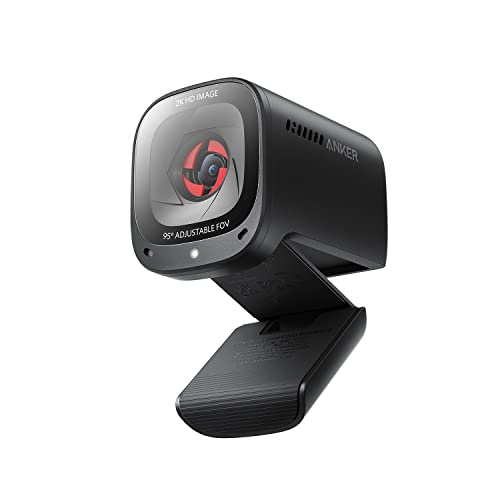
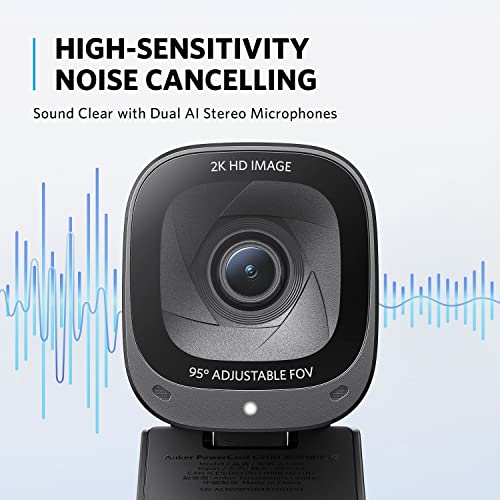
The Anker PowerConf C200 is the best webcam for the Mac mini, solving a gap Apple’s redesign leaves completely unaddressed — unlike every MacBook and iMac, the Mac mini has no built-in camera at all. This 2K webcam pairs genuinely sharp resolution with dual noise-cancelling mics, low-light correction, and adjustable field of view, at a price meaningfully below premium competitors. Best for Mac mini owners setting up video calls for the first time, who need this solved from scratch rather than upgraded from something already built in.
Quick Facts
- 📹 2K resolution — genuinely sharper than the 1080p most competing webcams top out at
- 🎤 Dual mics with AI noise cancellation — designed specifically for clear audio in noisy environments
- 🌙 Low-light correction — captures usable video in dim rooms without extra lighting
- 📐 Adjustable field of view — 65°, 78°, or 95° via software, framing your shot precisely
- 🔒 Integrated privacy cover — slides directly over the lens, no separate cap to lose
- 💻 Broad compatibility — Windows 7+ and macOS 10.11+, no macOS-specific driver concerns
- 📅 Warranty — 18-month Anker coverage
Editor’s Note
The Mac mini’s missing camera isn’t a minor inconvenience — it’s a genuine, immediate gap that catches many first-time buyers off guard mid-setup, since every other current Mac (MacBook, iMac) ships with one built in. The PowerConf C200 solves that directly, and 2K resolution is the detail worth highlighting specifically: many competing webcams in this price range still cap at 1080p, and the visible sharpness difference matters more than it sounds once you’re actually on a call.
The dual noise-cancelling mics are worth taking seriously rather than treating as a checkbox feature — a Mac mini desk setup often means a keyboard actively clicking away during calls, and Anker’s own testing specifically addresses that scenario, with independent coverage noting notably clean audio even with keyboard noise present in the background. Combined with software-adjustable field of view, this gives you real control over whether coworkers see just your face or your whole workspace, rather than being locked into one fixed framing.
Pros
- 2K resolution — genuinely sharper than the 1080p ceiling most competitors settle for
- Dual mics with AI noise cancellation — real clarity even with background typing or ambient noise
- Low-light correction — usable video quality without needing extra room lighting
- Adjustable field of view — 65°/78°/95° options via software, genuine framing control
- Integrated privacy cover — built-in, can’t be misplaced the way a separate lens cap can
- Broad macOS compatibility — no driver installation friction, works across a wide range of macOS versions
Cons
- No 4K option — 2K is genuinely good, but buyers wanting maximum future-proofed resolution should look elsewhere
- Fixed focus (auto), not manual override — fine for typical desk distance, less flexible for unusual camera positioning
- AnkerWork software required for full FOV customization — basic function works without it, but adjusting field of view needs the app installed
Do I actually need a dedicated webcam, or can I get by without one for a Mac mini?
If you do any video calls at all — work meetings, family calls, interviews — you genuinely need to solve this, since the Mac mini is the one current Mac with zero built-in camera options. There’s no macOS setting or workaround that adds a camera Apple didn’t include. If your Mac mini use is entirely offline work, gaming, or media consumption with no video calling, you could reasonably skip this category — but for the large majority of Mac mini owners doing any remote work or family video chat, this is a genuinely required purchase, not an optional upgrade.
Why We Liked It
The PowerConf C200 earns Best Webcam by delivering 2K resolution and genuinely effective noise cancellation at a price well below premium competitors that charge significantly more for broadly similar core capability. I think the dual-mic noise cancellation specifically is what separates this from cheaper webcams that only include a single, unremarkable microphone — on a desk setup where a mechanical keyboard is often active during the same call, that background noise handling makes a real, audible difference to how you come across on the other end of a video call.
Compared to relying on a laptop’s built-in camera quality as a benchmark, this actually exceeds what most MacBooks offer natively, meaning Mac mini owners aren’t settling for a lesser experience just because their machine didn’t include one — if anything, this webcam pick outperforms the camera in many of the laptops it’s commonly paired against on a desk.
Best For
Mac mini owners setting up video calling for the first time who want genuinely sharp resolution and clear audio without paying premium-tier pricing.
Anker PowerConf C200 — Best Webcam
Summary
The Anker PowerConf C200 earns Best Webcam through genuine 2K resolution, dual noise-cancelling mics that handle background keyboard noise well, and software-adjustable field of view — all solving a gap the Mac mini ships with zero native answer to. No 4K option and app-dependent FOV customization are the honest trade-offs. For Mac mini owners setting up video calls from scratch, this is the pick.
Edifier R1280T — Best Speakers
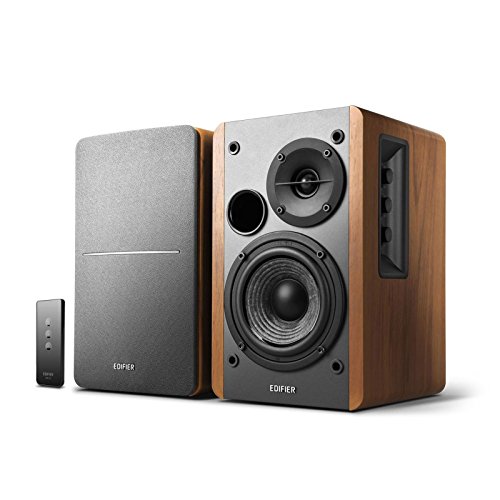
The Edifier R1280T is the best speakers pick for the Mac mini, solving a gap Apple leaves entirely unaddressed — the machine has never shipped with more than one small internal speaker, genuinely inadequate for anything beyond basic system alerts. The R1280T pairs a warm, wooden-enclosure sound with 42 watts RMS power and dual AUX inputs, letting you switch between the Mac mini and a second device without unplugging anything. Best for Mac mini owners who want real, room-filling sound without stepping into studio-monitor territory.
Quick Facts
- 🔊 42 watts RMS power — genuinely capable output for a desk or small room, not a token spec number
- 🎵 13mm silk dome tweeter + 4-inch full-range driver — independent reviewers consistently describe the resulting sound as warm, bass-forward, and engaging
- 🔌 Dual 3.5mm/RCA AUX inputs — connect two devices simultaneously, switch between them without replugging
- 🪵 Wooden MDF enclosure — a sturdier, more room-filling build than the plastic cabinets common at this price
- 🎛️ Remote control + side-panel EQ knobs — volume adjustment from your desk, bass/treble tuning on the powered speaker itself
- 📅 Warranty — 2-year Edifier coverage
- ⚠️ Connection type — analog only (3.5mm/RCA), no Bluetooth
Editor’s Note
A real gap worth naming plainly: no review anywhere mentions Mac mini or macOS compatibility specifically, and that’s not an oversight on our part — there’s genuinely nothing to test. The R1280T connects via analog 3.5mm/RCA inputs, which don’t require any driver, macOS certification, or OS-specific compatibility at all. It works identically whether plugged into a Mac mini, a Windows PC, or a turntable — the same way a standard headphone jack does. That’s fundamentally different from a webcam needing macOS camera framework support; there’s simply nothing platform-specific to confirm here.
What multiple independent audio comparison sites do confirm consistently is the character of the sound itself — repeatedly described as warmer and more bass-forward than flatter, studio-monitor-style alternatives, making it the pick for casual listening, movies, and games rather than critical audio production work. The dual AUX input design is worth highlighting specifically for a Mac mini desk setup: you can keep the Mac mini connected permanently while still plugging in a phone or laptop temporarily, without any cable-swapping or app-based switching required.
Pros
- 42 watts RMS — genuinely room-filling output, not an inflated peak-power number
- Warm, bass-forward sound signature — independently confirmed across multiple audio comparison sources as the character that separates it from flatter, studio-style alternatives
- Dual AUX inputs — two devices connected simultaneously, switch without unplugging
- Solid wooden MDF construction — sturdier build quality than plastic-cased competitors at a similar price
- Remote control included — desk-distance volume adjustment without reaching for the speaker
- 2-year warranty — solid coverage for the accessory tier
Cons
- No Bluetooth — analog-only connection means a physical cable is required, no wireless option
- Bass-forward tuning isn’t ideal for critical audio work — buyers doing music production or audio editing may prefer a flatter-response alternative
Why doesn’t any review mention whether this works with a Mac mini specifically?
Because there’s genuinely nothing Mac-specific to test. The R1280T connects through standard analog 3.5mm and RCA inputs, the same type of connection a pair of wired headphones uses — no driver installation, no macOS version requirement, no certification process involved. It works identically across a Mac mini, a Windows PC, a games console, or a turntable, which is exactly why independent reviews focus on sound character and build quality rather than platform compatibility. If your Mac mini has a headphone jack or you’re connecting through a dock or hub with an audio-out port, this speaker set will work exactly as intended.
Why We Liked It
The R1280T earns Best Speakers by delivering genuinely room-filling, warm sound in a solid wooden enclosure — a real step up from the tinny, thin output most budget computer speakers settle for at a similar price. I think the dual AUX input design is the detail that makes this specifically well-suited to a Mac mini desk setup rather than a generic pair of speakers that happens to work: keeping your Mac mini permanently connected while still being able to plug in a phone for music without any switching hassle solves a real, everyday annoyance.
Compared to flatter-response studio monitor alternatives at a similar price, the R1280T’s warmer tuning is the better default choice for the majority of Mac mini owners using their setup for calls, casual music, movies, and games — audio production work is a genuinely different use case that benefits from a different, more neutral speaker character, but that’s a smaller slice of buyers than the general desk-setup audience this pick is built for.
Best For
Mac mini owners who want genuinely room-filling, warm sound for everyday listening, calls, and media — without stepping into studio-monitor territory built for critical audio work.

Satechi Mac Mini Hub & Stand — Best SSD Dock
Summary
The Edifier R1280T earns Best Speakers through genuinely room-filling 42-watt output, a warm sound signature independently confirmed across multiple audio comparison sources, and a dual AUX input design that solves a real Mac mini desk-setup annoyance. No Bluetooth and a bass-forward tuning better suited to casual listening than critical audio work are the honest trade-offs. For Mac mini owners who want real, warm sound the built-in speaker was never going to provide, this is the pick.
Written by Metin Karal
Metin Karal is a Computer Engineer with over 25 years of experience working with internet technologies, trends, and digital tools since 1995. He brings this deep background into his product reviews, combining technical expertise with careful research to deliver honest, practical insights for readers. Passionate about technology, Metin also enjoys programming in C# and is currently developing PairMem, a challenging memory game available for free on the official Microsoft Store.
How We Selected These Products
We recommend these items based on a thorough research process designed to highlight the best options available. While we did not physically test some products ourselves, we relied on detailed research and verified customer feedback to evaluate them.
- Detailed Research: We reviewed product specifications, manufacturer information, and feature lists to understand what each item offers.
- Customer Insights: We analyzed verified buyer reviews and ratings to learn how these products perform in real-world use.
- Comparison Factors: We compared products across price, durability, usability, and unique features to identify the strongest choices.
- Personal Experience: With over 25 years of working in internet-related technologies and following online trends since 1995, I bring a deep understanding of how products are marketed, evaluated, and used. This background helps me filter out hype and focus on what truly matters for everyday users.
- Balanced Evaluation: Our goal is to provide clear, unbiased information so you can make confident purchasing decisions.
See also How We Review Products section for more details on our process.