Written by Metin KARAL – Computer Engineer with 25+ years of experience in internet technologies. Some products here are tested directly, while others are evaluated through detailed research, specifications, and verified customer feedback. This article may contain affiliate links; as an Amazon Associate we earn from qualifying purchases at no extra cost to you.
Apple released the new M6 and M5 Pro Mac mini just days ago — but the base storage option is still stuck at 256GB, and 256GB is nowhere near enough for most users once photo libraries, video projects, and everyday app installs start piling up. Upgrading internally through Apple costs hundreds of dollars just to reach 512GB, and jumping to 8TB inside Apple’s own store can run into the thousands.
At the same time, Apple’s redesigned chassis still ships without USB-A ports or an SD card slot — a real daily friction point whether you’re on the new M6, the M5 Pro, or still running the original M4 or M4 Pro from 2024. That’s exactly the gap a good docking station fills: real NVMe storage at a fraction of Apple’s price, plus the ports Apple left out entirely.
We compared 8 standout docks across every Mac mini generation currently in use — from budget-friendly 10Gbps options to genuine Thunderbolt 5 docks built for the M5 Pro’s full bandwidth — to help you find the right one for your workflow and your wallet.
Short Answer
The Satechi Hub & Stand is the best overall Mac mini dock, matching Apple’s own design language while delivering Macworld-confirmed real-world speeds around 900MB/s. The RayCue Dock is the pick for Best Budget, delivering NVMe and SATA M.2 storage plus genuine 4K@60Hz HDMI at the lowest price in this roundup. The BEELINK EX Mate Mini-A is the top pick for Best 80Gbps Thunderbolt 5, the only dock here built around genuine Pro-tier Mac mini bandwidth for M5 Pro and M4 Pro owners.
Best Mac Mini M6, M5 Pro & M4 Dock Stations – 2026
| Dock | Why |
|---|---|
| Satechi Mac Mini | Best Overall — perfect Mac mini aesthetic match, front-facing ports, power button recess, and Macworld-confirmed ~966MB/s NVMe speeds. Looks and works like Apple designed it. |
| BEELINK EX Mate Mini-A | Best for M5 Pro – genuine TB5 bandwidth, dual PCIe slots up to 16TB, confirmed 3,346MB/s even on non-Pro hardware. The only dock here that removes the bandwidth bottleneck entirely. |
| Qwiizlab USB4 40Gbps | Best Silent 40Gbps Dock — fanless passive cooling, confirmed 3,141MB/s write speeds, premium ASM2464PD chip. Serious speed, zero noise. |
| ANYOYO 40Gbps | Best Dual Monitor Dock — dual simultaneous HDMI 4K@60Hz output plus ~2,500-3,000MB/s NVMe speed. Triple-display workstation from one purchase. |
| IVANKY 13-in-1 | Best Feature-Rich Dock — 13 ports, the only 4K@144Hz HDMI here, dual audio, NVMe + SATA support, power adapter included. Every connectivity need, solved once. |
| UGREEN Mac Mini M4 Dock | Best Port Density — 11-in-1 connectivity, confirmed 855MB/s speed, documented triple safety protection. Proven across a year of EU/UK use before US launch. |
| RayCue Mac Mini M4 Dock | Best Budget — NVMe and SATA M.2 dual-protocol support, genuine 4K@60Hz HDMI, 10Gbps USB-A and USB-C, tool-free magnetic SSD install. Real ports, lowest price here. |
| Satechi Thunderbolt 5 CubeDock | Best Standalone Thunderbolt 5 Dock — confirmed up to 6,000MB/s, 140W laptop charging, genuine multi-device performance. Not Mac mini-shaped — a full TB5 command center. |
Editor’s Recommendation ⭐
Satechi Mac Mini Hub & Stand — The dock that solves the problems Mac mini owners actually run into first, not the ones a spec sheet chases. Macworld-confirmed real-world speeds around 900MB/s are genuinely enough for daily productivity, photo work, and backups, while the power button recess fixes the single most complained-about part of Apple’s redesign — reachable without lifting the machine, every single restart. Front-facing ports put USB-A and an SD card slot within actual reach instead of routed to the back, and the design match is precise enough to look factory-installed under any current Mac mini generation. Not the fastest dock here — the most complete one.
Satechi Mac Mini Hub & Stand — Best Overall

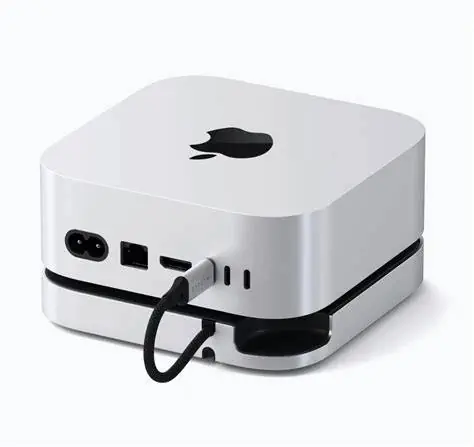
The Satechi Hub & Stand is the best overall dock for the Mac mini M6, M5 Pro, and M4, matching Apple’s own design language while adding front-facing ports and Macworld-confirmed real-world NVMe speeds around 900MB/s. Satechi has already updated this exact listing to explicitly confirm compatibility across all three current chip generations. Best for Mac mini owners who want a dock that looks like Apple designed it, with enough everyday speed for daily productivity without the bulk or noise of a 40Gbps enclosure.
Quick Facts
- 🎨 Design match — industry-grade brushed aluminum identical to Apple’s own Mac mini finish
- 🔌 5-in-1 front-facing ports — 2x USB-A 3.2 (10Gbps), 1x USB-A 2.0, UHS-II SD reader (up to 312MB/s)
- 💾 NVMe SSD enclosure up to 4TB — M.2 2230/2242/2260/2280 NVMe only; SSDs with heatsinks or double-sided drives not supported
- ⚡ Real-world speed confirmed — 966MB/s read / 847MB/s write, independently tested by Macworld
- 🌡️ Passive cooling — bottom vents, recessed top, thermal pad included; no active fan
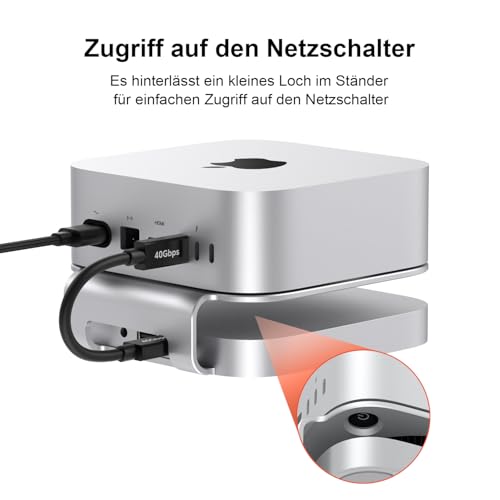
- 🔘 Power button access — dedicated recess makes the Mac mini’s bottom-mounted power button reachable
- 📐 5″ x 5″ x 0.8″ — matches the Mac mini’s own footprint exactly
- 📅 Warranty — 2-year Satechi coverage
Editor’s Note
Macworld’s reviewer called this dock hard to imagine a more elegant way to add interfaces to the Mac mini. The Satechi Hub is the dock that prioritises two things above everything else: design perfection and daily practicality. It sits under the Mac mini M6, M5 Pro, or M4 like it was always meant to be there — same 5×5-inch footprint, same brushed aluminum finish, same visual language Apple has carried across every generation since the redesign. The power button recess at the rear left — a genuinely clever detail — solves the single most complained-about aspect of that redesign without requiring any awkward workaround.
For daily use, the front-facing port placement is the practical detail that matters most. Every other connectivity dock routes ports to the side or rear. The Satechi puts USB-A, USB-A, and an SD card slot directly at the front of your desk — within reach without moving anything. Real-world SSD performance, independently confirmed by Macworld at 966MB/s read and 847MB/s write, is genuinely enough for daily productivity, photo work, backups, and office tasks.
The honest limitation confirmed by AppleInsider is important to state clearly: because all ports share the same 10Gbps USB-C connection to the Mac mini, plugging in multiple devices simultaneously drops SSD speed rapidly — under 500MB/s in worst-case testing. For owners who use the SSD for storage while actively transferring files via USB-A, the bandwidth sharing becomes a real constraint. Satechi itself recommends connecting one bus-powered device at a time for optimal performance.
Storage is just one piece of a complete Mac mini setup — the machine also ships with no display, keyboard, mouse, camera, or speakers. Our best Mac mini accessories roundup covers the rest of what you’ll need, with one genuine standout pick per category.
Pros
- Confirmed compatible with M6, M5 Pro, and M4 — Satechi’s own updated listing, not an assumption
- 966MB/s read / 847MB/s write — Macworld-confirmed real-world speed, genuinely sufficient for daily productivity
- Front-facing ports — USB-A, USB-A, and SD card reader within reach, not routed to the back
- Power button recess — solves the Mac mini’s most-discussed design frustration
- Perfect footprint match — 5″x5″x0.8″, adds minimal height and disappears visually under the machine
- 2-year warranty — solid coverage for the price tier
Cons
- 4TB SSD ceiling — lower than several 8TB-capable competitors in this roundup
- Shared 10Gbps bandwidth — plugging in multiple devices simultaneously drops SSD speed, sometimes below 500MB/s in worst-case use
- No display output — relies entirely on the Mac mini’s own HDMI and Thunderbolt ports
Do I actually need a 40Gbps dock, or is 10Gbps enough for daily work?
For most Mac mini owners, 10Gbps is genuinely enough. Macworld’s confirmed 966MB/s figure on this exact dock comfortably covers everyday productivity — document work, photo libraries, backups, and typical office tasks all run well below that ceiling. The real dividing line is sustained large-file workflows: if you’re regularly moving multi-gigabyte video files or working directly off external storage in a professional editing pipeline, a 40Gbps dock like the ones elsewhere in this roundup will save real time. If your daily work is email, browsers, documents, and occasional photo edits, paying extra for 40Gbps mostly buys headroom you won’t use.
How It Compares — Satechi Hub vs. UGREEN
The UGREEN, also reviewed in this roundup, competes directly in the same 10Gbps tier but takes the opposite design approach — more raw ports (11-in-1 versus Satechi’s 5) at the cost of the design-matched aesthetic and front-facing convenience Satechi prioritizes. For buyers who want maximum port count above all else, UGREEN wins on paper; for buyers who want a dock that looks and feels like it belongs under the Mac mini, Satechi is the more considered choice.
Why We Liked It
The Satechi earns Best Overall not through the fastest specs — it doesn’t have them — but through the most complete daily-use experience. The design match is genuinely flawless. The Gadgeteer described it as giving “all the necessary ports, an SD card reader, and an adequate NVMe enclosure” without costing a huge amount. Cult of Mac’s reviewer described it as the dock that “addresses all the computer’s flaws without negating its space-saving benefits.” These are the editorial signals of a product that understands its user — not a power user pushing 40Gbps NVMe transfers, but a daily Mac mini owner who wants USB-A ports at the front, an SD card slot for photos, a place for a backup drive, and a machine that still looks right on the desk.
The power button recess is the small detail that accumulates real value over months of daily use. Apple moved the power button to the underside of the machine with the redesigned chassis — a placement carried through the M4, M6, and M5 Pro generations without change — requiring the user to lift the whole machine every restart. Satechi’s recessed access point at the rear left means the power button is reachable without moving anything. Macworld went as far as calling this the feature that seems least noticeable at first, but turns out to matter the most in daily use.
The Wi-Fi confirmation from Cult of Mac matters specifically because of where Apple placed the antenna. The Mac mini’s Wi-Fi antenna sits at the bottom of the machine — directly adjacent to where docks connect. Many Mac mini docks cause measurable Wi-Fi signal degradation as a result. The Satechi’s plastic recessed top with rubber risers — rather than a solid metal surface — maintains the Wi-Fi signal gap that keeps wireless performance intact.
Best For
Mac mini M6, M5 Pro, or M4 owners who want a dock that matches Apple’s design language, solves the power button placement issue, and delivers genuinely sufficient everyday NVMe speed without fan noise or bulk.

Satechi Mac Mini Hub & Stand
Summary
The Satechi Hub & Stand earns Best Overall through Macworld-confirmed 966MB/s real-world speed, a power button recess that solves the Mac mini’s most common daily frustration, and a design match precise enough to look factory-installed — now explicitly confirmed compatible across M6, M5 Pro, and M4. A 4TB SSD ceiling and shared bandwidth under heavy multi-device use are the honest trade-offs. For Mac mini owners who want a dock that looks right and performs well for everyday work, this is the pick.
Need immediate storage upgrade? Check out our roundup of the best External SSD for Macbook and Mac Mini Review
BEELINK EX Mate Mini-A — Best 80Gbps Thunderbolt 5 Dock for M5 Pro

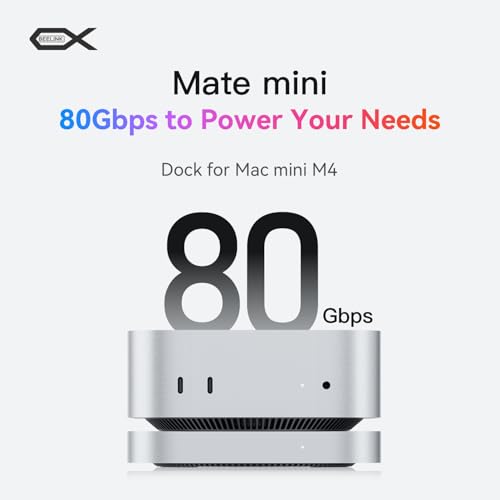
The BEELINK EX Mate Mini-A is the best 80Gbps Thunderbolt 5 dock for Mac Mini M5 Pro owners, the only pick in this roundup built around genuine Thunderbolt 5 bandwidth rather than the 40Gbps USB4 ceiling most “future-proof” docks top out at. AppleInsider called it the first Thunderbolt 5 dock built specifically for Apple’s current Mac lineup. Best for M5 Pro Mac mini owners who want dual NVMe storage and genuinely eliminated the bandwidth bottleneck that constrains every 10Gbps and 40Gbps dock in this roundup.
Quick Facts
- ⚡ Thunderbolt 5, 80Gbps — the only dock in this roundup that moves beyond the 40Gbps USB4 ceiling
- 💾 Dual M.2 PCIe slots, up to 16TB — 8TB per slot, PCIe 3.0/4.0/5.0 SSDs supported
- 🔌 Note on Pro-tier chips specifically — the Mac mini M5 Pro and M4 Pro both ship with native Thunderbolt 5 ports; the base M6 and standard M4 models connect via backward-compatible TB4/USB4, which caps real throughput well below 80Gbps
- 📶 2.5G Ethernet — faster wired networking than the gigabit Ethernet most competing docks and the base Mac mini itself ship with
- 📷 SD 4.0 card reader — rated up to 300MB/s; AppleInsider’s own testing measured roughly 200MB/s in practice
- 🎧 Front and rear audio — front port mirrors the Mac mini’s own headphone jack, rear port frees up a dedicated speaker connection
- 📐 16mm thin profile — mounts above or below the Mac mini depending on preference
- 📅 Warranty — 1-year manufacturer coverage, 24/7 support
Editor’s Note
AppleInsider’s hands-on review made a point worth repeating directly: for years, dock and hub makers have built 10Gbps and even 40Gbps products around Mac mini form factors while somehow expecting external storage, multiple USB ports, and display output to all share that limited bandwidth without a bottleneck. The Mate Mini-A is the first product in this entire category, in this roundup or otherwise, that simply removes that constraint by building around genuine Thunderbolt 5 bandwidth instead of working around a narrower pipe.
The real nuance worth being precise about, since it directly affects whether this pick actually delivers on its headline spec: Thunderbolt 5 has been part of Apple’s Pro-tier Mac mini lineup since the M4 Pro’s original October 2024 launch — Apple ships three genuine TB5 ports (up to 120Gb/s) on every Pro-tier chip, while the base-tier chip (M4, and almost certainly the new M6) stays on Thunderbolt 4. That means both M4 Pro and M5 Pro owners get the dock’s full 80Gbps ceiling natively — this isn’t a benefit exclusive to the newest chip generation. Base-tier M6 and M4 owners connect through backward-compatible Thunderbolt 4/USB4, which functions correctly but caps real throughput meaningfully below 80Gbps.
For those base-tier owners specifically, the manufacturer’s own reported testing shows 3,346MB/s read and 3,075MB/s write — genuinely strong numbers that already exceed most 40Gbps docks in this roundup, even without a native TB5 connection. That’s a meaningful data point: even non-Pro Mac mini owners get real, substantial speed here, just not the full 80Gbps ceiling reserved for Pro-tier chips.
The second NVMe slot’s dependency on the first being populated is a real configuration quirk flagged independently by review coverage — it doesn’t break the product, but buyers planning to run a single high-capacity drive rather than two should know the slots aren’t fully independent. AppleInsider also measured roughly a 15% Wi-Fi signal reduction when the dock sits below the Mac mini rather than on top, and specifically recommends the top-mounted orientation — a genuine, source-confirmed placement tip rather than a guess.
Pros
- True Thunderbolt 5, 80Gbps bandwidth — the only dock in this roundup that removes the bandwidth-sharing bottleneck entirely
- Dual PCIe slots, up to 16TB total — real dual-bay storage independent of RAID complexity
- 3,346MB/s read / 3,075MB/s write confirmed on M4 — strong real-world speed even without a native TB5 connection
- 2.5G Ethernet — genuinely faster wired networking than gigabit-standard competitors
- Independently reviewed by AppleInsider and The Gadgeteer — real hands-on validation, not just manufacturer claims
- Mounts above or below the Mac mini — flexible placement depending on desk setup and Wi-Fi priorities
Cons
- Full 80Gbps ceiling requires a Pro-tier Mac mini (M5 Pro or M4 Pro) — base M6 and M4 models connect at lower backward-compatible speeds of TB4 40Gbps
- Second NVMe slot depends on the first being populated — a real configuration limitation for single-drive setups
- Uses the Mac mini’s only Thunderbolt port — display passthrough is retained, but the port itself is committed to the dock
Do I actually need 80Gbps Thunderbolt 5 speed, or is 40Gbps enough for my work?
Genuinely, most buyers don’t need it yet. 40Gbps docks elsewhere in this roundup already deliver 2,500–3,100MB/s in real-world use, which comfortably covers video editing, large photo libraries, and heavy creative workflows. Thunderbolt 5’s real advantage shows up specifically when you’re running multiple demanding devices simultaneously off one connection — dual high-resolution displays plus fast storage plus high-speed networking, all sharing bandwidth without any single one bottlenecking the others. If you’re a single-task user even with large files, a 40Gbps dock is very likely sufficient. If you’re building a genuine multi-display, multi-device professional setup on an M5 Pro Mac mini specifically, this is where Thunderbolt 5’s extra headroom actually gets used rather than sitting idle.
How It Compares — BEELINK EX Mate Mini-A vs. Qwiizlab USB4 40Gbps
The Qwiizlab, also reviewed in this roundup, tops out at 40Gbps via USB4 with confirmed real-world speeds around 3,100MB/s — genuinely close to what the BEELINK delivers on non-M5-Pro Mac minis today. The real difference is headroom for the future: Qwiizlab’s ceiling is fixed at 40Gbps regardless of host device, while the BEELINK scales up automatically to 80Gbps the moment it’s paired with a Thunderbolt 5 host. For M4 or M6 owners today, the practical speed difference is smaller than the spec sheets suggest; for M5 Pro owners specifically, or anyone planning to upgrade to TB5 hardware later, the BEELINK is the pick built for where the bandwidth ceiling is actually headed.
Why We Liked It
The BEELINK EX earns its place in this roundup by being the only product that treats the Mac mini’s connectivity limits as a bandwidth problem to solve at the root, rather than a constraint to work around. AppleInsider’s framing stuck with me specifically: after years of reviewing docks that ask 10Gbps or even 40Gbps connections to somehow handle storage, multiple ports, and displays simultaneously without bottlenecking, here’s a product built around a connection standard with genuine headroom to spare.
The dual-bay storage matters practically, not just as a spec-sheet number. A photographer or video editor working with an active project drive and a separate archive drive gets that separation built into the hardware here, rather than needing to partition a single drive or juggle external storage separately. Combined with the 2.5G Ethernet port — genuinely faster than most home networking setups can even use yet, but future-relevant as ISPs push faster plans — this is a dock built for someone who’s thinking several years ahead of their current Mac mini’s actual bottleneck, not just solving today’s problem.
Best For
Mac mini M5 Pro or M4 Pro owners who want to actually use Thunderbolt 5’s full bandwidth for dual NVMe storage, fast networking, and multi-device workflows without a shared-bandwidth bottleneck — and M6/M4 owners who want genuinely strong 3,000MB/s+ speeds today with a clear upgrade path if they move to Pro-tier hardware later.
BEELINK EX Mate Mini-A
Summary
The BEELINK EX Mate Mini-A earns Best 80Gbps Thunderbolt 5 Dock for M5 Pro through genuine Thunderbolt 5 bandwidth, dual M.2 PCIe slots up to 16TB, and confirmed 3,346MB/s read speeds even on M4 hardware — independently validated by AppleInsider and The Gadgeteer. The full 80Gbps ceiling requires an M5 Pro Mac mini specifically, and buyer feedback on long-term reliability is mixed. For M5 Pro owners who want to actually use Thunderbolt 5’s bandwidth headroom, nothing else in this roundup comes close.
Qwiizlab USB4 40Gbps — Best Silent 40Gbps Dock
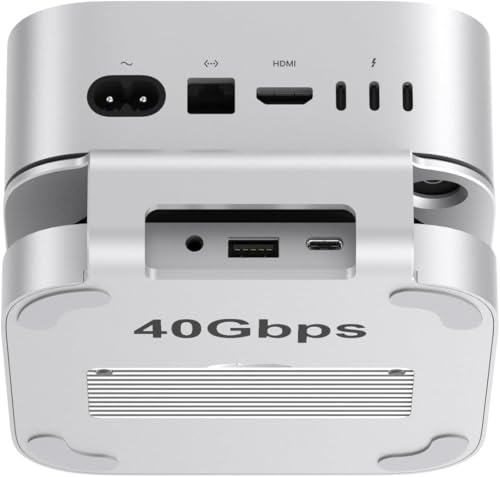
The Qwiizlab USB4 40Gbps is the best silent 40Gbps dock for Mac mini owners, delivering genuinely fast NVMe speeds through fanless passive cooling rather than active fan noise. Qwiizlab’s own testing confirms 3,141MB/s write and 3,096MB/s read with a premium NVMe drive — real-world buyer reports independently land in the same range. Best for Mac mini owners who want serious sustained NVMe speed without a single moving part or audible fan noise on their desk.
Quick Facts
- ⚡ USB4 / Thunderbolt-compatible, 40Gbps ceiling — works with Thunderbolt 5, Thunderbolt 4, and USB4 ports, but the dock’s own controller chip caps real throughput at 40Gbps regardless of host port generation
- 🚀 3,141MB/s write / 3,096MB/s read confirmed — Qwiizlab’s own testing with a 4TB Samsung 990 EVO Plus SSD
- 💾 NVMe SSD up to 8TB — M.2 2230/2242/2260/2280; NVMe PCIe only, no SATA
- 🔌 ASM2464PD bridge chip — the same silicon used in premium standalone NVMe enclosures; a genuine 40Gbps-class chip, not TB5-native
- 🔊 Fanless passive cooling — completely silent operation via grooved aluminum shell and thermal pads
- 🎧 3.5mm audio out — the only dock in this roundup pairing audio output with an SSD enclosure
- 📐 Raises Mac mini 3.6cm — improved airflow underneath the machine
- 📦 40Gbps USB-C cable included — correct cable for maximum speed from day one
Editor’s Note
The listing’s compatibility language deserves a closer read than it usually gets. It states the dock delivers “40Gbps speed via the Thunderbolt 5 port” on Pro-tier Mac mini models — which is accurate, but worth being precise about what it actually means. Thunderbolt 5 ports support up to 120Gb/s, but that ceiling belongs to the port, not to every device plugged into it. Qwiizlab’s own ASM2464PD bridge chip is a genuine 40Gbps-class controller — the same generation of silicon used across most premium USB4 enclosures — so connecting through a Thunderbolt 5 port gets you a stable, fast 40Gbps connection, not a boost to 80 or 120Gbps. The TB5 port’s extra headroom simply goes unused here, the same way a car with a 200mph top speed doesn’t go any faster on a highway with no speed limit if the car itself tops out at 120.
That distinction matters less than it might sound, though, because 40Gbps genuinely is fast enough for the overwhelming majority of real-world use. Qwiizlab’s own tested figures — 3,141MB/s write and 3,096MB/s read — are corroborated independently by real buyer reports landing in a very similar range, which is a meaningful confirmation that the manufacturer’s numbers hold up outside a controlled lab environment.
The fanless design is the detail that actually separates this from the ANYOYO and BEELINK at similar or higher speed tiers. Both of those use active cooling. Fans add thermal headroom but also introduce noise and a component that can eventually wear out. Qwiizlab’s grooved aluminum shell manages heat entirely passively — a real trade-off worth weighing if you work in a quiet space or simply prefer zero mechanical noise from your desk peripherals.
The honest limitations are worth stating plainly: the USB-A ports here are 2.0 only, meaning they’re fine for a keyboard or mouse receiver but genuinely inadequate for external drive transfers. The hub body itself is painted plastic rather than aluminum, despite marketing photography that can suggest otherwise. And there’s no included wall charger — you’ll need to source your own external power adapter, which is an added cost and setup step that bus-powered docks avoid entirely.
Pros
- 3,141MB/s write / 3,096MB/s read confirmed — Qwiizlab’s own testing, independently corroborated by real buyer reports in a similar range
- Genuinely fanless — zero mechanical noise, no moving parts to eventually fail
- ASM2464PD premium bridge chip — the same silicon used in standalone premium NVMe enclosures
- Works across Thunderbolt 5, Thunderbolt 4, and USB4 hosts — broad compatibility even though the dock’s own ceiling stays fixed at 40Gbps
- 3.5mm audio output — a genuine differentiator versus most other high-speed docks in this roundup
- 40Gbps cable included — no need to separately source the correct cable to hit full speed
Cons
- USB-A ports are 2.0 only — fine for peripherals, genuinely inadequate for external drive data transfer
- Plastic hub body — despite an aluminum stand, the hub portion itself is painted plastic, not metal
- No wall charger included — external power adapter required separately, adding cost and setup steps
- No display output at all — zero HDMI or DisplayPort; relies entirely on the Mac mini’s own ports
Does connecting this dock through a Thunderbolt 5 port actually give me faster speeds than a Thunderbolt 4 or USB4 port?
No — the dock’s own controller chip is the actual bottleneck here, not the host port. Qwiizlab’s ASM2464PD bridge chip has a real ceiling around 40Gbps regardless of what generation port you connect it to. A Thunderbolt 5 port supports up to 120Gb/s of total bandwidth, but that capacity only gets used if the connected device’s own hardware can actually push data that fast. Since this dock’s chip tops out well below that, you’ll see essentially identical real-world speeds whether you plug it into a Thunderbolt 4, USB4, or Thunderbolt 5 port — the TB5 port’s extra headroom simply isn’t something this specific dock can access.
How It Compares — Qwiizlab vs. BEELINK EX Mate Mini-A
The BEELINK EX, also reviewed in this roundup, is built around genuine Thunderbolt 5 silicon and roughly doubles Qwiizlab’s real-world throughput on hardware that can actually use the full bandwidth. The trade-off is noise and complexity — BEELINK uses active cooling and costs meaningfully more, while Qwiizlab delivers strong, silent, and simpler performance at a lower price. For buyers who genuinely need every bit of available bandwidth on Pro-tier Mac mini hardware, BEELINK is the stronger pick; for buyers who want fast, quiet, reliable storage without paying for headroom they may never use, Qwiizlab remains the more sensible choice.
Why We Liked It
Qwiizlab earns Best Silent 40Gbps Dock by delivering genuinely strong, independently corroborated speed without asking you to tolerate fan noise to get it. I think the fanless design is underrated specifically because so many competing 40Gbps docks default to active cooling as the obvious solution, when a well-designed passive thermal system can achieve the same practical result for sustained, moderate workloads without the downside.
For a concrete example: someone working from a home office who values a quiet environment — no fan spin-up during a video call, no background hum while recording audio — gets real 40Gbps NVMe speed here without any of that trade-off. The included 40Gbps cable also removes a genuinely common frustration with high-speed docks generally, where buyers unknowingly bottleneck their own setup with an incorrect cable pulled from a drawer.
Best For
Mac mini owners who want strong, independently confirmed 40Gbps NVMe speed with zero fan noise, and who don’t need high-speed USB-A ports or any display output from the dock itself.
Qwiizlab USB4 40Gbps
Summary
Qwiizlab earns Best Silent 40Gbps Dock through Qwiizlab-confirmed and independently corroborated 3,141MB/s write / 3,096MB/s read speeds, a genuinely fanless passive cooling design, and the premium ASM2464PD bridge chip. USB-A 2.0-only ports, a plastic hub body, and no included charger are the honest trade-offs. For Mac mini owners who want fast, silent NVMe storage without paying for Thunderbolt 5 bandwidth they can’t fully use through this specific dock, this is the pick.
ANYOYO 40Gbps Mac Mini Dock — Best Dual Monitor Dock

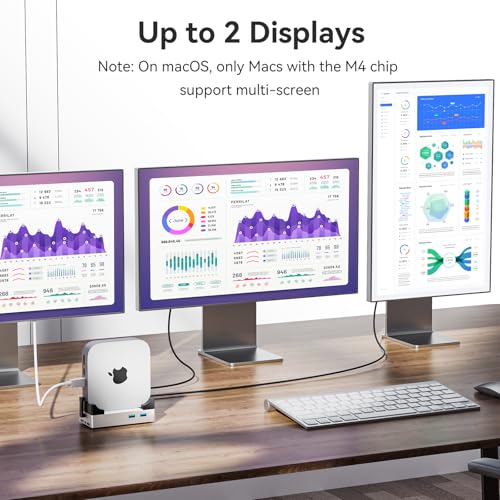
The ANYOYO 40Gbps is the best dual monitor dock for Mac mini owners, the only 40Gbps pick in this roundup delivering two simultaneous HDMI 4K@60Hz outputs alongside genuinely fast NVMe storage. Combined with the Mac mini’s own rear HDMI port, that makes a real triple-display workstation possible from a single dock purchase — no adapters, no DisplayPort cable hunting. Best for Mac mini owners running dual-monitor setups who refuse to compromise on either display flexibility or storage speed.
Quick Facts
- ⚡ 40Gbps NVMe enclosure — real-world speeds of ~2,500–3,000MB/s with a premium NVMe drive
- 🖥️ Dual HDMI 4K@60Hz simultaneous — the only 40Gbps dock in this roundup with two HDMI outputs
- 🖥️ Triple display capable — dual dock HDMI + Mac mini’s own rear HDMI = three 4K monitors at once
- 🔌 4x USB-A 10Gbps + 2x USB-A 2.0 — 6 USB-A ports total, the highest count in this roundup
- 📡 Vertical Wi-Fi-friendly design — physically lifts the Mac mini’s antenna away from metal surfaces
- 🌡️ Auto-controlled active fan — temperature-triggered on/off, keeps SSD at roughly 45°C under sustained load
- ⚡ 30W PD self-powered — dedicated power delivery, no SSD disconnects during heavy transfers
- 💰 Now available in a 10Gbps variant — a lower-cost option if you don’t need the full 40Gbps ceiling
Editor’s Note
The ANYOYO earns its position by solving a problem no other 40Gbps dock in this roundup addresses directly: how do you run two external monitors while maintaining genuine 40Gbps SSD speed? BEELINK EX and Qwiizlab, both reviewed elsewhere in this roundup, offer zero display output at all — they’re pure storage-and-port expansion tools. The ANYOYO delivers two HDMI 2.0 ports running simultaneously at 4K@60Hz, with the Mac mini’s own rear HDMI available as a third display, giving you a genuine triple-monitor 40Gbps workstation from one purchase.
The real-world story matters here: ~2,500–3,000MB/s with a premium NVMe drive puts the ANYOYO in the same speed tier as BEELINK’s non-Pro-tier performance, at a simpler single-bay configuration and a meaningfully lower price. The vertical stand design is the detail I think deserves more credit than it gets — rather than relying on conductive shielding to block Wi-Fi interference after the fact, the physical vertical position lifts the Mac mini’s antenna completely away from any metal surface, addressing the actual cause of signal degradation rather than a workaround for it.
Worth being direct about a real gap in the current listing: the compatible-devices field only names Mac mini M4 and M4 Pro — M6 and M5 Pro aren’t explicitly listed yet. Given the Mac mini’s physical footprint hasn’t changed and USB4/Thunderbolt is a hardware standard rather than a chip-specific certification, there’s good reason to expect continued compatibility. But unlike Satechi or RayCue, which have already updated their own listings to name the current chip generations explicitly, ANYOYO hasn’t caught up yet — worth knowing if manufacturer-confirmed compatibility specifically matters to your buying decision.
The honest gap worth stating clearly: no SD/TF card slots at all — a real omission for photographers and video creators who work with memory cards daily and would otherwise need a separate reader.
Pros
- Dual HDMI 4K@60Hz simultaneous — the only 40Gbps dock in this roundup with two HDMI outputs, enabling a genuine triple-display setup
- ~2,500–3,000MB/s real-world NVMe speed — genuinely fast performance for video editing and large file workflows
- 6 USB-A ports total — the highest USB-A count of any dock in this roundup
- Vertical Wi-Fi-friendly design — physically addresses antenna interference at the root rather than shielding after the fact
- Auto-controlled fan — quiet during normal use, active only under sustained heavy transfer load
- 30W PD self-powered — prevents SSD disconnects during demanding multi-device use
- New lower-cost 10Gbps variant available — flexibility if the full 40Gbps tier isn’t necessary for your workflow
Cons
- No SD/TF card slots — a genuine gap for photographers and video creators; requires a separate card reader
- Bulkier than flat-stand docks — the vertical design is taller than Satechi or RayCue’s flat-profile approach
- Fan generates audible noise during peak load — quiet at rest, but noticeable when actively cooling under a sustained 40Gbps transfer
- No audio port — no headphone or microphone jack anywhere on the dock
Do I actually need dual HDMI output, or is a single display enough for most Mac mini users?
For the majority of Mac mini owners, a single display is genuinely enough — most daily workflows, from web browsing to document work to moderate creative tasks, don’t require a second monitor to feel productive. Dual displays earn their keep specifically for workflows that benefit from spatial separation — a reference monitor plus an editing timeline, code on one screen and documentation on another, or a chat/communication window kept visibly open alongside primary work. If you’ve never felt the need for a second monitor, this dock’s headline feature won’t change your workflow. If you’ve been putting off a dual-monitor setup because every dock forced you into DisplayPort adapters or sacrificed SSD speed to get there, this is built specifically to remove that trade-off.
How It Compares — ANYOYO vs. Qwiizlab USB4 40Gbps
Both dock in this roundup deliver genuinely similar real-world NVMe speeds in the 2,500–3,100MB/s range, but the design philosophy diverges sharply. Qwiizlab is fanless and silent with a 3.5mm audio jack but zero display output; ANYOYO trades that silence for active cooling and genuine dual-HDMI display capability. For buyers who need display expansion above all else, ANYOYO is the clear choice; for buyers who prioritize total silence and don’t need display output from the dock itself, Qwiizlab remains the better fit.
Why We Liked It
The ANYOYO’s case is built around the specific Mac mini owner who wants both display expansion and maximum NVMe speed in one purchase, without researching DisplayPort adapters or accepting a slower connection to get there. Every other dual-display dock option in this space either uses DisplayPort — requiring adapters for the HDMI monitors most people already own — or sacrifices display capability entirely to hit 40Gbps. The ANYOYO’s dual HDMI 2.0 ports work directly with existing monitors, no cable research required.
The vertical Wi-Fi-friendly design reflects genuine engineering insight about where Apple actually placed the Mac mini’s antenna — at the bottom of the chassis, directly adjacent to where flat-stand docks sit. That adjacency is exactly what causes measurable signal degradation on competing docks, even ones using conductive shielding to compensate. ANYOYO’s vertical positioning sidesteps the problem entirely rather than mitigating it after the fact.
For a concrete example of who benefits most: a video editor running a timeline on one monitor and a reference/preview window on a second, while pulling footage directly from a fast NVMe drive, gets everything solved in one dock — no juggling a separate display adapter, no settling for a slower storage connection to make dual displays work.
Best For
Mac mini owners running dual 4K monitor setups who want 40Gbps NVMe storage speed without display adapter complexity, and who are comfortable with a listing that hasn’t yet explicitly confirmed M6/M5 Pro compatibility despite the strong likelihood it works the same way.
ANYOYO 40Gbps Mac Mini Dock
Summary
The ANYOYO 40Gbps earns Best Dual Monitor Dock through dual simultaneous HDMI 4K@60Hz output, ~2,500–3,000MB/s real-world NVMe speed, and the highest USB-A port count in this roundup. No SD/TF card slots and unconfirmed M6/M5 Pro compatibility are the honest trade-offs. For Mac mini owners who want genuine dual-display capability without sacrificing storage speed, nothing else in this roundup matches it.
UGREEN Mac Mini Dock — Best Port Density

The UGREEN Dock is the best port density dock for Mac mini owners, packing 11 total connections into a 10Gbps tier where most competitors offer roughly half that count. It’s the dock that European Mac mini communities have been recommending to each other since early 2025, now finally available on Amazon.com. Best for Mac mini owners with a genuinely wide mix of USB-A and USB-C peripherals who want everything covered without gaps.
Quick Facts
- 🔌 11-in-1 connectivity — 3x USB-A 3.2 (10Gbps), 2x USB-A 3.0 (5Gbps), 2x USB-C 3.2 (10Gbps), UHS-I SD/TF reader (170MB/s)
- 💾 Up to 8TB NVMe SSD — M.2 2230/2242/2260/2280; 855MB/s read / 777MB/s write, confirmed by Digital Reviews Network after months of hands-on testing
- 🌡️ Real overheating risk under sustained load — multiple independent reviewers report SSD disconnects and degraded performance during intensive, extended write operations
- 🔘 Bottom-groove power button — turn on the Mac mini without lifting the machine
- 📡 Conductive paint Wi-Fi shielding — addresses 5GHz interference from nearby USB 3.0 signal proximity
- 🛡️ Triple safety protection — surge, sequential current control, and overcurrent protection, more documented than most docks at this price
- 📏 4cm short cable included — keeps the connection tidy with minimal cable management
- 📅 Warranty — 2-year UGREEN coverage
Editor’s Note
The UGREEN Mac mini Dock has been one of the most-recommended docks in UK and EU Mac mini communities since early 2025. Now that it’s launched on Amazon.com, US buyers finally have access to the same dock European owners have praised for its 11-in-1 port density, conductive Wi-Fi shielding, and UGREEN’s established accessory reliability. Digital Reviews Network’s hands-on reviewer, who tested it for months, confirmed real-world SSD speeds of 855MB/s read and 777MB/s write — slightly below Satechi’s Macworld-confirmed figures, but consistent across sustained daily use rather than a one-time benchmark spike.
One important caveat flagged by multiple UGREEN reviewers is worth stating clearly, not softened: the SSD slot can run hot under heavy sustained load. One Digital Reviews Network reader reported SSD disconnects due to overheating, and another described the NVMe slot as “next to useless due to overheating” during intensive use. For backup, light storage, and occasional file transfers, the thermal performance is genuinely adequate. For sustained 40Gbps-equivalent NVMe workloads, ANYOYO or Qwiizlab — both reviewed elsewhere in this roundup — are the appropriate alternatives instead.
On chip compatibility: this listing’s fields still only name M4 and M4 Pro, and UGREEN’s own FAQ explicitly denies Mac Studio compatibility. That’s a sign of an unupdated listing, not a real functional limitation — the Mac mini’s physical footprint and USB4/Thunderbolt protocol haven’t changed across M4, M6, or M5 Pro, and there’s no engineering reason this dock would suddenly stop working on the newer chips. Sellers frequently lag behind on updating Amazon compatibility fields after a new chip launches; that’s a listing-maintenance gap, not a red flag on the hardware itself.
The bottom-groove power button is executed cleanly here, and the 4cm short cable keeps the connection genuinely tidy rather than adding desk clutter. The triple safety protection system — sequential current control in particular, which manages how power ramps up when a new device connects — is more thoroughly documented than most docks at this price tier, preventing the current spikes that otherwise trigger disconnects or peripheral recognition failures.
Pros
- 11-in-1 port density — the highest port count of any 10Gbps dock in this roundup
- 855MB/s read / 777MB/s write confirmed — independently tested by Digital Reviews Network over months of real use, not a one-time benchmark
- Multi-year EU/UK community validation — a proven track record, not a first-generation unknown
- Triple safety protection — surge, sequential current control, and overcurrent protection, documented in specific engineering terms
- 170MB/s SD/TF reader — a fast, practical card reader for photographers
- Bottom-groove power button + 4cm cable — clean, tidy daily-use execution
- 2-year warranty — solid coverage matching Satechi’s tier
Cons
- No display output — no HDMI or DisplayPort; relies entirely on the Mac mini’s own ports
- Not recommended for charging phones or tablets — current-limiting protection restricts USB-A charging use
- No included power adapter — an external adapter must be purchased separately if needed for heavier loads
Is the UGREEN’s SSD slot actually reliable, or will it disconnect on me during heavy use?
It depends entirely on your workload. For backups, photo libraries, and occasional large file transfers — the way most Mac mini dock buyers actually use their SSD — Digital Reviews Network’s months-long testing confirms stable, reliable operation at 855MB/s read and 777MB/s write. The reliability concerns are specific to sustained, intensive write operations that push the 10Gbps interface continuously for extended periods — one reviewer specifically reported disconnects under that kind of load, and another called the slot “next to useless” during intensive use. If your workflow involves hours of continuous heavy writes, ANYOYO or Qwiizlab’s active cooling handles that scenario more reliably. If your SSD use is more typical daily-driver storage, this thermal ceiling won’t affect you in practice.
How It Compares — UGREEN vs. Satechi Hub
Satechi, our Best Overall pick, prioritizes design match and front-facing convenience with just 5 total ports; UGREEN more than doubles that count at a similar 10Gbps speed tier, trading the design-matched aesthetic for raw connectivity. For buyers who’ve outgrown a 5-port dock’s peripheral capacity, UGREEN solves that directly — but Satechi’s Macworld-confirmed 966MB/s edges out UGREEN’s 855MB/s, and doesn’t carry the same overheating reports under sustained load.tize the dock looking and feeling like an Apple-designed accessory, Satechi remains the more considered choice.
Why We Liked It
UGREEN’s editorial argument is built on one straightforward fact: it’s the dock European Mac mini owners have been recommending to each other for over a year — now finally available to US buyers. That cross-market validation matters because European reviewer communities tend to be thorough and vocal about long-term reliability issues in ways early Amazon review waves sometimes don’t capture yet. UGREEN has survived that scrutiny with generally positive outcomes for buyers using it within its intended scope.
The 11-in-1 port layout is the practical highlight — five USB-A ports across two speed tiers plus two USB-C data ports gives UGREEN more raw connectivity than any other 10Gbps dock in this roundup. For a Mac mini owner who’s accumulated a genuine mix of USB-A and USB-C peripherals over the years — an older wireless mouse receiver, a newer USB-C card reader, a backup drive, a charging cable — UGREEN covers both connector types simultaneously without forcing a port-selection compromise.
The triple safety protection system is the reliability engineering detail UGREEN is specific about, not vague. Sequential current control in particular manages how power ramps up when a new device connects, preventing the sudden current spikes that can trigger disconnects or cause peripheral recognition failures elsewhere. Combined with surge and overcurrent protection, this gives UGREEN a more comprehensively documented safety architecture than most docks at this price tier.
The honest thermal limitation deserves clear framing rather than a footnote: the SSD slot performs well for the use case most Mac mini dock buyers actually have — a storage drive for backups, photo libraries, and occasional large file transfers. Under that usage pattern, 855MB/s and stable operation are genuinely adequate. The overheating reports come specifically from sustained intensive write operations that push the interface continuously for extended periods — a use case better served by ANYOYO or Qwiizlab’s active cooling systems, both reviewed elsewhere in this roundup.
Best For
Mac mini owners with a genuinely wide mix of USB-A and USB-C peripherals who want maximum 10Gbps port coverage backed by real, multi-year EU/UK community validation, and whose SSD use is typical backup/storage rather than sustained intensive writing.

UGREEN Mac Mini M4 Dock
Summary
UGREEN earns Best Port Density through 11 total ports spanning two USB-A speed tiers, 855MB/s read / 777MB/s write confirmed by months of independent testing, and a documented triple safety protection system — backed by over a year of proven EU/UK community validation. Real overheating reports under sustained heavy load and no display output are the honest trade-offs. For Mac mini owners who want maximum port coverage with a proven track record, this is the pick.
IVANKY 13-in-1 Mac Mini Dock — Best Feature-Rich Dock

The IVANKY 13-in-1 is the best feature-rich dock for Mac mini owners, packing the highest port count in this entire roundup alongside the only 4K@144Hz HDMI output available anywhere here. It pairs that connectivity breadth with dual NVMe and SATA M.2 support and an included 20W power adapter — no follow-up purchase required to run the whole setup. Best for Mac mini owners who want a single dock that answers every connectivity question at once, without hunting for a second hub later.
Quick Facts
- 🎛️ 13 functional ports — the highest port count of any dock in this roundup
- 🖥️ 4K@144Hz HDMI — the only HDMI output in this roundup running above 60Hz
- 🎵 Dual audio ports — separate headphone and microphone jacks, unique in this roundup
- 💾 NVMe AND SATA M.2 SSD support — up to 8TB; most competitors are NVMe-only
- ⚡ 10Gbps USB-A x2 and USB-C x2 — dedicated high-speed data ports, upgraded from the base model’s 5Gbps
- 🔋 20W PD power adapter included — the only dock in this roundup that bundles power in the box
- 🌡️ Top-vent cooling — elevation creates dedicated airflow space for the Mac mini’s own bottom fan
- 📅 Warranty — 24-month IVANKY coverage, the longest in this roundup
- ⚠️ Compatibility note — this listing currently lists Mac mini M4 only; M6, M5 Pro, and M4 Pro aren’t explicitly named yet
Editor’s Note
Thirteen ports sounds like a marketing number until you actually try to fill a smaller dock. A keyboard, a mouse receiver, an external SSD, a card reader, and one more peripheral fills a 5-port dock completely — and the moment you add a headphone adapter, a second drive, or a charging cable for an iPad, you’re stacking a hub on top of a hub just to keep up. IVANKY solves this by having enough ports that the “which device do I unplug” calculation simply never comes up.
The dual audio ports are the detail that specifically matters for anyone doing video calls, podcasting, or music production from their Mac mini. Standard single-jack docks force you to switch between headphones and a microphone by physically re-plugging — IVANKY’s separate jacks accept both connections simultaneously, which removes real daily friction for anyone using dedicated audio gear rather than a single combo headset.
NVMe and SATA M.2 compatibility together is genuinely rare at this price point, and it matters specifically for anyone repurposing a drive from an older laptop or desktop upgrade. Most Mac mini docks are NVMe-only, which quietly excludes SATA M.2 drives that are still perfectly functional. IVANKY accepts both, meaning the SSD slot works with virtually any M.2 drive you already own, regardless of protocol.
I think the 20W power adapter included in the box deserves more attention than it usually gets — every other dock in this roundup either requires a separate power adapter purchase or asks you to carefully assess your power draw before buying. IVANKY is the only one here that removes that decision entirely.
Pros
- 13 ports — the highest count in this roundup, covers nearly every connectivity scenario without a second hub
- 4K@144Hz HDMI — the only above-60Hz display output available in this roundup
- Dual audio ports — genuine simultaneous headphone and microphone connections, not a single switching jack
- NVMe + SATA M.2 support together — works with virtually any M.2 drive you already own
- 20W PD adapter included — no separate power purchase required for full functionality
- 24-month warranty — the longest coverage of any dock in this roundup
- Top-vent cooling design — dedicated airflow space that doesn’t obstruct the Mac mini’s own fan
Cons
- Shared 10Gbps bandwidth across all 13 ports — simultaneous heavy use across multiple ports reduces throughput
- Bulkier footprint — 13 ports require real physical space, larger than Satechi or RayCue
- Two-cable setup required — one for host connection, one for the power adapter; worth reading the install guide first
- No 40Gbps NVMe tier — buyers who specifically need video-editing-grade SSD speed should look at ANYOYO, Qwiizlab, or BEELINK EX instead
Do I actually need 4K@144Hz output, or is 60Hz enough for a Mac mini setup?
For most everyday use — documents, browsing, video playback, even most creative work — 60Hz is genuinely sufficient, which is why nearly every other dock in this roundup tops out there. 144Hz earns its keep specifically for tasks where smooth, high-frequency motion actually matters: gaming, fast-scrolling productivity work, or any monitor you’ve specifically purchased with a 144Hz panel that would otherwise be capped by a slower dock. If you don’t already own a 144Hz-capable display, this feature won’t change your experience — but if you do, IVANKY is the only dock in this roundup that lets that monitor actually run at its full capability.
How It Compares — IVANKY 13-in-1 vs. Satechi Hub
Satechi, our Best Overall pick elsewhere in this roundup, prioritizes design match and daily-use simplicity with just 5 ports; IVANKY takes the opposite approach, maximizing connectivity breadth at the cost of a larger footprint and a less Apple-matched aesthetic. For buyers who’ve accumulated a genuinely wide range of peripherals — audio gear, multiple SSDs, high-refresh monitors — IVANKY solves problems Satechi simply isn’t built to address. For buyers who want a handful of essential ports in the smallest, most visually cohesive package, Satechi remains the better fit.
Why We Liked It
IVANKY earns Best Feature-Rich Dock by treating “one dock, every connectivity need solved” as a genuine design goal rather than a marketing checklist. I think the real proof is in what happens after purchase — buyers of smaller docks frequently end up shopping for a second hub within months as their peripheral collection grows; IVANKY is built to make that follow-up purchase unnecessary from day one.
For a concrete, real-world example: a podcaster or remote worker running a dedicated microphone and separate headphones, an external SSD for project files, a card reader for footage, and a 144Hz monitor for smooth screen-share motion during calls gets every single one of those needs met by this one dock — no compromise, no secondary hub, no follow-up Amazon order three months later.
If you’re comparing this against a simpler USB-C hub option rather than a full NVMe-enclosure dock, our 6 Best USB-C Hubs for Mac Mini & MacBook roundup covers that lighter-weight category directly.
Best For
Mac mini owners who want maximum connectivity in one purchase — high port count, dual audio, 144Hz display support, and a bundled power adapter — without needing a second hub for peripherals they haven’t bought yet.

IVANKY 13-in-1 Mac Mini Dock
Summary
IVANKY earns Best Feature-Rich Dock through 13 total ports, the roundup’s only 4K@144Hz HDMI output, dual NVMe/SATA M.2 support, and an included 20W power adapter — the most complete out-of-box package here. Shared bandwidth under heavy simultaneous use and unconfirmed newer-chip compatibility are the honest trade-offs. For Mac mini owners who want every port covered without a follow-up purchase, this is the pick.
Related Post : Best Mouse for MacBook and Mac Mini
Best 2TB NVMe SSDs for Mac Mini Dock Stations

When upgrading your Mac Mini M4 dock with a 2TB NVMe SSD, you don’t need the fastest Gen5 drives — dock speeds are capped at ~850 MB/s (USB 3.2 Gen2) or ~3,500 MB/s (Thunderbolt 4). What matters most is price, reliability, and fit. Here are the four best options in 2026:
🥇 Best Value Pick: Samsung 990 EVO Plus (2TB)
- Why it’s great: Affordable, widely available, and delivers more than enough speed for dock limits.
- Dock fit: Slim design, no bulky heatsink, perfect for enclosures.
- Verdict: The most balanced choice for everyday Mac users.
🛡️ Mainstream Reliable: Samsung 990 PRO (2TB)
- Why it’s great: Proven reliability, strong endurance, and competitive pricing compared to inflated “budget” drives.
- Dock fit: Available in non‑heatsink versions, ensuring compatibility.
- Verdict: A safe pick if you want long‑term stability.
💸 Budget Dock Option: Crucial P310 (2TB, non‑heatsink)
- Why it’s great: Lower price point, solid performance, and dependable warranty support.
- Dock fit: Important to choose the non‑heatsink version for proper enclosure fit.
- Verdict: Best for users who want a reliable upgrade without overspending.
⚡ Performance Enthusiast: WD_BLACK SN850X (2TB)
- Why it’s great: Gaming‑grade performance, excellent sustained speeds, and strong brand reputation.
- Dock fit: Non‑heatsink model works well in dock stations.
- Verdict: Ideal for creators or gamers who want premium performance, even if dock speeds cap out lower.
📌 Buying Advice
- Skip overpriced “budget” drives like Crucial P3 — they’re currently more expensive than Samsung’s EVO line!
- Always check for non‑heatsink versions to ensure proper fit inside dock enclosures.
- Don’t chase Gen5 speeds — dock stations won’t utilize them, so stick to reliable Gen4 models.
Satechi Thunderbolt 5 CubeDock — Best Standalone Thunderbolt 5 Dock

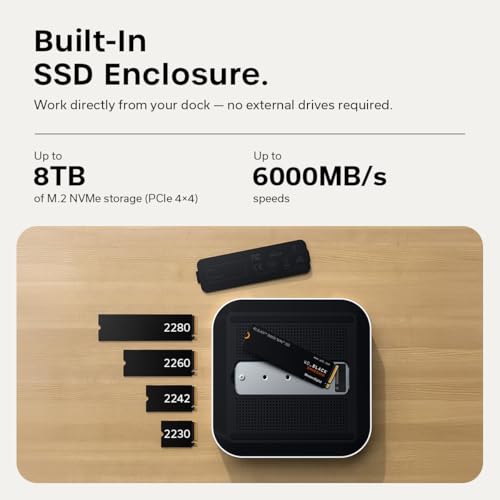
The Satechi Thunderbolt 5 CubeDock is the best standalone Thunderbolt 5 dock in this roundup — not a Mac mini-shaped stand, but a genuinely freestanding cube that turns any Thunderbolt 5 machine into a full workstation from a single cable. Multiple independent reviewers, including MacRumors, TechRadar, and 9to5Mac, confirm real-world NVMe speeds up to 6,000MB/s with a compatible drive installed. Best for anyone who wants a genuine multi-device, multi-display Thunderbolt 5 hub rather than a Mac mini-specific footprint match.
Quick Facts
- ⚡ Thunderbolt 5, up to 120Gbps — but that full figure is display-bandwidth only via “Bandwidth Boost,” not data transfer speed
- 💾 Built-in NVMe enclosure, up to 8TB — PCIe 4.0 x4, 2230/2242/2260/2280 sizes; up to 6,000MB/s confirmed across multiple independent reviews
- 🔋 140W host charging + 30W USB-C — sustains a 16-inch MacBook Pro M4 Max under peak load without draining battery, per Satechi’s documentation
- 🖥️ Display support varies by platform — up to triple 8K@60Hz on supported Windows systems; capped at dual 6K@60Hz on macOS (M3/M4/M5)
- 🌡️ Active cooling fan — TechRadar’s testing confirms it adds audible noise under sustained load, unlike Qwiizlab’s fanless design elsewhere in this roundup
- 📡 2.5GbE Ethernet, UHS-II SD/microSD reader — up to 312MB/s card reading
- ⚠️ No dedicated HDMI/DisplayPort output — confirmed by 9to5Mac; video runs through Thunderbolt/USB-C, requiring a separate adapter for HDMI-only monitors
- 📐 5″x5″x2″ (12.7×12.7×5.2cm), 589g — Mac mini-adjacent footprint but a genuinely standalone cube, not a stacking stand
- 📅 Warranty — 2-year Satechi coverage, SSD not included
Editor’s Note
The single most important technical nuance here is one that’s easy to misread from the marketing headline alone. Fixory’s detailed breakdown confirms the “120Gbps” figure is achieved only through an asymmetric mode called Bandwidth Boost, which dynamically shifts internal bandwidth toward the display pipeline specifically when the controller detects video-heavy workloads — in that mode, the display channel gets 120Gbps while the data receive lane contracts down to 40Gbps. Claiming the CubeDock transfers files at 120Gbps would be factually wrong. What actually matters for storage performance is the real, sustained PCIe throughput — and that’s the figure multiple independent outlets have now confirmed directly.
MacRumors, Satechi’s own official documentation, and independent hands-on testing from Adam Talks Tech and Dynasage all converge on the same real-world number: up to 6,000MB/s with a compatible NVMe SSD installed, tested using Blackmagic Disk Speed Test. That’s nearly double the ceiling any Thunderbolt 4 dock in this category can reach. Worth being precise about the host requirement too: Fixory’s testing confirms that on a Thunderbolt 4 host rather than genuine TB5, Intel’s PCIe data allocation hard-caps at 32Gbps, limiting real-world speeds to roughly 3,000–3,200MB/s regardless of what the SSD itself is rated for. That means the full 6,000MB/s ceiling is genuinely reserved for Mac mini M5 Pro, M4 Pro, or any other native Thunderbolt 5 host — the same Pro-tier requirement we’ve flagged for BEELINK EX elsewhere in this roundup.
9to5Mac’s hands-on review, running the CubeDock alongside an M5 MacBook Pro with a 40-inch 5K display, an external SSD, a webcam, and a USB-C speaker all connected simultaneously, reported everything running at full speed with zero bottlenecks — a genuine multi-device stress test, not a synthetic benchmark alone. Adam Talks Tech’s independent review adds an honest caveat worth repeating directly: even on Thunderbolt 5, bandwidth isn’t unlimited — running more displays and peripherals simultaneously can measurably reduce storage throughput, though even the reduced speeds remain fast enough for serious video editing and Time Machine backup workflows.
One real limitation confirmed independently by 9to5Mac: there’s no dedicated HDMI or DisplayPort output on the dock itself. Video runs entirely through Thunderbolt/USB-C, which works fine for Thunderbolt-equipped displays but means anyone with an HDMI-only monitor needs a separate high-powered USB-C to HDMI adapter to complete their setup — not a dealbreaker, but a real added step and cost worth planning for. macOS users specifically should also know the display ceiling is dual 6K@60Hz, not the triple 8K@60Hz Windows systems can reach — a chip-level limitation on Apple’s side, not something Satechi’s hardware can work around.
Pros
- Up to 6,000MB/s confirmed across multiple independent reviews — MacRumors, Satechi’s own documentation, Adam Talks Tech, and Dynasage all converge on this figure
- 140W host charging — sustains a 16-inch MacBook Pro M4 Max under peak CPU/GPU load without battery drain
- Genuine multi-device stress-tested performance — 9to5Mac ran an SSD, external SSD, webcam, speaker, and 5K display simultaneously with zero bottlenecks reported
- 2.5GbE Ethernet — genuinely faster wired networking than gigabit-standard competitors
- Standalone cube design — works as a true desk hub, not limited to sitting under a Mac mini specifically
- Backward compatible with TB4, USB4, TB3, and USB-C — broad host compatibility beyond just current Mac minis
Cons
- Full 6,000MB/s speed requires a genuine Thunderbolt 5 host — Thunderbolt 4 hosts are capped around 3,000–3,200MB/s per independent testing
- No dedicated HDMI/DisplayPort output — HDMI-only monitors need a separate adapter
- macOS capped at dual 6K@60Hz — a platform-level limitation, not something the hardware can bypass
- Active cooling fan adds audible noise under load — confirmed by TechRadar’s hands-on testing, unlike fanless alternatives elsewhere in this roundup
Does the CubeDock actually deliver 120Gbps for file transfers, or is that number misleading?
It’s misleading if read as a data transfer figure, and worth understanding precisely why. The 120Gbps ceiling is only reachable through Satechi’s “Bandwidth Boost” mode, which is specifically designed to prioritize display bandwidth, not storage throughput — when the controller detects a video-heavy workload, it reallocates internal bandwidth so the display channel gets up to 120Gbps while the data lane drops to 40Gbps. The real, sustained NVMe transfer speed independent reviewers have confirmed is up to 6,000MB/s — genuinely fast, and nearly double what any Thunderbolt 4 dock can achieve, but a fundamentally different number than the marketing headline implies.
How It Compares — Satechi CubeDock vs. BEELINK EX Mate Mini-A
Both docks, reviewed elsewhere in this roundup, are built around genuine Thunderbolt 5 bandwidth, but they solve different problems. BEELINK EX is Mac mini-shaped and specifically dual-bay, prioritizing maximum storage capacity (up to 16TB across two slots) at a lower price. Satechi CubeDock is a standalone cube with a single higher-speed NVMe slot (up to 6,000MB/s vs. BEELINK’s roughly half that on non-TB5 hosts), plus 140W laptop charging and broader multi-device stress-tested performance. For buyers who specifically want maximum raw storage capacity, BEELINK is the stronger pick; for buyers who want the fastest possible single-drive speed plus genuine laptop charging in one hub, Satechi’s CubeDock is the more capable — and more expensive — choice.
Why We Liked It
The CubeDock earns Best Standalone Thunderbolt 5 Dock by being the only product in this roundup that isn’t built around the Mac mini’s specific footprint at all — it’s a genuine, freestanding Thunderbolt 5 command center that happens to look right beside a Mac mini, tested and confirmed working with non-Mac Thunderbolt 5 hardware too. TechRadar specifically tested it on an Asus Prime-based machine fitted with a Thunderbolt 5 card, confirming this isn’t a Mac-exclusive product wearing Apple-adjacent styling.
I think the real story here is what 9to5Mac’s hands-on use actually demonstrated: a genuinely demanding real-world setup — NVMe storage, an external SSD, a webcam, a speaker, and a 5K display, all running simultaneously — with zero reported bottlenecks. That’s a meaningfully different kind of evidence than a synthetic lab benchmark, since it reflects the actual mixed workload most creative professionals run day to day, not an idealized single-task speed test. For a concrete example: a video editor working directly off the built-in NVMe drive while a second display shows a reference monitor and an external backup drive stays connected in the background gets exactly the kind of zero-compromise performance this dock was built to deliver.
Best For
Anyone with a genuine Thunderbolt 5 host — Mac mini M5 Pro, M4 Pro, or a Windows machine with a TB5 card — who wants the fastest single-drive NVMe speed in this roundup, real laptop charging, and a standalone multi-device hub rather than a Mac mini-specific stacking dock.
Satechi Thunderbolt 5 CubeDock
Summary
The Satechi CubeDock earns Best Standalone Thunderbolt 5 Dock through up to 6,000MB/s confirmed NVMe speed, 140W host charging, and genuine multi-device performance stress-tested by 9to5Mac with zero reported bottlenecks. The full speed ceiling requires a genuine Thunderbolt 5 host, there’s no dedicated HDMI output, and it’s the most expensive dock in this roundup. For anyone with real Thunderbolt 5 hardware who wants the fastest, most capable standalone hub available, this is the pick.
RayCue Mac Mini Dock — Best Budget

The RayCue Dock is the best budget dock for Mac mini owners, delivering NVMe and SATA M.2 storage, 4K@60Hz HDMI, and a genuinely wide port spread at the lowest price of any full-feature dock in this roundup. TechRadar’s own hands-on coverage confirms the core spec sheet directly, while a real user on Apple’s own Discussions forum independently reports it outperforming comparable docks. Best for Mac mini owners who need the fundamentals solved affordably, without paying for 40Gbps speed or premium brand pricing.
Quick Facts
- 💰 Lowest price of any full-feature dock in this roundup — the accessible entry point for Mac mini dock ownership
- 🔌 10-in-1 connectivity — HDMI 4K@60Hz, 10Gbps USB-A/C, 5Gbps USB-A×2, USB-C charging port, SD/TF, audio, NVMe/SATA enclosure
- 💾 NVMe AND SATA M.2 SSD support — up to 8TB, M.2 2280; TechRadar confirms 10Gbps for NVMe, 6Gbps for SATA drives
- 🧲 Tool-free magnetic SSD cover — RayCue’s own engineering documentation confirms quick, screwdriver-free installation
- 🌡️ Top-mounted cooling structure — CNC-machined aluminum shell with custom heat-dissipation fins, functional rather than purely aesthetic
- ⚠️ Odd design quirk, independently flagged — TechRadar specifically called out three separate card readers (one MicroSD, two SD) as a genuinely puzzling inclusion with unclear purpose
- 🔌 Rear USB-C charging port required for drive stability — connect this when running hard drives to prevent disconnects under load
- 📅 Warranty — 1-year RayCue coverage
Editor’s Note
TechRadar’s hands-on review confirms the RayCue delivers real, checkable specs rather than inflated marketing numbers — HDMI at genuine 4K@60Hz, both USB-A and USB-C running at 10Gbps for high-speed data, and an M.2 2280 slot supporting both NVMe (up to 10Gbps) and SATA III (up to 6Gbps) drives. That dual-protocol support matters specifically for anyone repurposing an older SATA M.2 drive from a previous laptop upgrade, rather than being forced into a new NVMe purchase alongside the dock itself.
One detail worth highlighting because it’s a genuinely unusual design choice, independently flagged by TechRadar’s own reviewer: the dock includes three separate memory card readers — one MicroSD and two full-size SD slots — a decision TechRadar’s own coverage describes as puzzling given that most users only need one card reader at a time. It doesn’t hurt functionality, but it’s an odd allocation of design real estate that other docks in this roundup don’t replicate.
Real-world validation beyond RayCue’s own claims comes from an unprompted comparison on Apple’s own Discussions forum, where one Mac mini owner specifically noted RayCue’s ports run faster than comparable docks, confirming stable performance with a WD NVMe drive installed and specifically citing the rear power input port as useful for additional stability under load — independent confirmation that lines up exactly with RayCue’s own stated recommendation to connect that port when running drives.
RayCue’s own engineering documentation is worth citing directly for the thermal design specifically: the CNC-machined aluminum shell and custom heat-dissipation fins aren’t purely cosmetic — RayCue states the top-mounted cooling structure is functional, silently guiding heat away to maintain stable operation under sustained load. Combined with the tool-free magnetic SSD cover, this is a budget dock that doesn’t cut corners on the physical engineering, even at its price point.
Worth knowing if you’re comparing options within RayCue’s own lineup: a 40Gbps version of this dock also exists, but its current review base and star rating are meaningfully weaker than this 10Gbps model’s — which is why this roundup covers the proven 10Gbps version specifically rather than the newer, less-validated faster tier.
Pros
- Lowest price of any full-feature dock in this roundup — the accessible entry point for NVMe dock ownership
- NVMe + SATA M.2 dual protocol support — flexibility that pricier 40Gbps competitors in this roundup don’t offer
- Confirmed by TechRadar’s independent hands-on review — real specs, not just manufacturer claims
- Tool-free magnetic SSD installation — genuinely faster setup than screw-based competitors
- Functional top-mounted cooling — RayCue’s own engineering documentation confirms active heat dissipation, not just an aesthetic vent
- Independent forum validation — a real Apple Discussions user reports faster ports than comparable docks, with stable NVMe performance
- 10Gbps USB-A and USB-C data ports — genuine high-speed connectivity alongside standard peripheral ports
Cons
- Requires rear USB-C power connection for drive stability — an added setup step and potential extra cost if you don’t already own a compatible power adapter
- Three card readers is an odd design choice — independently flagged by TechRadar as puzzling; most users will only ever use one at a time
- 10Gbps SSD ceiling — buyers who need video-editing-grade speed should look at ANYOYO, Qwiizlab, or BEELINK EX elsewhere in this roundup instead
- 1-year warranty — shorter than Satechi’s 2-year coverage
Do I really need a disk upgrade for my Mac mini, or is the base storage enough?
It depends entirely on your workload, but the math is worth doing honestly before spending money either way. If your Mac mini’s base storage is genuinely filling up with photo libraries, video projects, or large application installs, an external NVMe dock like this one solves that at a fraction of Apple’s own internal upgrade pricing — and RayCue’s dual NVMe/SATA support means you can even repurpose a drive you already own rather than buying new. If your storage use is mostly documents, browsers, and typical daily apps well under your current capacity, an upgrade won’t meaningfully change your day-to-day experience, and the money is better spent elsewhere. The signal to watch for is repeated “storage almost full” warnings or manually deleting files to make room — that’s the point where a dock and external SSD genuinely pays for itself.
How It Compares — RayCue vs. UGREEN
Both docks, reviewed elsewhere in this roundup, sit at a similar accessible price point with 10Gbps NVMe support, but the port priorities diverge. UGREEN maximizes raw USB port count at 11-in-1 with no display output at all; RayCue includes HDMI 4K@60Hz and dual-protocol NVMe/SATA support instead, trading some USB-A quantity for display capability and drive flexibility. For buyers who specifically need a display output built into the dock, RayCue wins; for buyers who’ve already got display covered and want maximum raw port count, UGREEN is the stronger fit.
Why We Liked It
RayCue earns Best Budget by delivering the fundamentals a Mac mini dock buyer actually needs — NVMe and SATA storage flexibility, real HDMI output, and genuine 10Gbps data ports — at the lowest price of any complete dock in this roundup, backed by both independent editorial testing and an unprompted real-user comparison against competing docks. I think the honest, if slightly quirky, engineering here — a tool-free magnetic SSD cover, functional rather than decorative cooling fins, dual-protocol drive support — signals a brand solving real problems rather than just hitting a price point with minimum-viable hardware.
For a concrete example: someone upgrading from an older laptop who still has a perfectly good SATA M.2 drive sitting in a drawer gets to actually use it here, rather than being forced into buying a new NVMe drive just because their dock only supports one protocol. Combined with genuine 4K@60Hz HDMI output and 10Gbps data speeds on both USB-A and USB-C, this is a dock that covers the core connectivity and storage needs most Mac mini owners actually have, without asking them to pay for 40Gbps headroom they may never use.
The power stability note is worth repeating practically: for daily document work, web browsing, and keyboard/mouse connectivity, the RayCue runs fine without the rear USB-C power connection. The connection becomes important specifically when an SSD is installed and active alongside other high-draw peripherals simultaneously. Buyers planning to use the SSD intensively alongside multiple USB-A drives should budget for a 5V USB-C power supply — a small additional cost that ensures reliable operation.
Best For
Mac mini owners on a budget who need core dock functionality — NVMe or SATA SSD expansion, HDMI output, and genuine 10Gbps USB ports — without paying for 40Gbps speeds or premium brand pricing.

RayCue Mac Mini Dock
Summary
RayCue earns Best Budget through NVMe and SATA M.2 dual-protocol support, genuine 4K@60Hz HDMI, and 10Gbps USB-A/C data ports — confirmed independently by TechRadar’s hands-on review and corroborated by real user experience on Apple’s own Discussions forum, all at the lowest price of any full-feature dock in this roundup. Requiring rear power for drive stability and an oddly redundant triple card-reader design are the honest quirks. For Mac mini owners who want the core dock essentials solved affordably, this is the pick.
Technical Comparison — Mac Mini Dock Stations (M6, M5 Pro & M4)
| Dock | NVMe Speed | HDMI | Chip/Protocol | USB Ports |
|---|---|---|---|---|
| Satechi Hub & Stand | 10Gbps (~966MB/s) | None | USB-C 10Gbps | 2× USB-A 10G + 1× USB-A 2.0 |
| RayCue Dock | 10Gbps NVMe / 6Gbps SATA | 1× 4K@60Hz | USB-C 10Gbps | 2× USB-A 10G + 2× USB-A 5G |
| BEELINK EX Mate Mini-A | 80Gbps (3,346MB/s on non-TB5 hosts; higher on Pro-tier hardware) | None | Thunderbolt 5 native | 2× USB-A 3.0 |
| Qwiizlab USB4 40Gbps | 40Gbps (~3,100MB/s confirmed) | None | ASM2464PD, USB4/TB4-class | 3× USB-A 2.0 |
| ANYOYO 40Gbps | 40Gbps (~2,500–3,000MB/s) | 2× 4K@60Hz | USB4 40Gbps | 4× USB-A 10G + 2× USB-A 2.0 |
| IVANKY 13-in-1 | 10Gbps | 1× 4K@144Hz | USB-C 10Gbps | 2× USB-A 10G + 3× USB-A 2.0 + 2× USB-C 10G |
| UGREEN Dock | 10Gbps (855MB/s confirmed) | None | USB-C, PCIe 3.0 x1 | 3× USB-A 10G + 2× USB-A 5G + 2× USB-C 10G |
| Satechi CubeDock | Up to 6,000MB/s (TB5 host) / ~3,000-3,200MB/s (TB4 host) | None (Thunderbolt/USB-C video only) | Thunderbolt 5 native, USB4 v2 | 10Gbps Type-A/C |
Tips for Apple Mac Mini M4 NVMe Docking Stations
Match your dock’s speed tier to your actual workload.
10Gbps is genuinely enough for daily productivity, backups, and photo libraries. 40Gbps matters for sustained video editing and large file transfers. Genuine Thunderbolt 5 — available on only two docks in this roundup — only delivers its full benefit on Pro-tier Mac mini hardware; pairing a 40Gbps dock with a Thunderbolt 5 port won’t make it faster.
Stick to Gen4 SSD Reliability
Gen5 SSDs may look tempting, but even the fastest Thunderbolt 5 docks in this roundup don’t fully utilize their theoretical ceiling. A solid Gen4 drive offers the best balance of performance, compatibility, and value across every dock tier here.
Use Certified Cables
Thunderbolt 5, Thunderbolt 4, and HDMI 2.1 ports deliver their full speed only with certified cables. A mismatched or generic cable is one of the most common causes of bottlenecked speeds, display flicker, or random disconnects — and it’s an easy thing to overlook when you already own a drawer full of USB-C cables.
Check Whether Your Dock’s M6/M5 Pro Compatibility Is Confirmed or Just Physically Likely
Some manufacturers in this roundup have already updated their listings to explicitly confirm M6 and M5 Pro support. Others haven’t gotten around to it yet, even though the dock works the same way. If manufacturer confirmation specifically matters to you, check the individual listing before assuming.
Keep Firmware Updated
Dock manufacturers and SSD vendors release firmware updates that improve compatibility and stability, particularly as new Mac mini chip generations roll out. Check periodically to ensure your hardware runs at peak performance.
Optimize macOS Storage Settings
Enable “Optimize Mac Storage” in macOS preferences to balance internal and external SSD usage, so your docked NVMe drive integrates smoothly into your workflow without cluttering your main drive.
Expert Tip from Review Editor
Pair your dock with a well-reviewed Gen4 NVMe SSD and invest the savings from skipping Gen5 into higher capacity — 4TB or 8TB — instead. You’ll notice the difference in daily workflow far more than chasing theoretical speeds your dock and host combination can’t fully use anyway.
FAQ for Apple Mac Mini M4 NVMe Docking Stations
Can I install macOS onto an NVMe SSD in a dock?
Yes. macOS can be installed and booted from an external NVMe SSD connected via a Thunderbolt or USB4 dock, on any current Mac mini — M6, M5 Pro, M4 Pro, or M4. Many owners do this to expand storage or improve performance without paying for Apple’s internal upgrade pricing. The process involves formatting the external SSD with APFS, creating a macOS installer, and selecting the external drive during installation. Performance is excellent, though it can still be marginally slower than Apple’s internal SSD due to interface bandwidth limits, even on a Thunderbolt 5 dock.
Which is better — the internal Apple SSD or an NVMe SSD in an external dock?
Apple’s internal SSDs are extremely fast and tightly integrated with macOS, but they’re expensive and not user-upgradeable after purchase. An NVMe SSD in a dock offers far more affordable expansion and flexibility. For everyday workflows, a Gen4 NVMe drive in a 40Gbps or Thunderbolt 5 dock delivers excellent speed — genuinely close to Apple’s internal performance for most real-world tasks.
Is there a performance difference between internal Apple SSDs and docked NVMe SSDs?
Yes, though the gap has narrowed significantly with Thunderbolt 5. Internal Apple SSDs still achieve slightly higher sustained speeds thanks to direct board integration, and 10Gbps docks trail noticeably behind. But a genuine Thunderbolt 5 dock on a Pro-tier Mac mini (M5 Pro or M4 Pro) can reach up to 6,000MB/s — close enough to internal storage performance that the difference becomes negligible for all but the most demanding workflows.
What’s the difference between a 10Gbps, 40Gbps, and Thunderbolt 5 dock?
10Gbps docks deliver roughly 850–966MB/s in real-world use — genuinely enough for backups, document storage, and everyday office work. 40Gbps docks (USB4-class) reach approximately 2,500–3,100MB/s, the territory where video editing and large file transfers become meaningfully faster. Genuine Thunderbolt 5 docks — a smaller category that only two docks in this roundup belong to — can reach up to 6,000MB/s, but only on Pro-tier Mac mini hardware with a native TB5 port. Connecting a 40Gbps dock to a Thunderbolt 5 port doesn’t boost its speed; the dock’s own chip still caps the ceiling regardless of the host port’s capability.
Do all Mac mini docks support the new M6 and M5 Pro models?
Physically, yes in almost every case — the Mac mini’s external footprint hasn’t changed, and USB4/Thunderbolt is a hardware standard rather than a chip-specific certification. That said, not every manufacturer has updated their Amazon listing to explicitly name M6 or M5 Pro yet, even when the dock functions identically. Several docks in this roundup have already confirmed compatibility directly in their listings; others simply haven’t caught up on paperwork yet, which is a seller oversight rather than a real functional gap.
How do prices compare between Apple’s internal SSD upgrades and NVMe SSDs with a dock?
Apple’s internal upgrades remain dramatically more expensive — often several times the cost of a quality dock plus a high-capacity NVMe SSD combined. Upgrading to 8TB internally can run into the thousands, while pairing a 40Gbps dock with an 8TB Gen4 NVMe SSD costs a fraction of that.
Can I use my Mac mini dock with another Mac?
Yes. Most Thunderbolt 4, USB4, and Thunderbolt 5 docks are cross-compatible with other Macs and many PCs. You can move a dock between devices, though actual performance will vary depending on the host system’s own Thunderbolt implementation and generation.
Do I need a Thunderbolt 5 or Gen5 NVMe SSD for my Mac mini dock?
Only if you’re specifically running a Pro-tier Mac mini (M5 Pro or M4 Pro) paired with a genuine Thunderbolt 5 dock, and even then, a reliable Gen4 SSD remains the best balance of performance, compatibility, and price for the vast majority of buyers. Current 10Gbps and 40Gbps docks — the majority of this roundup — don’t utilize Gen5 speeds at all. If you want more real-world impact from your budget, put the savings toward higher capacity rather than chasing unused speed headroom.
How We Selected These Products
We recommend these items based on a thorough research process designed to highlight the best options available. While we did not physically test some products ourselves, we relied on detailed research and verified customer feedback to evaluate them.
- Detailed Research: We reviewed product specifications, manufacturer information, and feature lists to understand what each item offers.
- Customer Insights: We analyzed verified buyer reviews and ratings to learn how these products perform in real-world use.
- Comparison Factors: We compared products across price, durability, usability, and unique features to identify the strongest choices.
- Personal Experience: With over 25 years of working in internet-related technologies and following online trends since 1995, I bring a deep understanding of how products are marketed, evaluated, and used. This background helps me filter out hype and focus on what truly matters for everyday users.
- Balanced Evaluation: Our goal is to provide clear, unbiased information so you can make confident purchasing decisions.
See also How We Review Products section for more details on our process.
Written by Metin Karal
Metin Karal is a Computer Engineer with over 25 years of experience working with internet technologies, trends, and digital tools since 1995. He brings this deep background into his product reviews, combining technical expertise with careful research to deliver honest, practical insights for readers. Passionate about technology, Metin also enjoys programming in C# and is currently developing PairMem, a challenging memory game available for free on the official Microsoft Store.



Very good reviews! What I needed. Still undecided, tho. Getting a new Mini Mac M4 whenever they (Apple) get the guts (stuff inside) to build it and send to me…but I am divorcing Windows and Microsoft for the rest of my life – good riddance! (The Mac is probably here in August +/-.) Reading reviews like these…and scouring Amazon and Newegg &c. in order to get smart. Got 24GB memory and a 512TB SSD coming in my Mini. Have an empty (unused from my current Win11 PC) Samsung 2TB 990 Pro to put in some brand of dock or hub or enclosure – plan to set up as home drive and keep only MacOS on the Mini’s SSD. Have jiggabytes of old pictures, much music 9left over from old iTunes and iPod days and lots and lots of CDs transcribed to iTunes)…much in Word documents, Excel files and saved PDFs, and such. Thus my need for some sort of M.2 NVMe enclosure. Have had also cheap 2.1 logi speakers for years and so would ‘like’ a rear mounted speaker jack. Have a (as good as I need) 32 inch LG QHD monitor I am repurposing to the new Mac and I have always used the DP port for video. I guess I could just use an HDMI cable, but I’ve been looking for DP port on whatever hub or docking station I select – also rear mounted. And more. Anyway, I find that mostly none of these manufacturers listed above have a ‘one-item solution’ I can get at a good price, so I am looking still. Thanks for this wonderful review, Metin. It was sure helpful. Ciao. 🙂
Hi,
Hice to hear that 🙂
You don’t have to use HDMI for connecting displays. Some of Mac Mini Docs (like ACASIS) have DP ports and Some others have extra speaker jacks also.
Sincerely.